Dots (DPI) Calculator
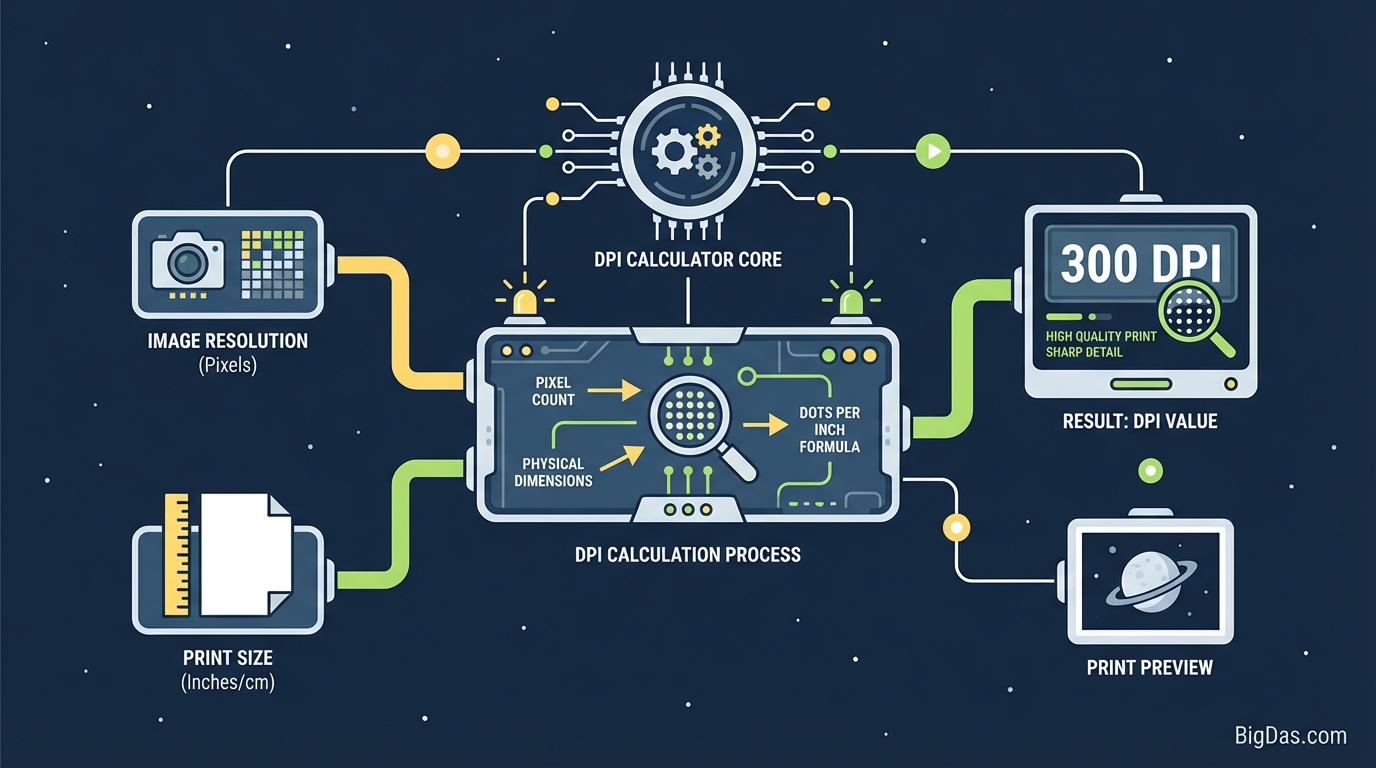 Modern scientific illustration of Dots (DPI) Calculator
Master Your Print Quality: The Ultimate Dots (DPI) Calculator & Resolution Guide
Nothing is more heartbreaking for a creative professional or a photography enthusiast than seeing a stunning digital image turn into a blurry, pixelated mess when printed. You’ve spent hours perfecting the color grading, the composition is flawless, and it looks sharp on your 4K monitor. Yet, the physical print looks "off."
The culprit? Resolution mismatch.
Navigating the mathematical gap between digital pixels and physical inches is a challenge that has plagued designers since the dawn of digital printing. How many pixels do you need for an A4 flyer? Is 72 DPI enough for a billboard? How large can you print that iPhone photo before it degrades?
Enter the Dots (DPI) Calculator. This isn't just a utility; it is the bridge between your screen and the physical world. Whether you are preparing a large-format banner, a fine art giclée print, or a simple business card, our best-in-class tool ensures your output is crisp, professional, and mathematically perfect every single time.
In this guide, we will deep-dive into the mechanics of resolution, explain why this tool is essential for your workflow, and show you exactly how to banish blurry prints forever.
What is the Dots (DPI) Calculator?
At its core, the Dots (DPI) Calculator is a precision instrument designed to convert digital dimensions (pixels) into physical dimensions (inches or centimeters) based on pixel density, and vice versa.
To understand the tool, we must first clarify the terminology that often confuses even seasoned professionals:
DPI vs. PPI: The Technical Distinction
While often used interchangeably, there is a nuance:
- PPI (Pixels Per Inch): This refers to the input resolution—the number of digital pixels contained within one inch of a digital screen or image file.
- DPI (Dots Per Inch): This refers to the output resolution—the number of ink dots a printer places within one inch of paper.
However, in the context of digital file preparation, the industry standard term "DPI" is almost universally used to describe the resolution density required for the file. Our tool handles the math for both scenarios, treating them as the density variable required to achieve a specific size.
The Math Behind the Magic
The calculator solves the "Resolution Triangle" instantly. The formula used manually would look like this:
$$ \text{Width (Pixels)} = \text{Width (Inches)} \times \text{DPI} $$
Or, if you are trying to find out how big you can print:
$$ \text{Width (Inches)} = \frac{\text{Width (Pixels)}}{\text{DPI}} $$
Doing this math manually for every image, cropping variation, and print format is prone to human error. Our Dots (DPI) Calculator automates this, ensuring 100% accuracy for print-ready files.
Key Features & Benefits of Our Tool
Why is our Dots (DPI) Calculator considered the gold standard for web-based resolution tools? It goes beyond simple multiplication. Here is why professionals bookmark this page:
1. Bidirectional Calculation
Most calculators only work one way. Ours is fully dynamic.
- Pixels to Print Size: Input your image dimensions (e.g., 4000 x 3000 px) and desired quality (e.g., 300 DPI) to see exactly how large the print will be.
- Print Size to Pixels: Input your required physical size (e.g., 8.5 x 11 inches) and target DPI to discover exactly what pixel dimensions your canvas needs to be in Photoshop or Illustrator.
2. Instant Standard Presets
Don't know the exact dimensions of an A3 sheet or a standard business card? We include a library of standard print sizes (ISO standards, US Letter, Poster sizes) to speed up your workflow.
3. Visual Quality Estimator
Our tool doesn't just give you numbers; it advises on quality. If you input dimensions that result in a low DPI (e.g., 72), the tool alerts you that the print may be suitable for screens but not for high-quality photo paper.
4. Zero Latency
Calculations happen in real-time. There is no "submit" button to reload the page. As you type, the results update, allowing you to tweak variables and see immediate impacts on your resolution requirements.
Step-by-Step Guide: How to Use the DPI Calculator
Getting the most out of this tool is simple. Follow these steps depending on your current need.
Scenario A: "I have an image. How big can I print it?"
You have a photo from your DSLR or a stock image, and you want to know the maximum print size before it loses quality.
- Locate Pixel Dimensions: Right-click your image file on your computer and select "Properties" (Windows) or "Get Info" (Mac) to find the width and height in pixels (e.g., 6000 x 4000 px).
- Input Pixels: Enter these numbers into the Pixel Width and Pixel Height fields in the calculator.
- Set Target DPI: Enter your desired DPI.
- Use 300 for high-quality brochures, magazines, or photos.
- Use 150 for newspapers or large posters viewed from a few feet away.
- Use 72 for screen-only use.
- View Results: The calculator will immediately display the Maximum Print Size (e.g., 20 x 13.3 inches). This is the largest you can print without pixelation.
Scenario B: "I need to design a poster. How big should my canvas be?"
You are starting a design project in Canva, Photoshop, or InDesign, and the client requires a 24" x 36" poster.
- Select "Calculate Pixels": Switch the tool mode to output pixels.
- Input Physical Dimensions: Enter 24 for width and 36 for height (ensure "Inches" is selected).
- Set Target DPI: For a poster of this size, 300 DPI is standard for sharp text, though 150 DPI may pass for simple imagery. Let's aim for quality and use 300.
- Get Dimensions: The calculator will reveal that your canvas needs to be 7200 x 10800 pixels. Set your design software to these dimensions immediately to avoid resizing issues later.
Why You Need This Tool: Critical Use Cases
Resolution isn't just a technicality; it's a measure of professionalism. Here is how different industries rely on the Dots (DPI) Calculator:
1. Print-on-Demand (POD) Sellers
If you sell art on Etsy, Redbubble, or Printful, you are strictly bound by resolution requirements. If you upload a file that is too small for a T-shirt or Duvet Cover, the platform will reject it—or worse, print it blurry, leading to returns and bad reviews. This tool ensures your source files meet the exact specs of the POD provider.
2. Graphic Designers & Marketers
Clients often send low-resolution logos (images embedded in Word docs or email footers) and ask for them to be put on a billboard. You can use this calculator to mathematically prove to a client why their 500px wide logo cannot be printed on a 10-foot banner, helping you advocate for vector files or high-res photography.
3. Photographers
When preparing files for a gallery exhibition, you need to know if your crop is too aggressive. If you crop a 24MP image down to 10% of its size, can you still print an 8x10? This calculator gives you the definitive yes or no instantly.
4. Web Developers & UX Designers
While usually focused on 72 PPI (standard screens), the rise of Retina and 4K displays requires "2x" or "3x" assets. You can use the calculator to determine the pixel density required to ensure icons look razor-sharp on the latest iPhone or MacBook Pro displays.
Expert Advice: Getting the Most Out of Your Resolution
To truly leverage the power of the Dots (DPI) Calculator, keep these three expert tips in mind:
The "Viewing Distance" Factor
Not every print needs to be 300 DPI. Resolution is relative to viewing distance.
- Handheld (Books, Flyers): Requires 300 DPI. The eye is close to the paper.
- Posters: Viewed from 3-5 feet away. 150-200 DPI is often sufficient.
- Billboards: Viewed from 50+ feet away. You can often get away with 20 to 50 DPI. Using the calculator to realize you don't need a 300,000-pixel wide file for a billboard will save you massive amounts of processing power and rendering time.
Resampling vs. Resizing
If the calculator tells you your image is too small (e.g., 72 DPI at the desired print size), simply changing the number to "300" in Photoshop will not fix the quality. This is called "upsampling." The computer invents pixels that don't exist, resulting in a soft, muddy image. Always start with the highest resolution source file possible.
The "Bleed" Buffer
When calculating pixel dimensions for a full-bleed print (where the ink goes to the edge of the paper), always add 0.125 to 0.25 inches to your physical dimensions input. This ensures you calculate enough pixels to cover the trim area.
Frequently Asked Questions (FAQ)
1. Is 300 DPI always required for printing?
300 DPI is the industry standard for high-quality offset and digital printing (magazines, business cards, brochures). However, for large formats like canvas wraps or banners, 150 DPI is often acceptable. For fine art archival prints, some printers prefer 600 DPI.
2. Can I use this tool to change the DPI of my image?
No. This tool is a calculator, not an image editor. It tells you the math. To actually change the metadata or dimensions of the file, you need image editing software like Adobe Photoshop, Lightroom, GIMP, or an online resizer.
3. My image is 72 DPI but the dimensions are huge (e.g., 50 inches). Is it high quality?
It might be! DPI and Physical Size are linked like a seesaw. If you have an image that is 50 inches wide at 72 DPI, you can "trade" size for resolution. Using our calculator, you'll see that if you want to print that same image at 300 DPI, the print size drops to roughly 12 inches wide. The total amount of pixels is what matters most.
4. How do I convert centimeters to pixels?
Our calculator supports multiple units of measurement. Simply toggle the dropdown menu from "Inches" to "Centimeters" (cm) or "Millimeters" (mm), and the tool will automatically adjust the formula for metric conversions.
5. Why do my web images look small when I print them?
Screens usually display images at 72 or 96 PPI. Printers require 300 DPI. This means a printer needs roughly 4x more data per inch than a screen. An image that fills your computer monitor might only be size of a postage stamp when printed at professional quality.
Conclusion
In the visual world, precision is the difference between an amateur attempt and a professional masterpiece. Guesswork leads to blurry banners, fuzzy photos, and wasted printing budgets.
The Dots (DPI) Calculator eliminates the guesswork. It empowers you to plan your projects with mathematical certainty, ensuring that every pixel you design translates perfectly to the paper. Whether you are resizing a family photo for a frame or setting up a massive marketing campaign, this tool is your reliable partner in print production.
Ready to get the perfect print? Scroll up, input your dimensions, and calculate your resolution instantly!