Case Converter
The Ultimate Case Converter Tool: Transform Your Text Instantly
We have all been there. You are halfway through typing an important email, a line of code, or a blog post headline, only to look up and realize you left the Caps Lock key on. The result? A screaming block of text that looks unprofessional and aggressive.
In the past, the only solution was to delete everything and retype it manually. It was tedious, time-consuming, and prone to new typos.
Enter the Case Converter.
This tool is more than just a quick fix for accidental Caps Lock; it is an essential utility for writers, developers, data analysts, and marketers who demand typographical perfection. Whether you need to normalize a messy list of names into proper Case, convert a headline into SEO-friendly Title Case, or strip formatting for a clean lowercase look, our Case Converter is the best-in-class solution designed to streamline your workflow.
In this guide, we will explore exactly how this tool works, why text casing matters for SEO and readability, and how you can save hours of manual editing with a single click.
What is a Case Converter?
At its core, a Case Converter is a text transformation tool. It takes an input string of text—whether it is a single word, a sentence, or a ten-page document—and mathematically alters the character codes to fit a specific grammatical or stylistic format.
While text editors like Microsoft Word have basic conversion features buried in menus, a dedicated web-based Case Converter offers instant, accessible, and platform-agnostic formatting. You don’t need to install software; you simply paste, click, and copy.
The Four Primary Modes Explained
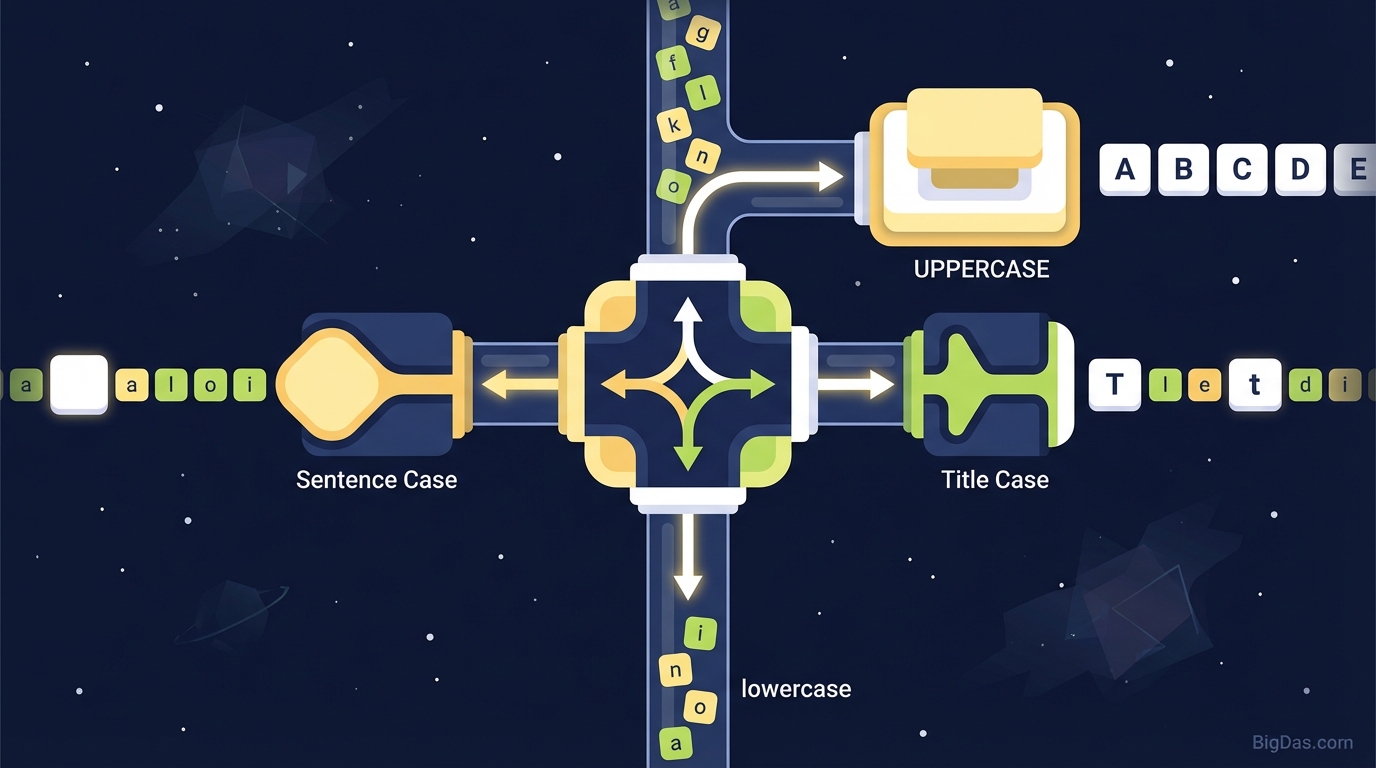
Our tool specializes in the four most critical text transformations:
- UPPERCASE: Converts every letter to its capital form. This is often used for acronyms, legal disclaimers, or emphatic warnings.
- Example:
THIS IS UPPERCASE TEXT.
- Example:
- lowercase: Converts every letter to its small form. This is essential for coding variables, email addresses, or specific stylistic choices (like poetry or minimalism).
- Example:
this is lowercase text.
- Example:
- Sentence case: Capitalizes the first letter of the first word and leaves the rest lowercase (unless they are proper nouns). This is the standard grammatical format for prose, emails, and documentation.
- Example:
This is sentence case text.
- Example:
- Title Case: Capitalizes the first letter of major words while leaving minor words (articles, conjunctions, prepositions) lowercase. This is the gold standard for blog headers, book titles, and news headlines.
- Example:
This Is Title Case Text.
- Example:
Key Features & Benefits
Why is our Case Converter considered the best in class? Because we prioritize accuracy, speed, and privacy. Here is why thousands of users rely on this tool daily:
1. Smart Title Casing
Most basic converters simply capitalize the first letter of every word. Our algorithm is smarter. It understands context. It knows that words like "a," "an," "the," "in," and "on" should generally remain lowercase in titles (unless they start the sentence). This ensures your headlines adhere to professional style guides like AP or Chicago Manual of Style automatically.
2. Instant Data Normalization
If you work with Excel or databases, you often import data that is messy. You might have a list of client names where some are "JOHN SMITH" and others are "jane doe." Our tool normalizes this data instantly, allowing you to convert the entire list to Title Case for consistency.
3. Client-Side Privacy
Security is paramount. Unlike other tools that send your text to a remote server for processing, our Case Converter operates entirely within your browser. Your text never leaves your device. This makes it safe to use for sensitive internal documents or private correspondence.
4. Zero Formatting Residue
When you copy text from a PDF or a website, it often carries unwanted bolding, italics, or fonts. Running it through our Case Converter strips the rich text formatting, leaving you with clean, plain text ready for use anywhere.
Step-by-Step Guide: How to Use the Case Converter
Using this tool is intuitive, but following these steps ensures you get the perfect result every time.
Step 1: Input Your Text
Copy the text you want to convert from your source document. Paste it into the large input box on the Case Converter page. There is no limit—paste a single sentence or a whole essay.
Step 2: Choose Your Case
Locate the control buttons. Click the button corresponding to your desired output:
- UPPER CASE
- lower case
- Sentence case
- Title Case
Pro Tip: You can toggle between them to preview how your text looks in different styles before finalizing.
Step 3: Copy and Export
Once the text transforms (which happens instantly), click the "Copy to Clipboard" button. Navigate back to your document, email, or CMS and paste the clean, formatted text.
Why You Need This Tool: Critical Use Cases
You might think, "Can't I just retype it?" Sure, for a three-word phrase. But for professionals, time is money. Here is how different industries utilize the Case Converter to boost productivity.
1. SEO Specialists and Content Marketers
The Problem: Google pays attention to Click-Through Rates (CTR). Titles that are formatted incorrectly (e.g., all lowercase) look unprofessional and get fewer clicks. The Solution: Use Title Case for all H1s, H2s, and Meta Titles. It establishes authority and improves readability. Our tool ensures you don’t accidentally capitalize prepositions, keeping your headings grammatically perfect.
2. Software Developers and Coders
The Problem: Programming languages are case-sensitive. Writing SQL queries often requires UPPERCASE for commands (SELECT * FROM), while naming variables might require lowercase.
The Solution: Developers use the tool to batch-convert comments into Sentence case or standardise constants into UPPERCASE without rewriting code blocks manually.
3. Social Media Managers
The Problem: Social media is about grabbing attention. Sometimes a tweet needs the visual impact of UPPERCASE to stop the scroll. Other times, an aesthetic Instagram caption looks better in all lowercase. The Solution: Rapidly test different visual styles to see which one resonates best with your audience before posting.
4. Academics and Students
The Problem: Bibliographies and citations are strict. If you copy a citation that is in ALL CAPS, you risk getting docked points for formatting errors. The Solution: Paste the messy citation into the tool, hit Sentence case or Title Case (depending on the style guide), and fix your bibliography in seconds.
5. Email Professionals
The Problem: Sending an email in ALL CAPS is the digital equivalent of shouting. It is rude and aggressive. Conversely, sending a business proposal in all lowercase looks lazy and uneducated. The Solution: If you accidentally typed a draft with Caps Lock on, convert it to Sentence case instantly to restore professionalism.
How to Get the Most Out of the Case Converter
To truly leverage the power of this tool, consider these advanced tips for your workflow:
- Cleaning OCR Text: If you scan a document using Optical Character Recognition (OCR), the software often misinterprets capitalization. Run the scanned text through Sentence case to fix random capital letters in the middle of sentences.
- The "Reset" Technique: If you have text with erratic capitalization (e.g., "ThIs iS MeSSy TeXt"), convert it to lowercase first to wipe the slate clean, then convert it to Sentence case. This acts as a hard reset for formatting.
- Keyword Prominence: When writing PPC ads (Google Ads), utilizing Title Case for the headline significantly increases visibility. Run your ad copy through the tool to ensure every major word pops.
Frequently Asked Questions (FAQ)
1. Is this Case Converter tool free to use?
Yes, this tool is 100% free. You can perform unlimited conversions without creating an account or paying a subscription fee.
2. Does converting text affect my punctuation?
No. The Case Converter only alters the capitalization of letters. Periods, commas, apostrophes, and other punctuation marks remain exactly where you placed them.
3. Can I convert text from a PDF?
Yes. Simply copy the text from the PDF file, paste it into the tool, convert it, and copy it out. This is actually a great way to fix the formatting issues that often occur when copying from PDF files.
4. What is the difference between Title Case and Sentence case?
Title Case capitalizes the first letter of most words (e.g., The Quick Brown Fox). Sentence case only capitalizes the very first letter of the sentence and proper nouns (e.g., The quick brown fox). Use Title Case for headers; use Sentence case for body text.
5. Is my data secure?
Absolutely. As mentioned, our tool processes text in your browser. We do not store, record, or transmit your text to any external servers.
Conclusion
Typing errors happen, but they shouldn't slow you down. Whether you are fixing a "Caps Lock accident," formatting a blog post for SEO dominance, or cleaning up a messy database, the Case Converter is your secret weapon for typographical consistency.
Stop wasting time hitting the backspace key. enhance your writing quality and speed up your workflow today.