Create PDF
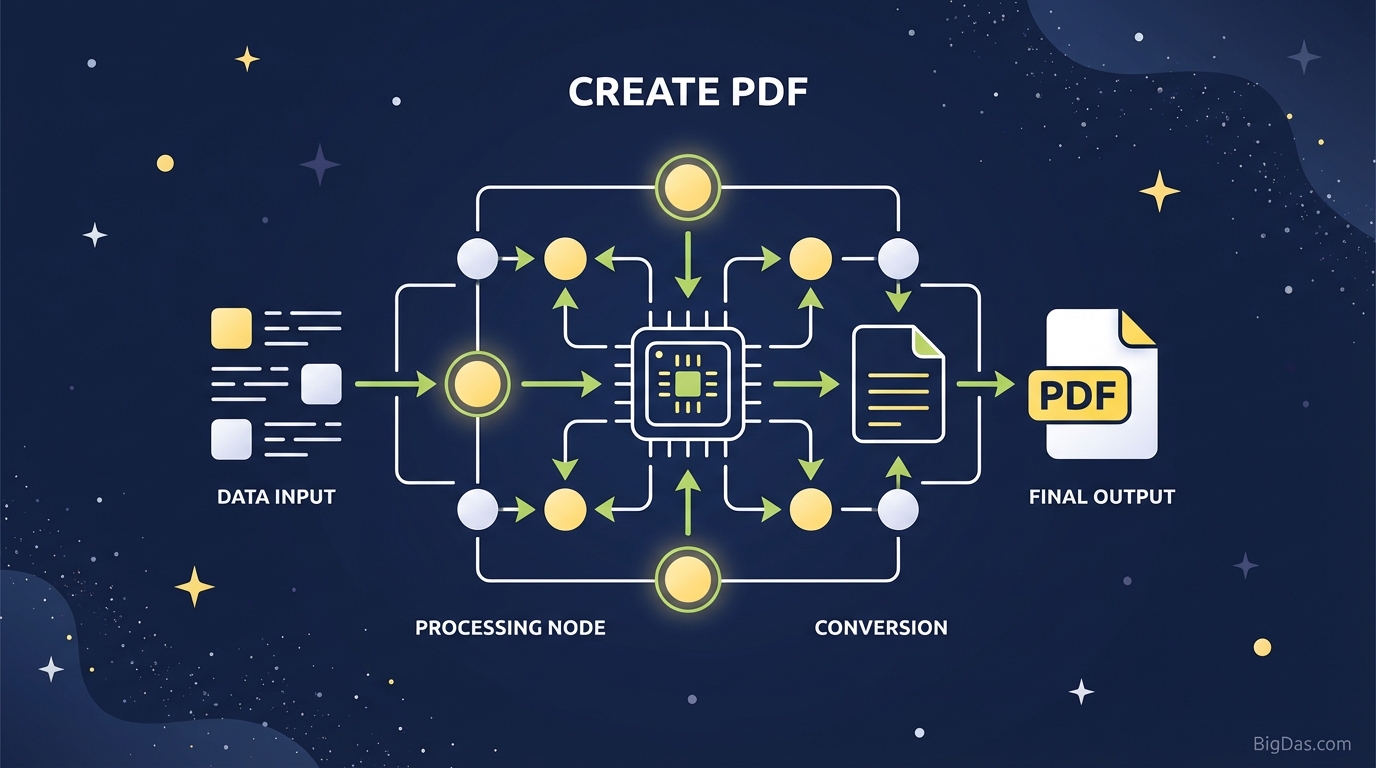 Modern scientific illustration of Create PDF
Master the Art of Digital Documentation: How to Create Professional PDFs from Scratch
In the modern digital landscape, the Portable Document Format (PDF) is the undisputed king of file sharing. It is universally compatible, secure, and preserves formatting regardless of the device or operating system used to view it. However, a common misconception persists: most users believe that to get a PDF, you must first create a document in a word processor (like Microsoft Word or Google Docs) and then convert it.
But what if you could skip the middleman?
What if you could design, write, and format a document directly in the final environment, ensuring 100% accuracy from the very first keystroke?
Enter the Create PDF tool. This isn’t just a converter; it is a powerhouse editor designed to help you build brand-new PDF documents from a blank slate. Whether you are drafting a contract, designing an invoice, or compiling a digital portfolio, learning how to create a PDF from scratch is a skill that will save you time and elevate your professional presentation.
In this guide, we will deep dive into the Create PDF tool, exploring why direct creation beats conversion, and providing a step-by-step masterclass on using the industry's best-in-class editor.
What is the "Create PDF" Tool?
The Create PDF tool is a sophisticated, browser-based (or software-based) editor that allows users to generate PDF files without relying on third-party software like Word, Excel, or PowerPoint.
Think of it as a canvas that speaks the native language of printers and digital displays. When you use standard word processors, you are working in a fluid format. When you hit "Save as PDF," the software attempts to translate that fluid layout into a fixed layout. This translation is where the nightmares happen: fonts break, images shift, and margins disappear.
Create PDF eliminates this translation error. It offers a What You See Is What You Get (WYSIWYG) interface specifically engineered for the PDF format. It combines the text-editing capabilities of a word processor with the layout precision of graphic design software, all wrapped in an intuitive interface accessible to anyone.
The "Direct-to-PDF" Advantage
Why does this matter? Because formatting integrity is credibility. Sending a client a proposal where the text is misaligned looks amateurish. Creating the document directly in a PDF editor ensures that the pixel you place on the screen is exactly where it will stay, forever.
Key Features & Benefits
Why is our Create PDF tool considered the best in class? It goes beyond simple text entry. It provides a robust suite of features designed for professional workflow optimization.
1. Intuitive Drag-and-Drop Interface
You don't need to be a graphic designer to produce stunning documents. The interface is designed for usability, allowing you to drag text blocks, images, and elements exactly where you want them.
2. Advanced Typography and Formatting
Standard converters often default to basic fonts. The Create PDF tool offers a rich library of fonts and advanced styling options (kerning, line spacing, paragraph control) to ensure your document matches your brand identity perfectly.
3. Rich Media Integration
PDFs are no longer just static text. With this tool, you can embed high-resolution images, clickable hyperlinks, and even interactive elements like checkboxes or form fields directly during the creation process.
4. Universal Compatibility
Because you are building the file in its native architecture, the resulting file is ISO-compliant. This means it will open perfectly on a Mac, PC, iPhone, Android, or Linux machine without a single pixel out of place.
5. Instant Security
Working on sensitive data? The Create PDF tool allows you to set permissions, add watermarks, and encrypt the file with passwords as you create it, rather than as an afterthought.
Step-by-Step Guide: How to Create a PDF from Scratch
Ready to leave conversion errors behind? Follow this guide to build a professional-grade document using the Create PDF tool.
Step 1: Launch and Define Your Canvas
Open the Create PDF tool. Before writing a single word, define the parameters of your document.
- Select Page Size: Choose standard formats (A4, Letter, Legal) or define custom dimensions for unique projects like flyers or business cards.
- Orientation: Choose Portrait for reports or Landscape for presentations.
- Margins: Set your margins early to ensure a clean, printable layout.
Step 2: Structure Your Layout
A great PDF starts with structure.
- Insert Header/Footer: Add page numbers, dates, or your company logo to the header and footer sections. This ensures consistency across multi-page documents.
- Grid Lines: Toggle on the "Grid" or "Ruler" view to help align elements symmetrically.
Step 3: Add and Format Text
Click the "Text" tool and click anywhere on the page to begin typing.
- Text Blocks: unlike a word processor where text flows continuously, the Create PDF tool uses text blocks. This allows you to place a paragraph on the left and a sidebar on the right without fighting with automatic formatting.
- Styling: Use the toolbar to adjust font size, color, and weight. Use Bold for emphasis and H1/H2 tags for hierarchy.
Step 4: Integrate Visuals
A wall of text is intimidating. Break it up with visuals.
- Insert Images: Upload PNG or JPG files. Resize them by dragging the corners.
- Shapes and Lines: Use the shapes tool to create separators, call-out boxes, or background nuances to highlight key information.
Step 5: Final Review and Save
Because you are editing a PDF directly, you don't need to "Export" or "Convert."
- Preview: Switch to "View Mode" to see exactly how the recipient will see the file.
- Save: Click save to download your brand-new, polished PDF file to your device or cloud storage.
Why You Need This Tool: Top Use Cases
Who benefits most from creating PDFs from scratch? Almost everyone, but here are specific scenarios where this tool is indispensable.
1. Business Proposals and Contracts
When money is on the line, presentation matters. A contract created directly as a PDF ensures that clauses cannot be accidentally deleted or shifted by the recipient. You can also embed fillable signature fields immediately.
2. Academic Assignments and Theses
Students and researchers often deal with complex formatting requirements (footnotes, bibliographies, charts). Creating these in a PDF editor prevents the dreaded "it looked fine on my computer" excuse when submitting work to professors.
3. Brand Invoices and Receipts
Freelancers and small businesses need invoices that look professional. Using the Create PDF tool, you can build a template with your logo and payment terms that looks much better than an auto-generated Excel sheet.
4. Creative Portfolios
Designers, writers, and photographers need to showcase their work. A PDF portfolio allows you to control the narrative flow and layout of your images, ensuring the viewer sees your work exactly as intended.
Expert Advice: Getting the Most Out of the Tool
As technical copywriters, we have tested dozens of editors. Here is how to maximize the potential of the Create PDF tool:
- Mind Your File Size: High-resolution images look great, but they make for heavy attachments. Use the tool’s built-in image optimization features to balance quality with file size, ensuring your email attachments don't bounce.
- Use Hyperlinks Wisely: If your PDF is longer than 5 pages, create a Table of Contents. Use the "Link" feature to make the TOC clickable, jumping the reader directly to the relevant section. This improves User Experience (UX) drastically.
- Stick to Standard Fonts: While the tool allows custom fonts, sticking to standard families (Helvetica, Arial, Times, Roboto) ensures that the text remains readable even on older devices that might not render custom scripts correctly.
- Leverage "Duplicate Page": If you are creating a report with a consistent layout, design one page perfectly, then use the "Duplicate" function. This saves time and ensures consistent margins and element placement throughout the document.
Frequently Asked Questions (FAQ)
1. Is creating a PDF different from converting Word to PDF?
Yes. When you convert, you are relying on software to translate one set of coding rules (Word) to another (PDF), which often results in formatting errors. Creating a PDF builds the document using PDF architecture from the start, ensuring 100% layout accuracy.
2. Can I edit the PDF later?
Yes! If you save your file within our ecosystem or keep the source file, you can return to the editor to make changes. However, if you send the flattened PDF to someone else, they will need a PDF editor to modify it, which preserves your document's security.
3. Is the Create PDF tool mobile-friendly?
Our tool is optimized for modern browsers, meaning you can create and edit documents on tablets and smartphones. However, for complex layout designs, we recommend using a desktop for the best precision.
4. Is my data secure when using the online editor?
Absolutely. We utilize SSL encryption for data transfer. Furthermore, documents created on our platform are private; we do not claim ownership of your content, and files are automatically purged from our servers after a set period unless you choose to save them to a secure account.
Conclusion
The ability to create a polished, secure, and universally compatible document is a superpower in the digital age. Reliance on file conversion is a habit of the past—one that leads to frustration and formatting errors.
By utilizing the Create PDF tool, you gain total control over your documentation. You move from being a passive user of document technology to an active creator, ensuring that every report, invoice, or ebook you send out is a perfect reflection of your professional standards.
Don't let formatting ghosts haunt your documents. Experience the precision of direct PDF creation today.