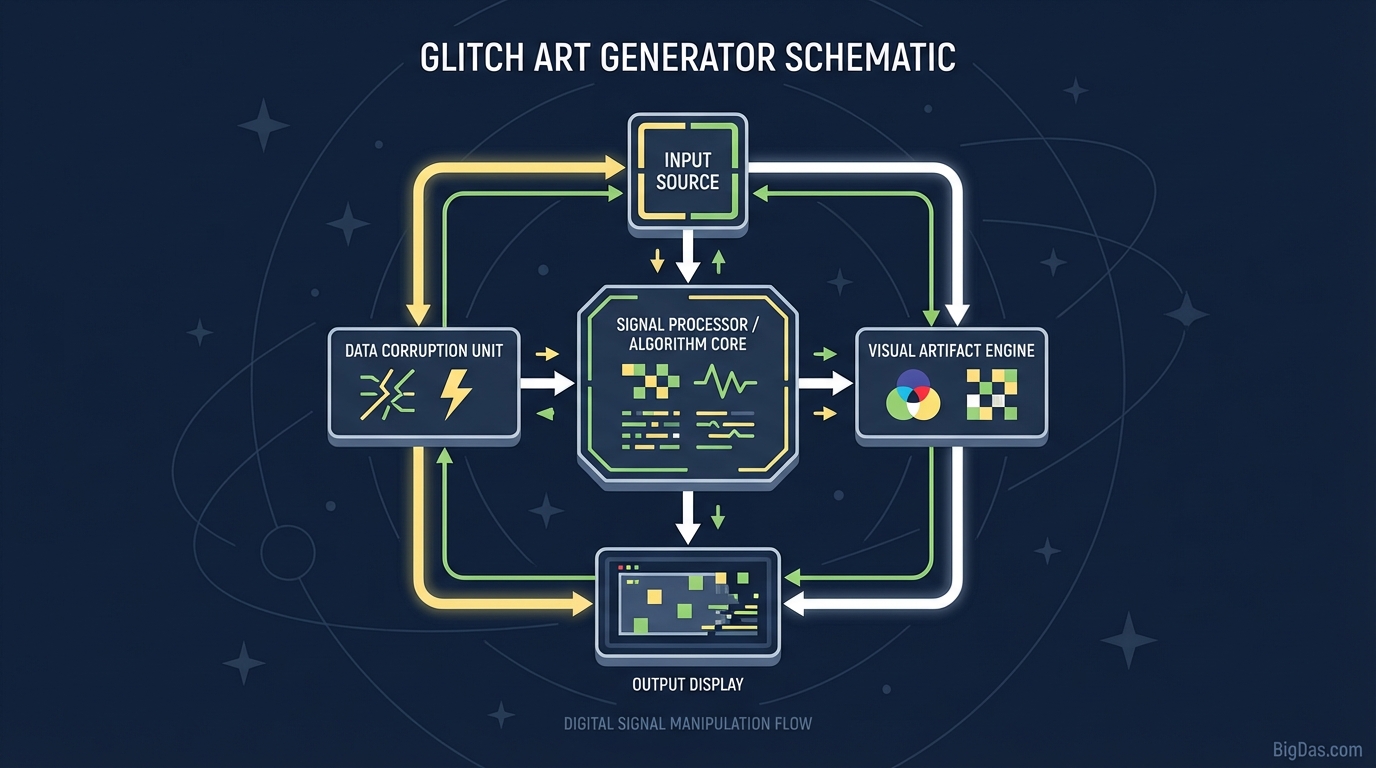
Glitch Art Generator
 Modern scientific illustration of Glitch Art Generator
The Glitch Art Generator: Transform Photos into Cyberpunk Masterpieces
Clean, high-resolution digital photography is easy to find. The interesting work happens when creators intentionally break the image. Glitch art uses simulated data corruption, pixel errors, and RGB shifts to produce the retro-futuristic look often associated with cyberpunk visuals.
Creating these effects used to mean learning Photoshop layer masking or writing code to manipulate raw image data. The Glitch Art Generator automates that process in the browser. It applies digital distortion, pixel shifting, and RGB channel splitting to any uploaded image.
This guide covers how the tool works, the technical processes behind each effect, and a step-by-step workflow for producing cyberpunk-style imagery.
What is the Glitch Art Generator?
The Glitch Art Generator is an image processing engine that simulates the visual artifacts produced by software bugs, hardware failures, and data corruption. It gives you direct control over the type, intensity, and direction of those artifacts.
The tool works on the raw pixel data of the uploaded file. It rearranges pixels, separates color channels, and introduces noise to create the appearance of a broken video signal, a damaged VHS tape, or a corrupted display.
How It Works
The generator uses three primary techniques:
- Pixel Sorting: Reorders pixels in a row or column based on brightness or hue. This produces the streaking, melting effect common in glitch compositions.
- RGB Channel Splitting: Separates the red, green, and blue channels and offsets them relative to each other. The result is chromatic aberration, a fringing effect similar to what you see through cheap 3D glasses or poorly aligned camera lenses.
- Scanlines and Interlacing: Overlays horizontal lines to mimic the raster pattern of a CRT monitor.
The tool operates on the actual pixel data, so the output is a reconstructed image rather than a static filter applied on top of the original.
Key Features
1. RGB Channel Splitting
You can control the offset distance, angle, and opacity of each color channel independently. Fine adjustments produce subtle vibration; large offsets create heavy cyberpunk-style separation.
2. Pixel Sorting with Edge Detection
The pixel sorting function includes a threshold setting that targets high-contrast edges. This keeps the main subject (faces, logos, text) intact while distorting the background or empty areas.
3. Non-Destructive Layering
Effects can be stacked and adjusted without permanently modifying the source image. The original upload remains available until you export the final result.
4. High-Resolution Export
Output files are exported without lossy compression. The result is suitable for 4K displays, print posters, and album cover work.
5. Seed-Based Randomization
The seed parameter generates reproducible random distortion patterns. Lock the seed to keep a specific glitch configuration, or randomize it to explore variations while keeping other settings constant.
Step-by-Step Guide
Step 1: Select and Upload the Image
Glitch effects are more visible on images with strong contrast and clear subjects. Night photography, neon signage, and high-contrast portraits produce the best results. Upload a high-resolution file (PNG or high-quality JPEG) to retain detail through the distortion process.
Step 2: Apply Base Distortion
Start with the global settings.
- Horizontal Tearing: A small offset creates the look of a signal loss on an analog broadcast.
- Scanlines: A subtle overlay reproduces the horizontal line pattern of a CRT display.
Step 3: RGB Channel Splitting
- Open the RGB Shift or Channel Split controls.
- Increase the offset value. Red and cyan will separate from the subject.
- For portraits, keep the offset small enough that eyes remain sharp. For backgrounds, abstract textures, and typography, larger offsets work well.
Step 4: Pixel Sorting
- Enable Pixel Sorting.
- Set a threshold. A low threshold affects the entire image; a higher threshold restricts sorting to the brightest areas.
- Choose the sort direction. Vertical sorting produces a dripping effect; horizontal sorting resembles motion blur.
Step 5: Noise and Final Adjustments
- Digital Noise: Adding grain binds the distorted pixels together and gives the image a more analog texture.
- Brightness and Contrast: Glitch effects tend to flatten contrast. Raising contrast restores punch to the colors.
Step 6: Export
Export as PNG for maximum quality and transparency support. Use JPEG for web uploads where file size matters more than fidelity.
Technical Tips
1. Pre-Brighten Targeted Areas
Pixel sorting algorithms typically key off luminance. If you want a specific region to distort heavily, brighten that region in an external editor before uploading. The sorting routine will then target it more aggressively.
2. Use Multiple Passes
A single pass rarely produces a complex result. Export an intermediate image, re-upload it, and apply a different effect on the second pass. For example:
- Pass 1: Light RGB shift, exported.
- Pass 2: Heavy pixel sorting applied only to the lower half of the image.
This produces layering and depth that a single pass cannot match.
3. Legibility for Text and Logos
For typography, use horizontal-only distortions. Vertical pixel sorting will destroy letter shapes. If the tool includes a masking feature, limit the effect to areas outside the text.
Common Use Cases
Album Art and Music Visuals
Synthwave, industrial, and electronic music producers use glitch aesthetics for cover art, Spotify canvases, and social posts. The visual texture matches the sonic character of synthesized and heavily processed audio.
Stream and Gaming Overlays
Custom overlays, "stream starting" screens, and profile banners in the style of Cyberpunk 2077 or Valorant can be produced from a single portrait or logo.
Brand and Marketing Design
Streetwear, energy drink, and tech startup brands use glitch effects to signal disruption and modernity. The visual language stops scrolling on crowded social feeds.
Generative and NFT Art
The seed-based randomization makes the tool useful for producing series of related but unique images from a single base composition.
Frequently Asked Questions
Q1: Can I use the generated images commercially? A: Yes. Once you download the image, you own the resulting artwork. Use it for client work, merchandise, album covers, or any other commercial purpose.
Q2: How is this different from a Photoshop action? A: Photoshop actions are recorded step sequences. They apply the same operations to every image regardless of content, which often produces poor results on photos with different lighting. This tool analyzes the uploaded image and applies distortions based on its actual pixel data.
Q3: Does the tool reduce image quality? A: No. The visual style is intentionally degraded, but the exported file retains full resolution. High-resolution PNG and JPEG exports are supported.
Q4: What file format should I upload? A: High-quality JPEG or PNG. Higher source resolution gives the distortion algorithms more data to work with, which produces more detailed results.
Summary
Glitch art is a visual response to the over-polished default of most digital imagery. It uses simulated failure as a design tool.
The Glitch Art Generator packages the underlying processes (pixel sorting, RGB channel splitting, scanline generation) into a browser-based interface with enough controls to produce consistent, high-resolution output. Use it for album art, stream graphics, brand visuals, or any project that benefits from controlled digital decay.