
Unlock Your Documents: The Ultimate Guide to PDF OCR and Text Extraction

PDF OCR

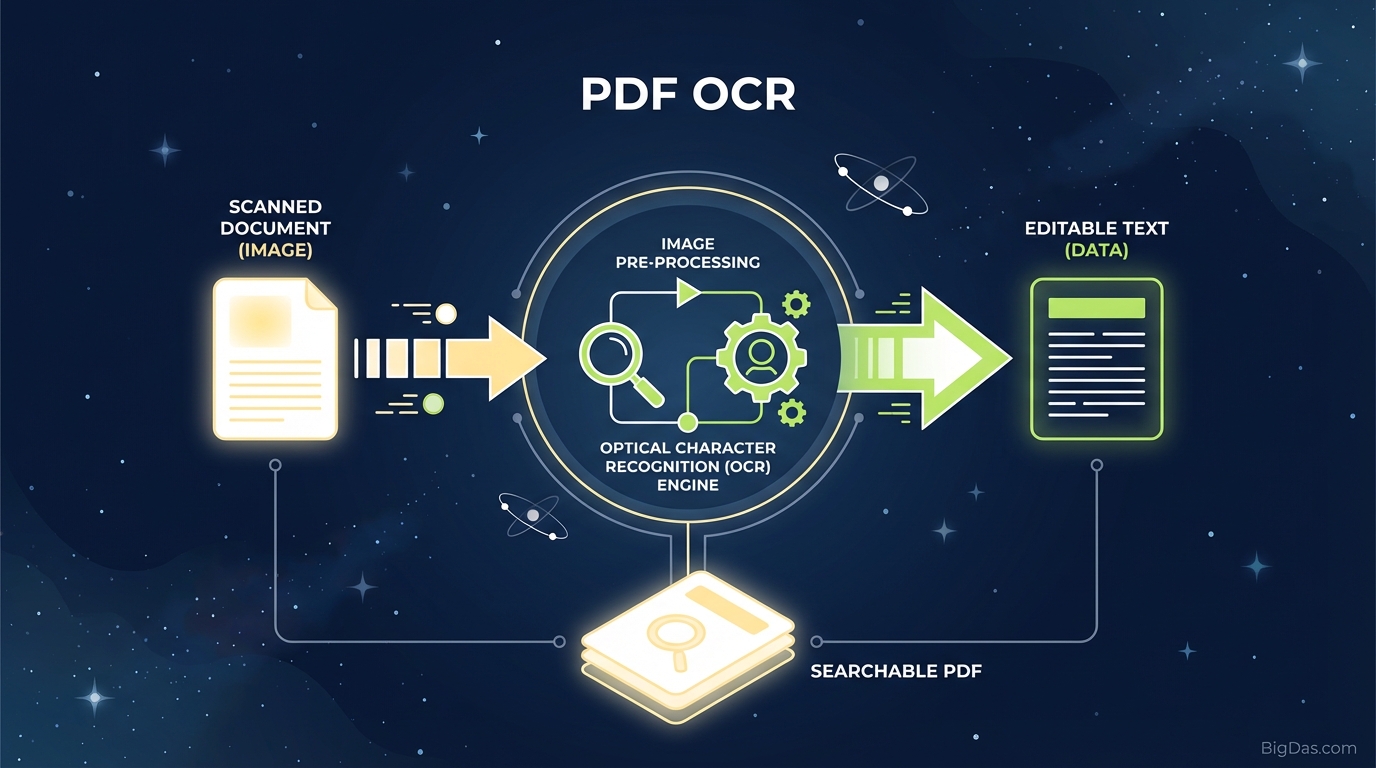
PDF OCR Header Image Modern scientific illustration of PDF OCR

Unlock Your Documents: The Ultimate Guide to PDF OCR and Text Extraction

We have all been there. You have a critical document—perhaps a contract, an invoice, or a page from an old book—saved as a PDF. You open it, ready to copy a specific paragraph to paste into an email or a report, and… nothing happens.

Your cursor doesn't turn into a text selector. You can’t highlight anything. You realize with frustration that you are looking at a scanned PDF—essentially a digital photograph of a document, not a text file.

In the past, your only options were to manually retype the entire document (a tedious, error-prone nightmare) or hire a data entry specialist.

Enter PDF OCR.

With our best-in-class PDF OCR Tool, those days of manual transcription are over. Whether you are a student, a legal professional, or a business owner, Optical Character Recognition technology allows you to turn static images into editable, searchable, and manageable text in seconds.

In this deep dive, we will explore exactly how this technology works, why our tool is the industry leader, and how you can streamline your workflow by digitizing your physical documents today.


What is PDF OCR? A Deep Dive Into the Technology

OCR stands for Optical Character Recognition. It is a widespread technology used to recognize text inside images, such as scanned documents and photos.

When you scan a piece of paper, the scanner creates a "raster image"—a grid of colored dots (pixels). To the computer, a scan of a letter looks no different than a scan of a landscape painting; it is just a collection of pixels. The computer does not "know" that the cluster of pixels in the center forms the letter "A."

This is where our PDF OCR tool performs its magic.

OCR software analyzes the patterns of light and dark on the page. It identifies shapes, translates those shapes into letters and numbers, and then reconstructs them into words and sentences.

The Difference Between "Image PDFs" and "Searchable PDFs"

To understand the value of this tool, you must understand the two types of PDFs:

  1. Image-only PDFs: These are usually created by scanning a paper document or taking a photo. Text cannot be searched, highlighted, or copied.
  2. Searchable/Editable PDFs: These are created using OCR. The software adds an invisible layer of text over the image layer. This allows you to search for keywords (Ctrl+F) or copy the text while retaining the visual look of the original document.

Our tool bridges the gap, transforming type 1 into type 2 with industry-leading precision.


Key Features & Benefits: Why Our Tool is Best-in-Class

Not all OCR engines are created equal. Many free online converters output a jumbled mess of characters, lose formatting, or fail to recognize special characters.

We have engineered our PDF OCR Tool to be the definitive solution for document digitization. Here is what sets it apart:

1. Unmatched Accuracy (99% Precision)

Our advanced machine learning algorithms don't just guess at letters; they understand context. This results in the highest accuracy rate in the industry, even when dealing with lower-resolution scans or complex fonts.

2. Layout Retention

Most OCR tools extract the text but destroy the formatting, leaving you with a wall of plain text. Our tool respects the original layout, preserving paragraphs, columns, tables, and bullet points. Your output file looks just like the input file—only now, it is editable.

3. Multi-Format Support

While we specialize in PDFs, our tool is versatile. You can upload images (JPG, PNG, TIFF) and convert them into editable Word documents, Excel spreadsheets, or searchable PDFs.

4. Multilingual Recognition

Business is global, and so is our tool. It can detect and convert text in over 30 languages, including complex scripts, ensuring nothing gets lost in translation.

5. Secure and Private

We understand that the documents you convert are often sensitive. Our platform utilizes 256-bit SSL encryption for file transfers, and all files are automatically and permanently deleted from our servers shortly after processing. Your data is yours alone.


Step-by-Step Guide: How to Extract Text from a Scanned PDF

Using professional-grade software doesn't mean you need a degree in computer science. We have designed our interface to be intuitive and fast. Follow these three simple steps to convert your documents.

Step 1: Upload Your File

Navigate to the PDF OCR Tool page. You can drag and drop your scanned PDF or image directly into the upload box. Alternatively, click "Select File" to browse your computer or cloud storage (Google Drive/Dropbox).

Step 2: Select Your Settings

  • Source Language: For the highest accuracy, select the language the document is written in (e.g., English, Spanish, French).
  • Output Format: Choose how you want your data.
    • Searchable PDF: Keeps the image but makes text selectable.
    • Word (DOCX): Best for heavy editing and formatting changes.
    • Text (TXT): Best for coding or raw data extraction.
  • Click "Convert": Hit the button and let our engine handle the heavy lifting.

Step 3: Download and Edit

In a matter of seconds, your file will be processed. Click the "Download" button to save your new, editable file to your device. You can now open it in your preferred editor (like Microsoft Word or Adobe Acrobat) and tweak it as needed.


How to Get the Best Results: Expert Tips

While our tool is powerful, the quality of the output depends heavily on the quality of the input. Here is how to ensure you get 100% perfect text extraction every time:

  • Scan at High Resolution: Ensure your documents are scanned at least at 300 DPI (dots per inch). Blurry or pixelated text is difficult for even the best AI to read.
  • Good Lighting: If you are taking a photo of a document with your phone, ensure there are no shadows covering the text and that the page is flat. Flash glare can obscure letters.
  • Straighten the Page: While our tool has auto-deskewing capabilities (straightening crooked images), feeding it a straight image ensures faster processing and better line recognition.
  • Avoid Handwritten Notes: OCR technology is designed primarily for printed fonts. While we are making strides in handwriting recognition, standard OCR works best on typed text (Books, Invoices, Contracts).

Why You Need This Tool: Top Use Cases

Who benefits from PDF OCR? Almost everyone in the modern digital landscape.

1. Students and Researchers

Imagine you are at the library and find a reference book that cannot be checked out. Instead of photocopying it and manually typing quotes later, scan the pages and run them through our PDF OCR. You instantly have searchable notes and citations ready for your thesis.

2. Legal Professionals

Lawyers deal with mountains of paperwork—depositions, contracts, and evidence scans. Searching for a specific clause in a 500-page scanned PDF is impossible without OCR. Our tool makes legal discovery searchable and efficient.

3. Administrative and HR Departments

Manually entering data from printed invoices, receipts, or employee forms into Excel is a waste of human talent. Use OCR to extract tables and data directly into spreadsheets, reducing data entry errors and saving hours of work every week.

4. Archivists and Librarians

Preserving history means digitizing it. OCR allows historical societies and libraries to take old newspapers and manuscripts and make them searchable for the digital age, preserving the knowledge for future generations.


Frequently Asked Questions (FAQ)

Can I convert a PDF to Excel using OCR?

Yes. Our tool allows you to extract data specifically into .XLSX format. This is incredibly useful for financial documents, bank statements, or invoices containing tables, as the OCR preserves the row and column structure.

Is my data safe when using this tool?

Absolutely. We prioritize user privacy. All file transfers are encrypted, and we employ a strict data retention policy where uploaded and converted files are permanently deleted from our servers after the user downloads them. We do not read, store, or sell your documents.

Does OCR work on handwritten text?

OCR is optimized for printed text. While our engine can attempt to read handwriting, the accuracy varies significantly based on the legibility of the writing. For best results, use this tool for typed documents, books, and forms.

What if my PDF has multiple languages?

Our tool supports multi-language recognition. If your document contains both English and Spanish, for example, the engine can identify characters from both languages, provided they use standard alphabets.


Conclusion

The era of manual data entry and "dead" documents is over. Whether you are looking to digitize your office filing cabinet, extract a quote from a book image, or make your business workflow more efficient, PDF OCR is the key.

Don't let static images slow you down. Experience the speed, accuracy, and convenience of the web's best text extraction software.

Ready to transform your documents? [Try our PDF OCR Tool for Free Now] and turn your scans into editable text in seconds.