Add Page Numbers to PDF
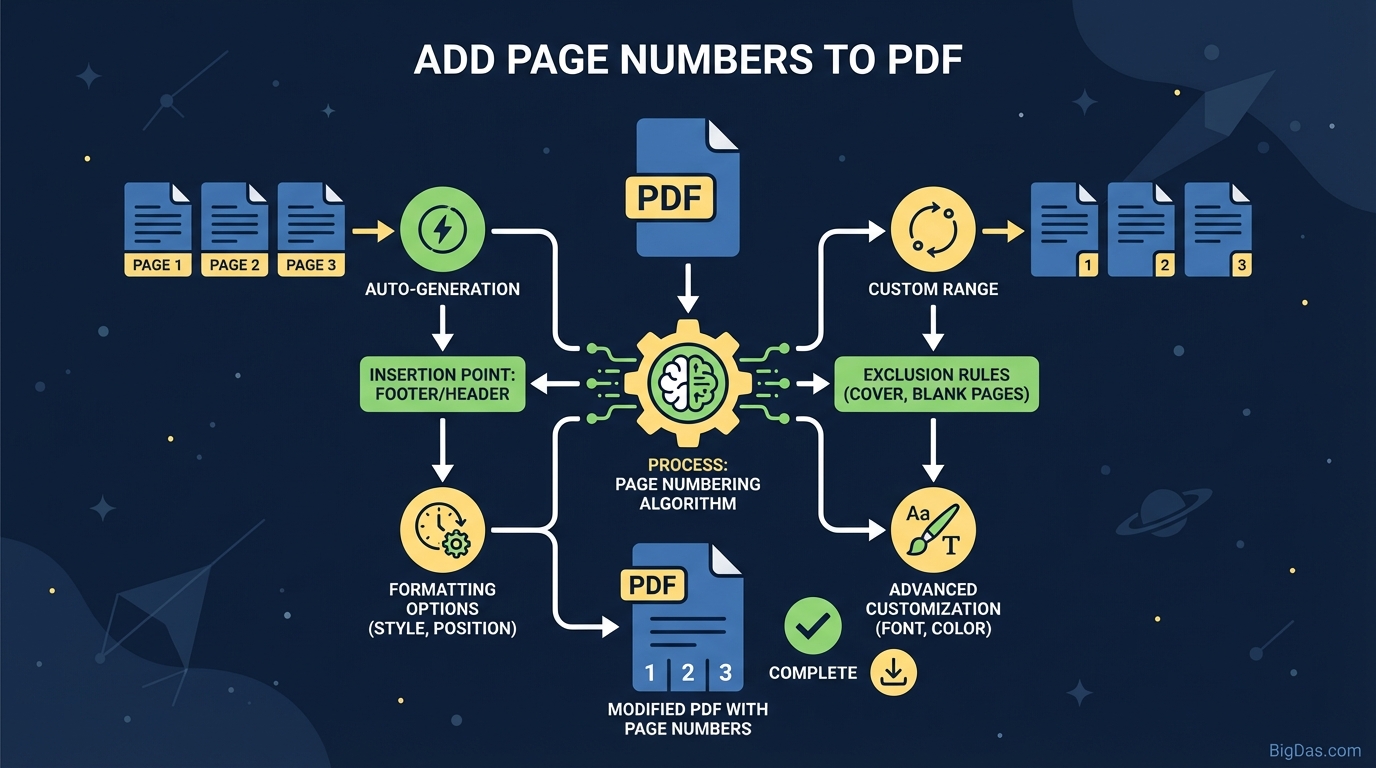 Modern scientific illustration of Add Page Numbers to PDF
Master Your Documents: The Ultimate Guide to Add Page Numbers to PDF for Professional Formatting
Let’s face it: there is nothing more frustrating than printing out a 50-page report, dropping it on the floor, and realizing there are no page numbers to help you put it back together. In the digital world, the frustration is just as real. Navigating a lengthy contract, an academic thesis, or a combined portfolio without pagination is a user experience nightmare.
While word processors like Microsoft Word handle pagination automatically, Portable Document Format (PDF) files are different. They are designed to be static snapshots of a document. Once a file is converted to PDF, adding something as simple as a footer number often feels like hacking into a mainframe.
Enter the Add Page Numbers to PDF tool.
This isn't just about counting pages; it is about finalizing your document with a stamp of professionalism. Whether you are a lawyer preparing a court bundle, a student submitting a dissertation, or a corporate executive merging quarterly reports, proper pagination is the backbone of document organization.
In this deep dive, we will explore exactly how our best-in-class Add Page Numbers to PDF tool works, why it is superior to legacy desktop software, and how you can use it to transform chaotic files into navigable, professional assets.
What Is "Add Page Numbers to PDF"?
At its core, Add Page Numbers to PDF is a specialized utility designed to manipulate the visual layer of your document metadata without altering the content inside.
Unlike a standard PDF editor where you might accidentally shift an image or delete a paragraph while trying to add a footer, this tool acts as a precision overlay system. It calculates the total page count of your uploaded file and systematically stamps a sequential number onto each page based on your specific configuration.
The Technical Challenge of PDFs
To appreciate this tool, you must understand the problem it solves. PDFs are complex containers. They don't have "headers" and "footers" in the same dynamic way a Word document does. They have coordinate systems (X and Y axes).
Legacy methods of numbering PDFs usually involved:
- Expensive Software: Purchasing heavy suites like Adobe Acrobat Pro.
- Conversion Errors: Converting the PDF back to Word, numbering it, and re-saving (often destroying formatting).
- Manual Entry: Using a text box tool to type a number on every single page (inefficient and prone to error).
Our Add Page Numbers to PDF tool bypasses these hurdles. It uses cloud-based processing to identify the margins of your document and inserts pagination data into the visual layer instantly, preserving the integrity of your original layout, fonts, and images.
Key Features and Benefits
Why is this specific tool considered the industry standard? It goes beyond simply stamping "1, 2, 3" on a page. It offers a suite of customization options that cater to power users and casual users alike.
1. Precision Positioning
One size does not fit all. Depending on your document's layout—whether it's a slide deck or a text-heavy manuscript—you need the number to sit in a specific spot so it doesn't overlap with text.
- Top (Header): Left, Center, or Right.
- Bottom (Footer): Left, Center, or Right.
- Margin Adjustment: Fine-tune exactly how far from the edge the number appears.
2. Formatting Flexibility
Your page numbers should match the aesthetic of your document.
- Font Selection: Choose from standard serif and sans-serif fonts (Times New Roman, Arial, Helvetica, Courier) to match your document's body text.
- Size and Color: Ensure the number is legible but not distracting by adjusting the point size and color code.
- Format Styles: Choose between standard numbering (1, 2, 3), Roman numerals (i, ii, iii), or custom formats like "Page 1 of 50."
3. Smart Range Selection
Sometimes, you don't want the number to appear on the very first page (the cover sheet). Our tool allows you to:
- Skip the Cover Page: Start numbering visually on page 2, but count it as page 1.
- Custom Start Number: Start the numbering at page 55 (useful if you are adding a PDF to a larger physical binder).
- Specific Page Ranges: Only apply numbers to a specific section of the document.
4. Bulk Processing Capabilities
Do you have ten different PDF files that all need numbering? Instead of processing them one by one, the tool handles the load efficiently, saving you hours of manual administrative work.
5. Security and Privacy
In an era of data breaches, this tool is built with a "Privacy First" architecture. Files are processed via secure SSL connections and are automatically purged from the servers after a short period (typically one hour). Your sensitive legal contracts or financial reports are never stored, read, or shared.
Step-by-Step Guide: How to Use the Tool
Using the Add Page Numbers to PDF tool is intuitive, requiring no technical background. However, following this workflow ensures you get the perfect result every time.
Step 1: Upload Your Document
Navigate to the tool interface. You can drag and drop your PDF file directly into the upload box, or click "Select File" to browse your computer or cloud storage (Google Drive/Dropbox).
- Pro Tip: If you have multiple files that need to be numbered as a single sequence, use a "Merge PDF" tool first, then upload the combined file here.
Step 2: Configure Your Settings
Once the file is loaded, you will see a preview interface. This is where the magic happens.
- Position: Select the quadrant (e.g., Bottom Right).
- Range: Determine if you want to number all pages or skip the first one.
- Text Format: Choose your font and size.
- Start Number: Default is "1," but you can change this if the document is part of a series.
Step 3: Visual Verification
Before processing, look at the thumbnail preview. Does the page number overlap with your company logo or a footnote? If so, adjust the margins or change the position (e.g., move from Bottom Right to Bottom Center).
Step 4: Process and Number
Click the "Add Page Numbers" button. The server will process the request. Because this is a lightweight metadata operation, even large files (100MB+) are typically processed in seconds.
Step 5: Download
Download your newly paginated file. Open it to ensure everything looks crisp and professional.
Best Practices for Professional PDF Pagination
To truly utilize this tool like an expert, you should consider the context of your document. Here are three strategic ways to use pagination effectively.
The "Page X of Y" Technique
For legal documents and contracts, simple numbering isn't enough. If a page goes missing from a 10-page contract, the reader needs to know. Recommendation: Use the format options to select "Page {n} of {t}" (e.g., Page 1 of 10). This provides psychological security to the reader that they hold the complete document.
The Thesis and Manuscript Standard
Academic institutions are notoriously strict about formatting. Usually, they require no page number on the title page, Roman numerals for the Table of Contents (i, ii, iii), and Arabic numerals (1, 2, 3) for the main body. How to do it:
- Split your PDF into two files (Intro and Body).
- Run the tool on the Intro file using Roman numerals.
- Run the tool on the Body file using Arabic numerals.
- Merge the files back together.
The Bates Numbering Approach
For legal discovery, "Bates Numbering" involves adding a unique prefix and number to every page (e.g., CASE_001, CASE_002). How to do it: Use the custom text prefix feature in our tool to add your case identifier before the sequence number. This turns a standard PDF into a court-ready exhibit.
Why You Need This Tool: Critical Use Cases
Why should you bookmark Add Page Numbers to PDF today? Because unnumbered documents are unprofessional and risky.
1. For Legal Professionals
In the legal world, precision is non-negotiable. Submitting a bundle to a judge without pagination can lead to administrative rejection. This tool allows paralegals and attorneys to instantly number evidentiary bundles, ensuring that "Refer to page 45" actually leads everyone to the same piece of evidence.
2. For Corporate Administration
Board packs, annual reports, and merger proposals often combine Excel sheets (saved as PDF), Word docs, and PowerPoint slides. When you combine these distinct formats, the original page numbers become irrelevant. This tool unifies the document with a single, consistent numbering sequence that overlays the disparate designs.
3. For Educators and Students
Research papers and theses must follow strict style guides (APA, MLA, Chicago). Missing page numbers is an easy way to lose grade points. This tool ensures your formatting is compliant before submission.
4. For Remote Teams
When collaborating on a document over a Zoom call, saying "Look at the third paragraph on the page that starts with the chart" wastes time. Saying "Turn to page 12" is efficient. Pagination facilitates better remote collaboration.
Frequently Asked Questions (FAQ)
Can I remove the page numbers later if I make a mistake?
Since PDF is a non-editable format by nature, the numbers are "baked" into the file upon download. However, you can simply re-upload your original un-numbered source file and try again. Alternatively, you can use a PDF Editor tool to delete the footer elements, but it is always faster to re-run the process on the original file.
Will this tool overwrite text already on my page?
The tool places a layer over your existing document. If your document has text running all the way to the bottom edge, the page number might cover it. We recommend checking your source document to ensure there is at least a 1-inch margin at the header or footer before adding numbers.
Can I start numbering from page 5 instead of page 1?
Yes! In the settings panel, look for the "Start numbering at" option. Input "5," and the first page of your PDF will be stamped with the number 5, the second with 6, and so on. This is perfect for inserting a PDF into the middle of a larger physical report.
Is the tool compatible with Mac, Windows, and Linux?
Absolutely. Because Add Page Numbers to PDF is a browser-based cloud tool, it is platform-agnostic. Whether you are on a MacBook, a Windows surface, an iPad, or an Android phone, as long as you have an internet connection, you can number your documents.
Does adding page numbers increase the file size?
The impact is negligible. Adding text metadata to a PDF usually adds only a few kilobytes to the total file size, ensuring your document remains easy to email and share.
Conclusion
A PDF without page numbers is like a map without coordinates—technically usable, but incredibly difficult to navigate. Whether you are finalizing a multi-million dollar contract or submitting a history term paper, the small detail of pagination makes a massive difference in how your work is perceived.
The Add Page Numbers to PDF tool bridges the gap between static digital files and human-readable documents. It eliminates the need for expensive software and manual typing, offering a fast, secure, and professional solution accessible from any device.
Don't let unorganized documents undermine your hard work. Take control of your formatting today.