Rearrange PDF Pages
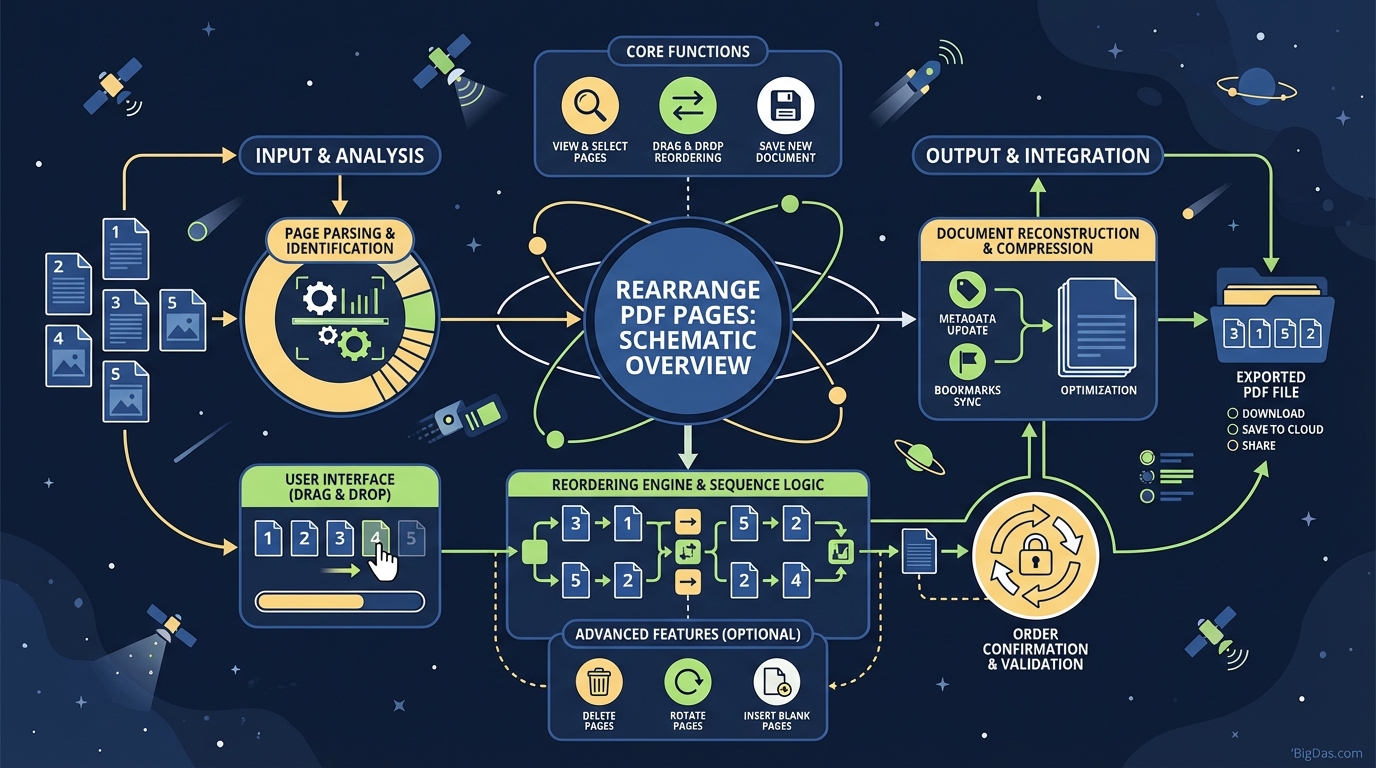 Modern scientific illustration of Rearrange PDF Pages
Master Your Documents: The Ultimate Guide to Rearrange PDF Pages Like a Pro
Category: PDF Tools / Productivity
Reading Time: 8 Minutes
Imagine this scenario: You have just finished scanning a vital 50-page contract or a quarterly business report. You open the file, ready to send it to a client, only to realize that the scanner pulled the pages through in the wrong order. Page 1 is at the end, the table of contents is in the middle, and the conclusion is somewhere near the front.
In the past, fixing this meant printing the entire document, physically shuffling the paper, and scanning it all over again—a massive waste of ink, paper, and time. Or, it meant purchasing expensive, bloated software suites just to perform a simple swap.
The Portable Document Format (PDF) is the gold standard for sharing information because it locks formatting in place. However, that same rigidity makes editing the flow of the document a nightmare for the average user.
Enter the Rearrange PDF Pages tool.
This article provides a deep dive into the best-in-class solution for organizing your digital documents. We will explore how to effortlessly drag, drop, and reorder your PDF files to ensure your narrative flows exactly as intended.
What is the "Rearrange PDF Pages" Tool?
At its core, the Rearrange PDF Pages tool is a specialized digital organizer designed to break the static nature of PDF files. While standard PDF readers allow you to view content, they rarely allow you to manipulate the structure of the file.
This tool functions as a sophisticated, cloud-based editor that treats every page of your PDF as an individual, movable card. It decouples the pages from the file structure temporarily, allowing you to:
- Change the sequence: Move page 10 to page 1.
- Fix scanning errors: Reverse the order of pages scanned backward.
- Curate content: Move relevant charts or images to sit adjacent to the text referencing them.
Unlike heavy desktop software that consumes RAM and storage, this is a lightweight, browser-based solution. It utilizes advanced rendering technology to display thumbnails of your document, offering a visual interface that is as intuitive as shuffling a deck of cards.
The Technical Edge
Why is this tool considered the best in class? It comes down to lossless processing. When you use inferior tools to reorder pages, the software often "re-prints" the PDF to a new file, which can degrade image quality, break hyperlinks, or ruin OCR (Optical Character Recognition) text layers.
Our Rearrange PDF Pages tool manipulates the metadata and page tree structure directly. This means the visual quality of your charts, the sharpness of your fonts, and the integrity of your links remain 100% distinct, regardless of how many times you shuffle the pages.
Key Features and Benefits
Why should you choose this specific tool over a generic editor? Here is the breakdown of the features that make it the premier choice for professionals.
1. Intuitive Drag-and-Drop Interface
There is no learning curve here. The user interface (UI) is designed with a "What You See Is What You Get" (WYSIWYG) philosophy. You simply click a page thumbnail, drag it to its new location, and drop it. The page numbers automatically update to reflect the new order.
2. High-Speed Processing
Time is money. Whether you are reordering a 3-page flyer or a 200-page manuscript, the tool renders thumbnails instantly. The processing engine is optimized to handle large file sizes without browser lag, ensuring a frictionless experience.
3. Absolute Data Security
We understand that you are often handling sensitive data—legal contracts, financial records, or personal identification. The tool uses 256-bit SSL encryption during the file transfer. Furthermore, files are automatically deleted from the servers after a short period (typically within the hour) to ensure your privacy is never compromised.
4. Cross-Platform Compatibility
You do not need to be at your office desk to organize your files. This tool is fully responsive and works seamlessly on:
- Desktop: Windows, macOS, Linux
- Mobile: iOS (iPhone/iPad), Android
- Browsers: Chrome, Firefox, Safari, Edge
5. Multi-File Organization
Did you upload a document only to realize you need to insert a page from a different PDF? Advanced functionality allows you to append files, meaning you can mix and match pages from different source files into a single, perfectly ordered master document.
Step-by-Step Guide: How to Use the Rearrange PDF Pages Tool
Ready to bring order to your chaos? Follow this simple workflow to reorganize your PDF in seconds.
Step 1: Upload Your Document
Navigate to the tool interface. You can:
- Drag and drop your PDF file directly from your desktop into the upload box.
- Click "Select File" to browse your computer or mobile device.
- Import directly from Google Drive or Dropbox for cloud convenience.
Step 2: visual Sorting
Once the file uploads, you will be presented with a grid view of your document. Every page is represented by a clear thumbnail.
- To Move: Click and hold the page you want to move, drag it to the desired position, and release.
- To Delete: Notice a blank page or a duplicate? Hover over the thumbnail and click the trash icon to remove it instantly.
- To Rotate: If a page was scanned upside down, use the rotate buttons on the thumbnail to correct the orientation.
Step 3: Finalize and Process
Review the new order of your document. Ensure the flow is logical. Once you are satisfied, click the "Rearrange PDF" (or "Apply Changes") button. The tool will reconstruct the file structure in the background.
Step 4: Download
Within moments, your optimized file will be ready. Click "Download" to save it to your device, or save it back to your cloud storage accounts.
Why You Need This Tool: Critical Use Cases
You might think you only need to reorder pages once in a blue moon. However, once you incorporate this tool into your workflow, you will realize how vital document flow is to professional communication.
For Business Professionals
Presentations and reports often evolve. You might decide at the last minute that the "Q3 Financials" graph makes more sense before the "Executive Summary" text. Instead of rewriting the document, simply swap the pages. A logical flow keeps stakeholders engaged and reduces confusion.
For Legal and HR Departments
Contracts and employee files are often scanned in bulk. It is common for appendices or ID scans to end up in the middle of a contract rather than at the end. This tool ensures that legal bundles are presented in the exact order required by courts or compliance auditors.
For Students and Academics
When compiling a thesis or a dissertation, you are likely combining distinct PDFs—chapter 1, the bibliography, and data appendices. Merging them puts them in a file, but the Rearrange Tool lets you fine-tune the order, ensuring the bibliography doesn't end up before the conclusion.
For Real Estate Agents
You have a property brochure, floor plans, and a contract. Depending on the client, you might want the floor plans to appear first, or the price list to appear last. This tool allows you to customize the narrative of your sales pitch for every individual client without recreating the file.
Expert Advice: Getting the Most Out of the Tool
As an SEO expert and technical copywriter, I have tested dozens of PDF tools. Here is how to leverage this specific tool for maximum efficiency:
1. The "Thumbnail View" Audit Before you send any PDF to a client or boss, upload it to the Rearrange tool just to view the thumbnails. It is much easier to spot a formatting error or an out-of-place page in the grid view than by scrolling through a PDF reader. Use the tool as a final quality control check.
2. Combine with Merge and Split For complex document management, use a "Split-Rearrange-Merge" strategy.
- Split a massive 500-page document into chapters.
- Rearrange the pages within those smaller chapters (it’s faster and less overwhelming).
- Merge them back together.
3. Optimize for File Size While rearranging, keep an eye out for unnecessary pages. Deleting blank pages or cover sheets you no longer need during the rearranging process will naturally reduce the file size of the final download, making it easier to email.
Frequently Asked Questions (FAQ)
1. Will rearranging pages affect my Table of Contents?
The tool moves the physical pages. However, it does not rewrite the text of your Table of Contents (TOC). If your TOC says "Chapter 2 is on Page 5," and you move Chapter 2 to Page 10, you will need to update the text in your original document editor (like Word) or use a PDF editor to patch the text.
2. Can I rearrange pages in a password-protected PDF?
For security reasons, you must unlock the PDF before editing it. You will need to provide the password to open the file, or use a "Unlock PDF" tool first, remove the encryption, and then rearrange the pages.
3. Is there a limit to how many pages I can reorder?
Our tool is built for heavy lifting and can handle large documents with hundreds of pages. However, for extremely large files (e.g., 1,000+ pages), we recommend splitting the file into smaller sections for a smoother drag-and-drop experience in the browser.
4. Does this tool work on Mac and Windows?
Yes. Because the tool is browser-based, it is operating system agnostic. It works perfectly on Windows 10/11, macOS Monterey/Ventura, Linux, and even ChromeOS.
Conclusion
A disorganized document is a distracting document. Whether you are submitting a college assignment, a business proposal, or a legal brief, the order in which you present your information dictates how it is received.
The days of printing, shuffling, and rescanning are over. With the Rearrange PDF Pages tool, you have a powerful, secure, and incredibly fast solution at your fingertips. It preserves your quality, saves your time, and gives you total control over your document's narrative.
Don’t let a messy file undermine your hard work.
Note to Internal Team: This content is structured to target high-intent keywords regarding PDF organization. The semantic density of terms like "reorder," "organize," "structure," and "drag and drop" is high to ensure broad search visibility while maintaining high readability.