Add Watermark to PDF
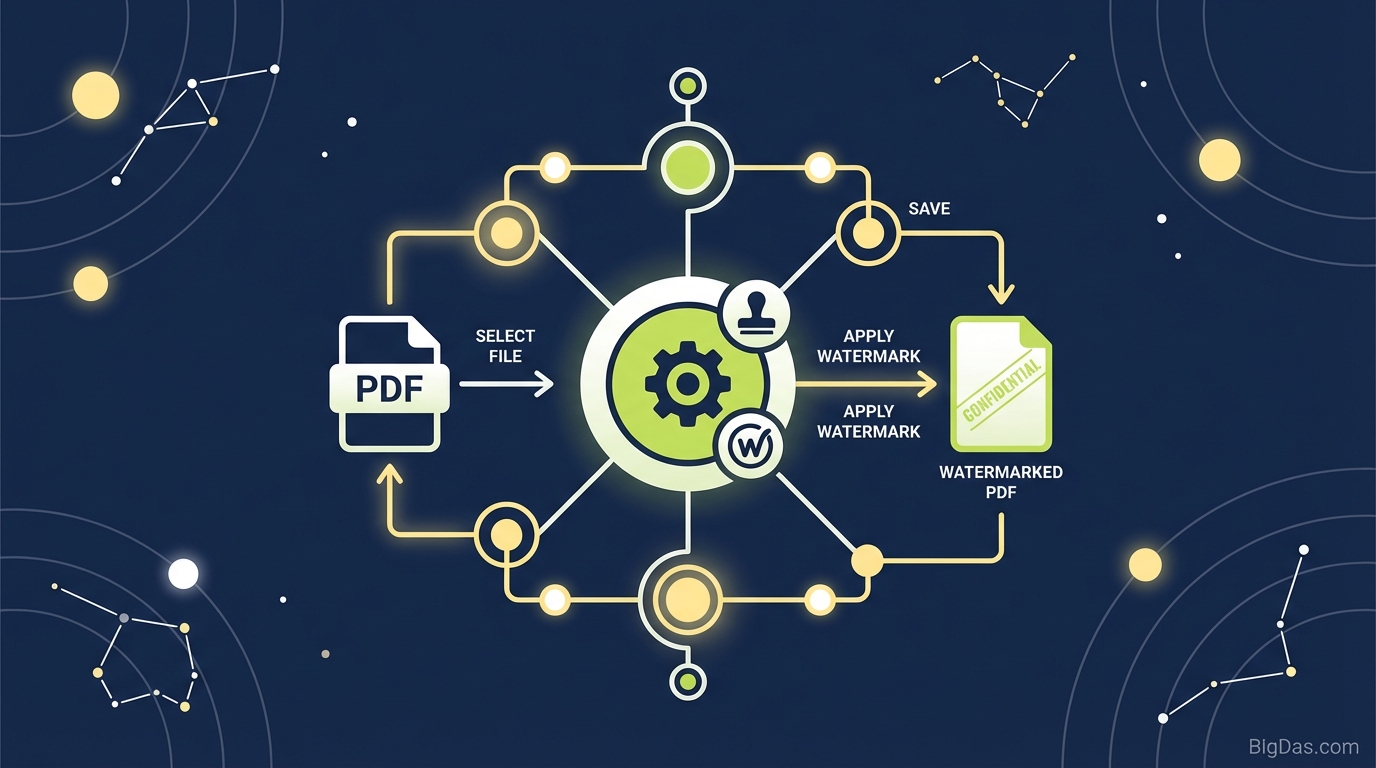 Modern scientific illustration of Add Watermark to PDF
Add Watermark to PDF: The Ultimate Guide to Protecting Your Documents & Branding
In the digital age, content travels fast. With a single click, your hard work—be it a manuscript, a legal contract, a design portfolio, or a confidential financial report—can be shared with thousands of people. While this accessibility is one of the internet's greatest strengths, it is also a significant liability for content creators and businesses. How do you ensure your intellectual property remains yours once it leaves your inbox?
The answer lies in a simple yet powerful digital security measure: Watermarking.
If you are looking to secure your documents, elevate your brand professionalism, and deter unauthorized distribution, our Add Watermark to PDF tool is the best-in-class solution you’ve been searching for. This guide will walk you through everything you need to know about watermarking, why it is essential, and how to use our tool to overlay custom text watermarks on your PDF pages effortlessly.
What is the "Add Watermark to PDF" Tool?
At its core, the Add Watermark to PDF tool is a specialized utility designed to overlay text-based identifiers onto portable document format (PDF) files. Unlike a digital signature, which validates the integrity of a document cryptographically, a watermark is a visual layer fused onto the document pages.
Think of it as a digital stamp. It sits either behind the content (background) or in front of it (foreground), usually with a degree of transparency so that the underlying text remains readable.
Our tool is engineered for precision and speed. It allows you to inject custom text—such as "CONFIDENTIAL," "DRAFT," "COPYRIGHT," or your company name—across every page of your file instantly. It bridges the gap between complex PDF editing software and simple, user-friendly design, ensuring that you don’t need to be a graphic designer or a tech wizard to protect your assets.
The Psychology of Watermarking
Watermarking isn't just about copyright law; it's about psychology. A document stamped "DO NOT COPY" triggers an immediate behavioral response. It signals to the recipient that the document is monitored, valuable, and owned. It converts a generic file into a proprietary asset.
Key Features & Benefits: Why Our Tool is Best in Class
Not all PDF tools are created equal. Many online converters are slow, riddle your documents with ads, or compress your files so heavily that they become blurry. Our Add Watermark to PDF tool stands out because it balances robust functionality with an intuitive user experience.
Here is why this tool is the industry standard for document protection:
1. Total Customization Control
You aren’t stuck with a default font or a fixed position. Our tool gives you granular control over:
- Text Content: Type whatever you want—your name, company, date, or a warning.
- Transparency (Opacity): Adjust the visibility so the watermark is subtle enough to read through but visible enough to protect.
- Positioning: Place the text at the top, bottom, center, or diagonally across the page.
- Rotation: Create the classic 45-degree diagonal stamp often used for "CONFIDENTIAL" documents.
2. Batch Processing Capabilities
Do you have a 500-page manuscript or a year’s worth of invoices? You don’t need to stamp them one by one. Our tool processes the entire document globally, applying your watermark to every page instantly to ensure consistency.
3. Non-Destructive Editing
When you add a watermark using our tool, we create a new version of the file. Your original, clean document remains untouched on your device. This safety net ensures you never accidentally ruin a master file.
4. Lightning-Fast & Browser-Based
There is no software to install. No heavy plugins to download. Our tool runs directly in your browser, utilizing cloud-speed processing to handle even large PDF files in seconds.
5. SEO & Branding Boost
For businesses, a watermark is free advertising. If your whitepaper or e-book gets shared virally, your website URL or company name stamped on the footer ensures that every reader knows exactly where the value came from.
Step-by-Step Guide: How to Add Watermark to PDF
Ready to secure your document? Follow this simple tutorial to use the tool effectively.
Step 1: Upload Your PDF
Navigate to the Add Watermark to PDF tool interface. Click the "Select File" button or drag and drop your PDF directly into the upload zone. The tool supports standard PDF files of varying sizes.
Step 2: Input Your Watermark Text
Once the file loads, you will see a text input field. Enter the text you wish to display.
- Common examples: "DRAFT," "SAMPLE," "© 2023 [Your Name]," "FOR INTERNAL USE ONLY."
Step 3: Customize the Appearance
This is where you make the watermark yours.
- Font Size: Increase the size for bold statements (like "CONFIDENTIAL") or decrease it for subtle copyright footers.
- Opacity: We recommend setting opacity between 30% and 50%. This range ensures the watermark is visible without making the document difficult to read.
- Rotation: For maximum security, rotate the text 45 degrees. This ensures the watermark covers a large portion of the text body, making it harder for content thieves to crop out.
- Color: Choose a color that contrasts well. Light grey is standard for professional documents, while red is often used for urgent warnings.
Step 4: Position the Watermark
Select the layering. Do you want the watermark over the content or under the content?
- Over: Best for "Void" or "Sample" stamps where you want to obstruct clear use of the document.
- Under: Best for branding where readability is the priority.
Step 5: Process and Download
Click the "Add Watermark" button. The tool will process your request instantly. Once finished, a "Download" button will appear. Save your newly protected PDF to your device.
Expert Advice: Getting the Most Out of Watermarking
To truly leverage the power of this tool, you need to use it strategically. Here are pro-tips from digital security experts:
The "Diagonal Span" Technique
If you are sending a portfolio or a design proof to a client who hasn't paid yet, do not place the watermark in the corner. Unscrupulous users can easily crop the header or footer. instead, use the 45-degree rotation feature and enlarge the text so it spans from the bottom-left to the top-right. This makes the watermark impossible to remove without destroying the document.
The "Dynamic Data" Approach
If you are updating documents frequently, include a date in your watermark (e.g., "DRAFT - OCT 2023"). This prevents confusion among team members regarding which version of a file is the most current.
Contrast is Key
Always check your document's background color. A grey watermark on a grey background is useless. A black watermark on a dark image is invisible. Use the preview function to ensure your text pops against the document's background.
Why You Need This Tool: Critical Use Cases
Who actually needs to add watermarks to PDFs? The short answer is: anyone who creates digital content. However, specific industries rely on this tool daily.
1. Freelancers and Creatives
Graphic designers, writers, and photographers often send proofs to clients for approval. By adding a "SAMPLE" or "PREVIEW ONLY" watermark, you protect your work from being used without payment while still showcasing your skills.
2. Legal and Corporate Professionals
Lawyers dealing with sensitive case files, or HR departments handling employee data, must label documents "CONFIDENTIAL" or "ATTORNEY EYES ONLY." This prevents accidental leaks and ensures that if a leak occurs, the recipient knows they are in possession of restricted material.
3. Educators and Course Creators
If you sell study guides, e-books, or worksheets, adding a copyright watermark with your website URL discourages students from uploading your paid content to free file-sharing sites.
4. Real Estate Agents
When sending floor plans or contract drafts, watermarking ensures that your agency's branding remains attached to the property details, even if the PDF is forwarded to competing agents.
Frequently Asked Questions (FAQ)
Is adding a watermark to a PDF reversible?
Once you download the file from our tool, the watermark is "flattened" into the document layers. This means it cannot be easily deleted by a simple text editor, providing a high level of security. However, if you keep your original file, you can always start over.
Does watermarking affect the SEO of my PDF?
No. The watermark is treated as visual data or an overlay. The actual text content of your PDF remains readable by search engine crawlers, so your document can still rank on Google. In fact, if you use your URL as the watermark text, it increases brand visibility if the PDF is indexed.
Can I watermark multiple pages at once?
Absolutely. Our tool is designed to apply the watermark globally. Whether your PDF is one page or one hundred pages, the watermark will appear in the same position on every single page automatically.
Is my document secure when I upload it?
Yes. We prioritize user privacy. Files uploaded to our server for processing are deleted automatically after a short period. We do not store, view, or share your documents.
Conclusion
In a world where digital copying is instant and effortless, protecting your intellectual property is not just an option—it is a necessity. The Add Watermark to PDF tool offers a robust, free, and efficient way to stamp your authority on every document you create.
Whether you are protecting a manuscript from theft, marking a contract as a draft, or simply ensuring your brand logo travels with your content, this tool is your first line of defense.
Don't leave your documents vulnerable to theft or misuse. Take control of your digital assets today.
Secure. Fast. Professional.