Webpage to PDF
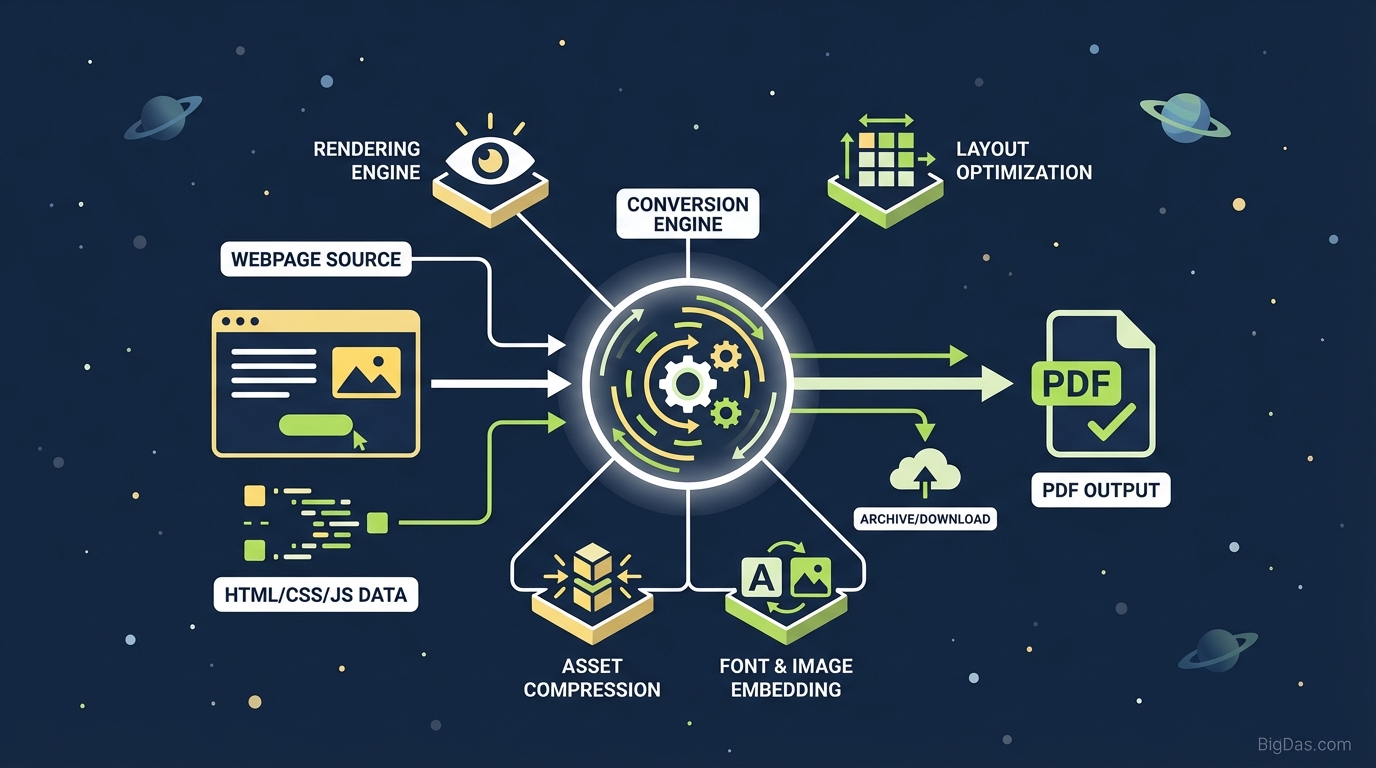 Modern scientific illustration of Webpage to PDF
The Ultimate Guide to Converting Any Webpage to PDF: Save, Share, and Archive with Ease
The internet is fluid. Content changes, URLs break, and servers go down. We have all experienced the frustration of bookmarking an essential article or a critical digital invoice, only to return a week later to find a "404 Not Found" error.
In a world where digital transience is the norm, the ability to permanently capture a snapshot of the web is invaluable.
Enter the Webpage to PDF tool.
Whether you are a researcher archiving sources, a business professional saving legal terms, or a developer creating documentation, converting a webpage to a PDF is the gold standard for content preservation. But not all conversion tools are created equal.
In this comprehensive guide, we will explore the technology behind high-fidelity website conversions, the myriad use cases for this tool, and a step-by-step guide on how to turn any URL into a polished, professional document instantly.
What is a "Webpage to PDF" Converter?
At its core, a Webpage to PDF converter is a rendering engine. It functions similarly to a web browser (like Chrome or Firefox), but instead of painting pixels onto a screen that changes as you scroll, it "prints" the HTML, CSS, and JavaScript of a website onto a static, portable canvas known as the Portable Document Format (PDF).
However, a high-quality converter does much more than a simple "screenshot."
The Difference Between Screenshots and Smart PDFs
Many users confuse taking a screenshot with generating a PDF. Here is why the Webpage to PDF tool is superior:
- Selectable & Searchable Text: Unlike an image (JPEG/PNG), a PDF created by our tool retains the vector text data. This means you can search for keywords within the document (Ctrl+F) and copy-paste text into other applications.
- Functional Hyperlinks: A screenshot kills the web experience. A proper PDF conversion preserves the internal and external hyperlinks, allowing the document to remain an interactive resource.
- Responsive Layout Handling: Browsers are dynamic; paper is static. This tool intelligently interprets the CSS media queries to ensure that sidebars, navigation menus, and body text are rearranged to fit standard paper sizes (A4, Letter) without cutting off content.
- Vector Graphics: The tool preserves the quality of logos and icons. No matter how much you zoom in on the PDF, the text and vector elements remain crisp, unlike pixelated screenshots.
Key Features & Benefits of Our Webpage to PDF Tool
As the best-in-class solution for web archiving, this tool offers specific technical advantages designed to save you time and ensure document fidelity.
1. High-Fidelity Rendering
We utilize an advanced rendering engine that supports modern web standards, including HTML5, CSS3, and complex JavaScript. This ensures that the PDF looks exactly like the webpage, maintaining fonts, colors, and formatting integrity.
2. Instant Conversion Speed
Time is money. Our backend infrastructure is optimized for low latency. Whether you are converting a lightweight blog post or a heavy landing page, the process is near-instantaneous.
3. Smart Layout Optimization
One of the biggest headaches with printing from a browser is the "print stylesheet" issue, where websites look broken on paper. Our tool forces a "screen" media type rendering when necessary, ensuring that background graphics and colors are preserved, providing a true "what you see is what you get" result.
4. Privacy and Security
Your data matters. When you submit a URL for conversion, the processing happens securely. We do not store the content of the webpages you convert, making it safe for business and sensitive usage.
5. Universal Compatibility
Because the tool is web-based, it works on every operating system—Windows, macOS, Linux, Android, and iOS—without the need to install heavy software or plugins.
Step-by-Step Guide: How to Use the Tool
Converting a website to a PDF shouldn't be complicated. Follow this simple workflow to get a perfect document every time.
Step 1: Copy the Target URL
Navigate to the specific page you wish to save. Highlight the address in your browser bar and copy it to your clipboard.
- Tip: Ensure you are on the specific article or page, not the homepage, to get the correct content.
Step 2: Paste into the Webpage to PDF Tool
Open our tool and paste the link into the designated input box.
Step 3: Configure Settings (Optional but Recommended)
For power users, customization is key. You may have options to:
- Select Paper Size: Choose A4 for international standards or Letter for US usage.
- Orientation: Choose Portrait for articles or Landscape for data tables and wide spreadsheets.
- Margins: Adjust margins to "Narrow" if you want to maximize content space.
Step 4: Click Convert and Download
Hit the conversion button. The engine will fetch the page, render it, and generate a downloadable PDF file. Click "Download" to save it to your local device or cloud storage.
Why You Need This Tool: Critical Use Cases
Why should you integrate Webpage to PDF into your daily digital workflow? Here are the most compelling reasons for various industries and users.
1. For Students and Researchers (Academic Integrity)
Citing a website is risky because content changes. By converting your sources to PDF, you create a permanent archive of the information as it existed at the time of your research. This is essential for:
- Appendices in dissertations.
- Offline reading during commutes.
- Annotating text on tablets.
2. For Legal and Business Professionals (Compliance)
In legal disputes or compliance audits, evidence is everything.
- Terms of Service: Save a copy of the T&Cs you agreed to on a specific date.
- Proof of Pricing: Capture a competitor's pricing or a vendor's offer before it changes.
- Invoicing: Convert HTML invoice pages into professional PDFs for accounting records.
3. For Web Designers and Developers
Before a site goes live or undergoes a redesign, it is crucial to have a "before" snapshot.
- Portfolios: Designers can save their live work as high-res PDFs to include in portfolios, ensuring the design is showcased even if the client changes the site later.
- Bug Reporting: Send a PDF of a rendering issue to a developer, complete with selectable text for debugging.
4. For General Users (Travel and Recipes)
- Travel: Save travel guides, maps, and booking confirmations as PDFs. They are accessible offline, saving you from expensive roaming data charges.
- Recipes: Food blogs are often cluttered with ads and pop-ups. Convert the page to PDF to strip away distractions and keep a clean digital cookbook.
Expert Advice: Getting the Most Out of the Tool
To ensure you get the highest quality results, keep these technical tips in mind:
- Handling Lazy Loading: Some modern websites use "lazy loading" (images only load as you scroll down). Our tool is designed to handle this, but if you notice missing images, try waiting a few seconds before converting if the tool offers a "delay" setting, allowing the scripts to fully execute.
- Login-Protected Pages: Most public converters cannot access pages behind a login wall (like your Facebook feed or bank account) for security reasons. For these pages, use the "Print to PDF" function native to your browser, but rely on our tool for all public-facing URLs to get better formatting.
- Managing Pop-ups: High-quality conversion tools often have algorithms to suppress cookie consent banners and newsletter pop-ups that obscure the text. If a banner blocks your PDF, check if the tool has an "Remove Overlays" option.
Frequently Asked Questions (FAQ)
1. Will the links in the PDF still work?
Yes. Unlike a static screenshot, our Webpage to PDF converter preserves the HTML structure, meaning all internal and external hyperlinks remain clickable within the PDF document.
2. Can I convert a webpage on my mobile phone?
Absolutely. Since this is a cloud-based tool, you can access it via Safari on iPhone or Chrome on Android. The processing happens on our servers, not your phone, ensuring it doesn't drain your battery.
3. Does the tool remove ads from the webpage?
While the tool captures the page "as is," the fixed-width nature of PDF documents often pushes sidebar ads to the bottom or excludes floating ads entirely, resulting in a much cleaner reading experience than the live web version.
4. Is there a limit to how long the webpage can be?
Our tool is built to handle long-form content. Whether it is a short blog post or a massive 5,000-word guide, the tool will generate a multi-page PDF document to accommodate the length.
Conclusion
The internet is a vast, ever-changing library. Don't let valuable information slip through your fingers due to broken links or server errors. The Webpage to PDF tool is more than just a converter; it is an essential utility for digital preservation, professional documentation, and offline productivity.
With the ability to create high-fidelity, searchable, and secure documents in seconds, you can take control of how you consume and save the web.
Ready to secure your digital content? Scroll to the top of the page, paste your URL, and experience the power of instant Webpage to PDF conversion today.