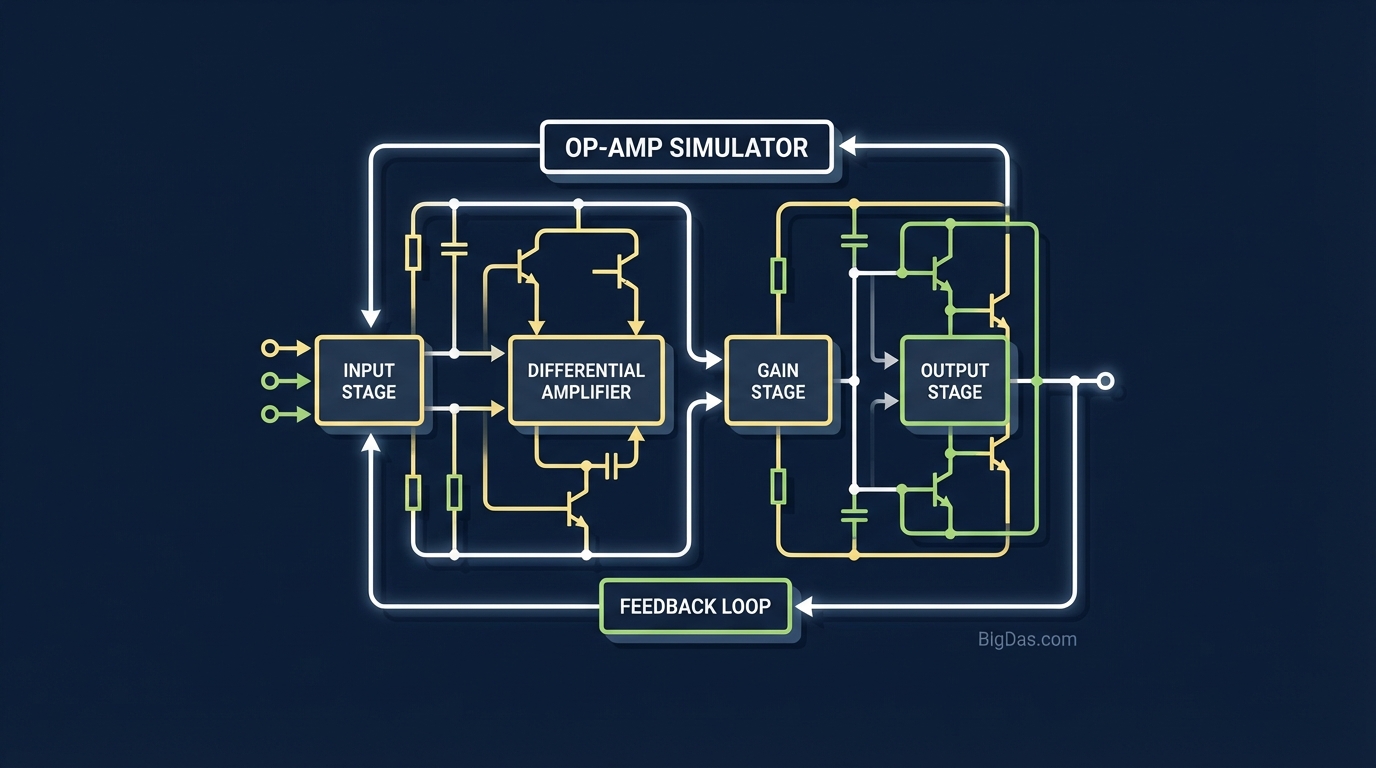
Op-Amp Simulator
 Modern scientific illustration of Op-Amp Simulator
Master Circuit Design: A Practical Op-Amp Simulator for Real-Time Analysis
The Operational Amplifier (Op-Amp) is the fundamental building block of analog electronics. It conditions sensor signals, builds audio pre-amplifiers, and sits at the heart of most control systems. But calculating feedback resistors, determining gain, and predicting phase shifts manually is slow and error-prone. Static calculations also miss how the signal behaves dynamically over time.
This page covers an Op-Amp Simulator that visualizes the behavior of Inverting, Non-Inverting, and Buffer configurations in real time. It runs in the browser, updates the waveform as you change components, and shows saturation when your output exceeds the supply rails.
What is the Op-Amp Simulator?
The Op-Amp Simulator is a browser-based engineering tool that models the electrical behavior of standard operational amplifier circuits. It functions as a virtual oscilloscope and circuit lab combined, computing the transfer function and plotting the input and output waveforms as you adjust component values.
It covers the three topologies used in most analog signal chain designs:
- Inverting Amplifier: Output is 180° out of phase with the input.
- Non-Inverting Amplifier: Output is in phase with the input, with gain > 1.
- Voltage Follower (Buffer): Unity gain, used for impedance matching.
Enter your resistor values, input voltage, and supply rails, and the simulator computes the transfer function and generates the waveform.
Key Features
1. Real-Time Waveform Visualization
A clipped sine wave is easier to understand than an abstract gain number. The tool plots $V_{in}$ and $V_{out}$ on a time-domain graph so you can see phase shifts and signal integrity directly.
2. Dynamic Component Adjustment
Change the feedback resistor $R_f$ and the waveform grows or shrinks instantly. This makes the relationship between resistor ratios and closed-loop gain $A_v$ obvious.
3. Saturation Detection (Rail-to-Rail Limits)
An ideal Op-Amp has unlimited output swing. A real one does not. The simulator applies your supply rail limits and shows clipping when the calculated output exceeds the physical limits of the device.
4. Configuration Switching
Switch between Inverting, Non-Inverting, and Buffer modes without reloading. You can A/B test topologies while keeping the same supply and signal settings.
5. High-Precision Math Engine
The backend uses floating-point arithmetic, so gain values stay accurate for professional design work.
Supported Circuit Configurations
The Inverting Amplifier
The input signal goes to the inverting input (-) through a resistor $R_{in}$. The non-inverting input (+) is grounded.
$$V_{out} = -V_{in} \times \left(\frac{R_f}{R_{in}}\right)$$
In the waveform view, watch the Phase Shift. When the input wave goes positive, the output wave goes negative. That 180° phase shift is the defining feature of this topology.
The Non-Inverting Amplifier
Use this when you need high input impedance and voltage gain without flipping the signal. The input goes directly to the non-inverting input (+).
$$V_{out} = V_{in} \times \left(1 + \frac{R_f}{R_{in}}\right)$$
The output waveform aligns with the input waveform, no phase shift.
The Voltage Buffer (Unity Gain Follower)
Gain of 1. No voltage amplification, but it boosts current drive and isolates stages.
$$V_{out} = V_{in}$$
The simulator shows the input and output traces overlapping exactly. The amplitude is unchanged, which confirms the buffer is working for impedance matching.
How to Use the Simulator
Step 1: Select Your Topology
Pick Inverting, Non-Inverting, or Buffer from the dropdown. The schematic on screen updates to match.
Step 2: Set Power Rails
Enter the positive ($+V_{cc}$) and negative ($-V_{ee}$) supply voltages. Common choices are $\pm 12\text{V}$ for dual supply or $0\text{V}/5\text{V}$ for single supply. Setting this correctly is required to see realistic clipping.
Step 3: Input Component Values
Enter the following:
- Input Voltage ($V_{in}$): The amplitude of the signal you want to amplify.
- Input Resistor ($R_{in}$): Connects the source to the Op-Amp.
- Feedback Resistor ($R_f$): Connects the output back to the inverting input.
Step 4: Read the Results
The tool displays:
- Gain ($A_v$): The factor by which the signal is multiplied.
- Output Voltage ($V_{out}$): The theoretical peak voltage.
Step 5: Interpret the Waveform
- Green Line: Input signal.
- Red Line: Output signal.
- Flat Tops: Clipping. The Op-Amp is hitting the power rail. Reduce $R_f$ or raise the supply voltage.
Who It's For
1. Electronics Students
Textbooks show formulas like $V_{out} = -V_{in}(R_f/R_{in})$, but plugging in numbers is not the same as seeing the phase invert on screen. The simulator makes phase inversion and gain limits visible for lab reports and homework.
2. Audio Equipment Designers
If you are building a guitar pedal or a microphone pre-amp, you need to know the stage gain and whether the signal will distort. Tune your resistor values here before you breadboard.
3. Sensor Integration Engineers
Temperature or pressure sensors often output millivolts. An Arduino or microcontroller needs 0 to 5V. Use the simulator to calculate the resistors that scale a 0.1V sensor signal to 3.3V or 5V.
4. Hobbyists and Makers
If the breadboard output looks wrong, run the numbers in the simulator. If it says 5V out and your multimeter reads 1V, you have a wiring or component issue, not a design issue.
Pro Tips
- Watch the Rails: The most common Op-Amp design mistake is asking for more voltage than the supply provides. If your calculation needs 15V output from a 12V rail, the simulator will show the clipped waveform. Leave 1 to 2V of headroom.
- Mind the Input Impedance: In an Inverting Amplifier, $R_{in}$ sets the input impedance. A 10Ω input will load down most sources. Use 1kΩ to 100kΩ for general work.
- Frequency Response: The simulator models ideal Op-Amps at standard frequencies. Real devices have a Gain-Bandwidth Product (GBP). At MHz-range frequencies, the gain rolls off, that is Bode plot territory and outside this tool's scope.
Frequently Asked Questions (FAQ)
Q: Why is my output waveform flat at the top and bottom?
A: That is clipping (saturation). The calculated output exceeds the supply voltage. Lower the gain by reducing $R_f$, or raise the supply voltage.
Q: Can I simulate a single-supply circuit (e.g. 0V to 5V)?
A: Yes. Set $-V_{ee}$ to 0V and $+V_{cc}$ to 5V. For AC signals on a single supply, you typically need a virtual ground (mid-rail reference) at the non-inverting input, or the negative half-cycle will clip.
Q: What is the difference between the Inverting and Non-Inverting configuration?
A: The Inverting amplifier flips the signal 180° and can have a gain below 1 (attenuation). The Non-Inverting amplifier preserves the phase and always has a gain of 1 or greater.
Q: Does this simulator account for Op-Amp Slew Rate?
A: No. The simulator handles ideal steady-state gain and saturation. For slew-rate-limited transient analysis, use a full SPICE simulator. For roughly 95% of analog design work, the ideal model is faster and sufficient.
Conclusion
The Op-Amp Simulator gives immediate feedback on gain, phase, and saturation, which removes the guesswork from Op-Amp design. It is useful for students learning the difference between inverting and non-inverting inputs, and for engineers running a quick gain check on a new PCB.
[Launch Op-Amp Simulator Now] (Insert Tool Link Here)