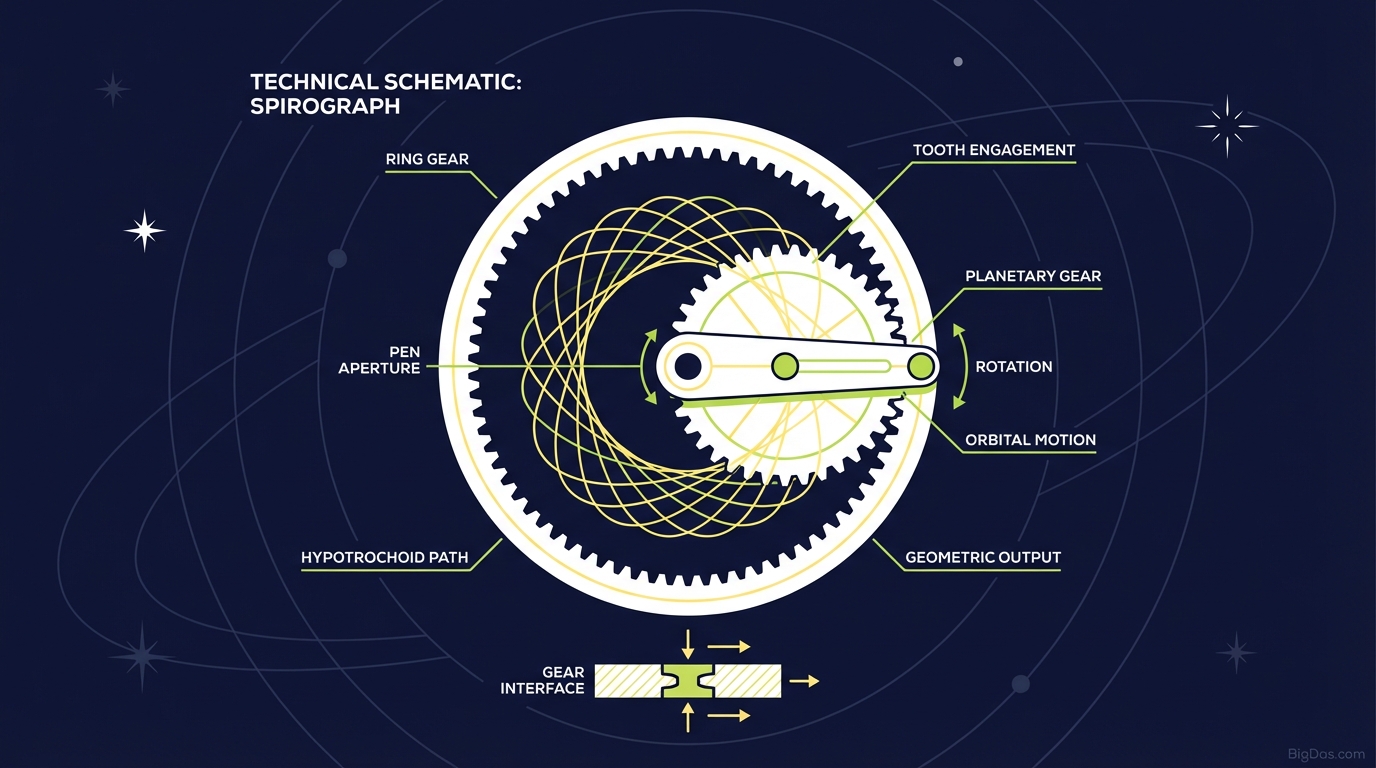
Spirograph
 Modern scientific illustration of Spirograph
Master Geometric Art: The Ultimate Online Spirograph Generator Guide
The classic Spirograph toy, plastic gears, pins, and ballpoint pens, turns simple circular motions into intricate patterns. The physical version has limits: gears slip, paper tears, and ink runs dry.
The Digital Spirograph Tool removes those limits.
This online generator simulates the math of spirography with precision. Graphic designers can use it for vector-perfect guilloche patterns, math educators can use it to demonstrate hypotrochoids, and anyone can use it for a meditative creative outlet.
This guide covers the mechanics of spirography, how to use the tool for professional design, and a step-by-step workflow for generating complex geometric curves.
What is a Spirograph? (The Science of Curves)
A Spirograph is a geometric drawing device that produces mathematical curves called roulettes. Most patterns fall into two categories: hypotrochoids and epitrochoids.
A roulette is the curve traced by a point attached to a circle (the rotor) as it rolls along the outside or inside of a fixed circle (the stator).
From Plastic Gears to Digital Precision
British engineer Denys Fisher invented the original toy in 1965. It used plastic gears to mechanically constrain a pen's movement. The analog version is limited by friction and mechanical tolerance.
The Online Spirograph Generator replaces plastic with code, giving you:
- Infinite Resolution: Patterns stay crisp at any size.
- Impossible Geometries: Ratios and pen placements that would break a physical gear.
- Layering: Combine multiple curves on one canvas without smudging or tearing.
Key Features
1. Ratio Control
The pattern depends on the ratio between the fixed circle and the moving circle. The tool accepts precise numerical values for Fixed Radius (R), Moving Radius (r), and Pen Offset (d).
Prime number ratios produce dense, non-repeating patterns that fill the canvas. You are not limited to the whole-number tooth counts of physical gears.
2. Vector Export
Export designs as SVG or high-resolution PNG. SVG files import directly into Adobe Illustrator, Figma, or CorelDRAW for use in logos, guilloche borders, or architectural elements.
3. Multi-Layer Rendering
Generate multiple curves on the same canvas without reloading. Overlaying a thick dark curve with a fine light curve at a different ratio mimics the depth effect used in security printing and banknotes.
4. Real-Time Rendering
The engine uses WebGL to render curves as you adjust the sliders. Changes appear immediately, which speeds up experimentation.
Step-by-Step Guide
Step 1: Set the Stator
The stator is the fixed circle the rotor rolls against. A larger radius gives you more room; a smaller radius produces tighter, more contained designs.
Adjust the Fixed Radius slider.
Step 2: Choose the Rotor
The moving circle determines the number of lobes or petals.
- For a 5-pointed star pattern, use a ratio that reduces to 1:5.
- Adjust the Moving Radius slider.
- Toggle between Hypotrochoid (rolling inside) and Epitrochoid (rolling outside) to change the shape.
Step 3: Position the Pen
The pen offset is the distance from the center of the moving circle to the drawing point.
- Low offset: Smooth, sine-wave-like curves with a hole in the center.
- High offset: Sharp, spiky loops that cross through the center.
Slide the Pen Offset control to the extreme for aggressive geometric spikes.
Step 4: Refine Resolution and Iterations
- Resolution: Higher values produce smoother curves. Keep this high for final exports.
- Iterations (Rotations): The number of times the moving circle rolls around the center.
- If the pattern doesn't close, increase Iterations until the loop completes.
Step 5: Style and Export
- Select Stroke Color and Stroke Width.
- Click Draw or Generate to render the full path.
- Click Export SVG for vector work or Download PNG for raster use.
Advanced Techniques
1. Prime Number Ratios
Avoid simple ratios like 2:1 or 4:1. Try prime number radii instead (e.g. Fixed Radius: 97, Moving Radius: 31).
Prime ratios take longer to return to the starting point. The result is hundreds of intersecting lines and a moiré-like texture.
2. Opacity Stacking
Set line opacity to 30 to 50% instead of 100%. Overlapping lines blend and darken, creating natural gradients and hot spots where the geometry is densest. This adds depth to a flat image.
3. The Tunnel Effect
Draw a pattern, then reduce both the Fixed Radius and Moving Radius by the same percentage, change the color, and draw again without clearing. Repeat 5 to 10 times.
The result looks like a wireframe torus or spiraling vortex.
Use Cases
Graphic Designers
Generative art is common in modern branding. The tool produces mathematical assets for packaging, backgrounds, and logos. It also generates guilloche elements (the complex lines on banknotes) for certificates and security badges.
Educators
The tool visualizes trigonometry and parametric equations. Teachers can demonstrate LCM (Least Common Multiple) by showing how many rotations a gear needs to return to its origin based on its size ratio.
CNC and Plotter Artists
The SVG export is clean and suitable for pen plotters (like the Axidraw) or laser cutters. Design the path, export the vector, and run it on a machine to draw or cut onto paper, wood, or acrylic.
Mindfulness
Watching a complex pattern emerge is repetitive, symmetrical, and calming. The tool works as a Zen-mode creative outlet.
Frequently Asked Questions (FAQ)
1. Can I use the images for commercial projects?
Yes. The designs are generated algorithmically from your inputs. You own the resulting image and can use it in commercial packaging, logo design, and print-on-demand products.
2. What is the difference between a Hypotrochoid and an Epitrochoid?
The difference is the position of the rolling circle.
- Hypotrochoid: The rolling circle is inside the fixed circle. Produces star-like or flower-like shapes.
- Epitrochoid: The rolling circle is outside the fixed circle. Produces voluminous, cloud-like, or looped structures.
The tool toggles between both modes.
3. My pattern isn't closing. Why?
The ratio between the two circles is too complex for the current iteration count. Increase the Iterations or Rotations slider so the moving circle completes a full mathematical cycle.
4. How do I get high-quality prints?
Export as SVG. SVG is resolution-independent, so the file scales to billboard size without visible pixels.
Conclusion
The Spirograph is a way to explore geometry through drawing. Digitizing the mechanism gives you precision, exportable vectors, and the ability to generate patterns that would be impossible on paper.
Use it for logo design, classroom demonstrations, plotter art, or relaxation.