UART Communication Demo
 UART Communication Demo
Master Serial Protocols: The Ultimate Interactive UART Communication Demo
In embedded systems, data streams are invisible. You write code, wire up a microcontroller, and hope the bits arrive in the right order. When things break, garbage characters in the terminal, a hung bus, debugging turns into guesswork.
Universal Asynchronous Receiver-Transmitter (UART) is the backbone of serial communication. It is ubiquitous, reliable, and simple at its core. Visualizing how a character turns into a stream of high and low voltage pulses, however, is often abstract.
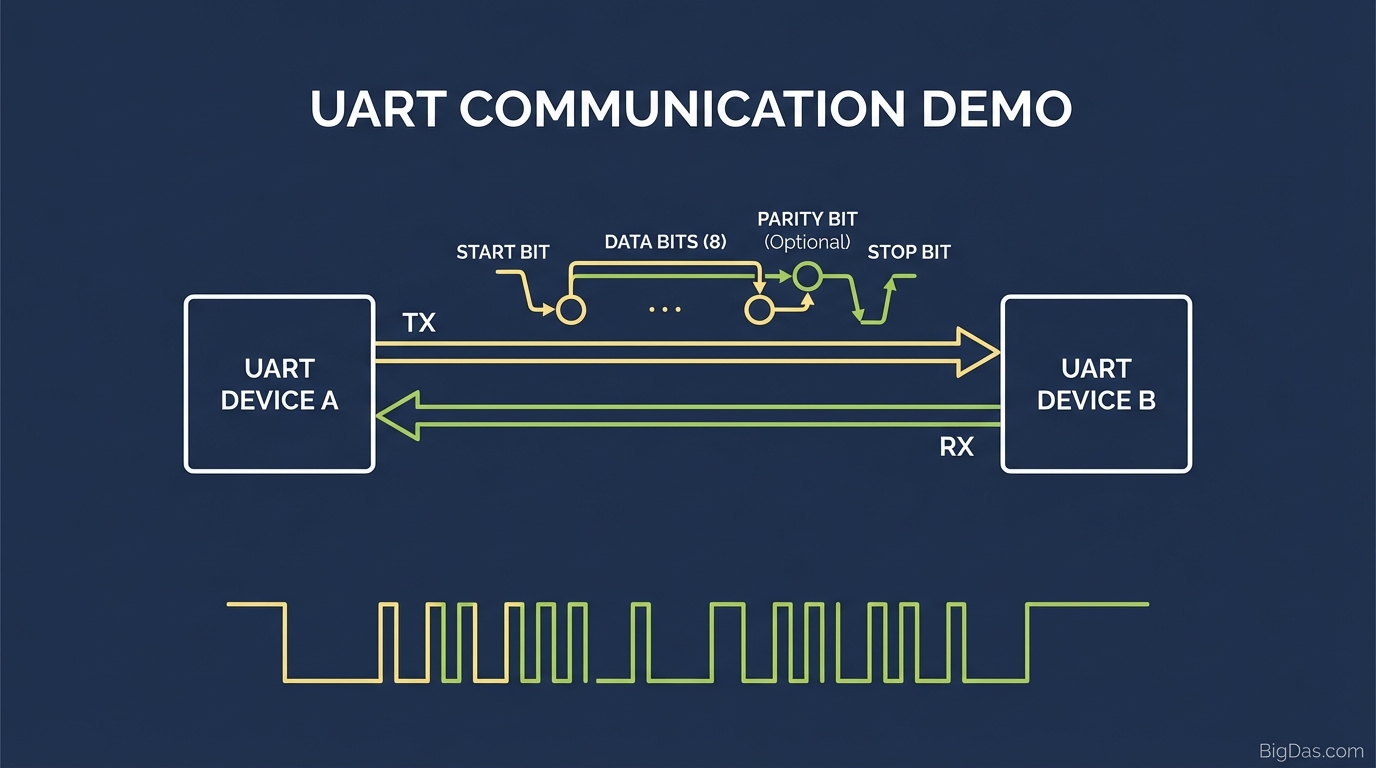
This guide covers our UART Communication Demo, a browser-based tool that visualizes the transmission of a character via the UART protocol in real-time.
UART is asynchronous: no shared clock between transmitter (TX) and receiver (RX). Both sides agree on a timing speed (Baud Rate) and a frame format.
The tool bridges the gap between the ASCII character you send and the electrical waveform on the wire. It breaks the transmission into its core components:
- Idle State (High Voltage)
- Start Bit (Pull to Low)
- Data Bits (LSB First)
- Parity Bit (Optional error checking)
- Stop Bit (Return to High)
By rendering this process step-by-step, the tool turns abstract binary concepts into concrete visual logic.
Key Features
1. Waveform Visualization
The tool renders a digital logic waveform. Logic High (1 / VCC) and Logic Low (0 / GND) are shown clearly. This makes the "Idle High" standard visible and shows the falling edge of the Start Bit.
2. Real-Time Bit Transmission
The demo animates the transmission. Bits shift out one by one, emphasizing that data is sent sequentially based on the Baud rate, not instantly.
3. Customizable Data Parameters
The frame can be configured just like firmware registers:
- Data Bits: 7 or 8 bits.
- Parity: None, Even, or Odd.
- Stop Bits: 1 or 2.
4. ASCII to Binary to Waveform Conversion
Type a letter (e.g. 'A'), and the tool calculates the ASCII hex code (0x41), converts it to binary (01000001), and maps it to the Least Significant Bit (LSB) first transmission order.
Step-by-Step Guide
Step 1: Configure Your Protocol
Set the parameters on the control panel.
- Select Character: Enter the character to send (e.g. "k").
- Parity Setting: Choose "None" for standard transmission, or "Even/Odd" to see how the extra bit is calculated.
Step 2: Initiate Transmission
Click the "Transmit" button.
Step 3: Observe the Idle-to-Active Transition
The line starts at Logic High (1). When transmission begins, the line drops to Logic Low (0). This is the Start Bit. It wakes the receiver and synchronizes the internal clocks.
Step 4: Analyze the Data Stream
The tool highlights each bit as it passes "over the wire."
- The Least Significant Bit (LSB) is sent first (Bit 0), ending with the Most Significant Bit (MSB) (Bit 7).
- Pro Tip: Pause and match the waveform High/Low states to the binary representation displayed below the graph.
Step 5: The Stop Bit Return
After the data and parity bits are sent, the line pulls back up to Logic High. This is the Stop Bit, returning the line to the Idle state.
Top Use Cases
1. Students and Educators
Textbooks describe UART dryly. This demo brings it to life. Professors use it to demonstrate framing errors and parity generation visually in the classroom.
2. Firmware Developers (Debugging)
Writing a "Bit-Banging" UART driver on a GPIO pin? Use this tool to generate a reference waveform for a specific character, then compare it against your logic analyzer output.
3. Hardware Hackers
Reverse engineering a port on a router or IoT device? Simulate different UART configurations (7E1 vs 8N1) to visualize what the raw binary from your logic analyzer should look like.
How to Get the Most Out of This Tool
Do not just watch the animation passively. Run these experiments:
- The "All Zeros" Test: Transmit the Null character (0x00). The line goes Low for the Start bit, stays Low for 8 data bits, and only returns High for the Stop bit. This mimics a "Break" condition if held too long.
- The Parity Check: Toggle between 'A' (Binary 01000001) using Even vs. Odd parity. Watch the parity bit flip High or Low to satisfy the count.
- The Alternating Pattern: Transmit the character 'U' (0x55, Binary 01010101). This creates a perfect square wave frequency, the standard test pattern for measuring Baud rate accuracy with an oscilloscope.
Frequently Asked Questions (FAQ)
1. Why is the UART line "High" when idle?
In UART (and RS-232 logic), the idle state is kept at Logic High (Mark) to distinguish an idle line from a broken or disconnected wire. If the wire is cut, the voltage floats or drops, which the receiver can detect as a fault.
2. Does this tool show RS-232 voltages or TTL/CMOS?
This demo visualizes TTL/CMOS Logic levels (0V to 3.3V/5V), which is what you encounter directly at microcontroller pins (Arduino, STM32, ESP32). RS-232 uses negative/positive voltages (-12V to +12V) and inverts the logic, but the timing displayed here remains identical.
3. Why is the LSB (Least Significant Bit) sent first?
This is a historical standard of the UART protocol. Sending LSB first allows the receiver to begin shifting the value into a register before the entire byte has arrived.
4. What happens if the Baud rates don't match?
In the real world, a baud rate mismatch causes the receiver to sample the voltage at the wrong time, reading a 0 as a 1 or vice versa. The tool shows where the center of each bit should be, making the impact of timing drift clear.
Conclusion
The UART Communication Demo provides a visual reference that bridges the gap between code and electricity. Whether debugging an embedded system or learning how a keyboard talks to a computer, this tool shows exactly what happens on the wire.