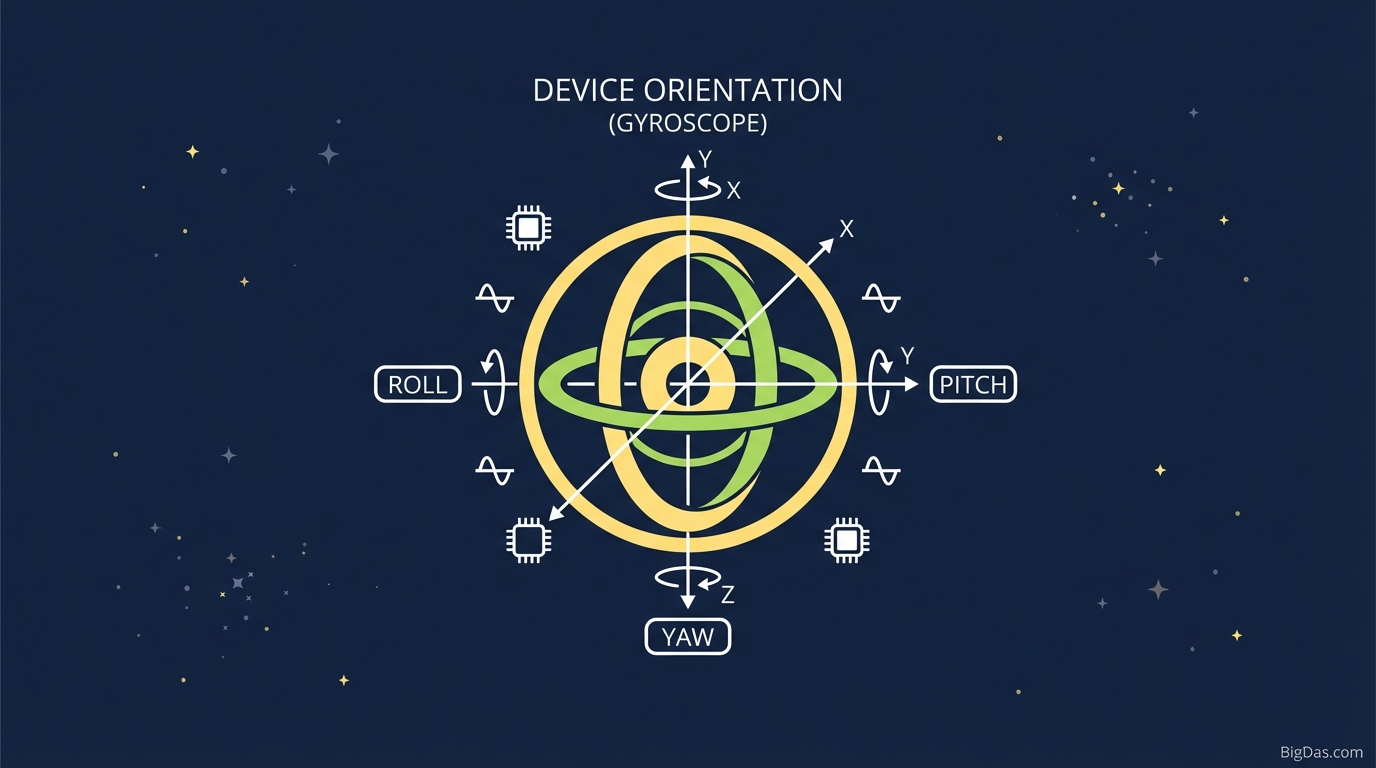
Device Orientation (Gyroscope)
 Modern scientific illustration of Device Orientation (Gyroscope)
Guide to the Device Orientation (Gyroscope) Tool
Smartphones, tablets, and laptops contain gyroscopes and accelerometers that report the device's position in 3D space. The Device Orientation API exposes this data as three rotation angles, but reading raw numbers in real time is impractical. This tool renders those angles as a live 3D model that mirrors your device's physical orientation.
This guide covers what the tool measures, how to use it, and where it fits in a debugging or testing workflow.
What is Device Orientation?
Modern phones and tablets use Micro-Electro-Mechanical Systems (MEMS) for motion sensing. Two sensors matter here:
- Accelerometer: Measures linear acceleration, including gravity.
- Gyroscope: Measures angular velocity (rotation rate) around the device's axes.
An accelerometer detects which way is down, but it is unreliable for rotation. A gyroscope fills that gap. Combining both produces Device Orientation: the device's position and rotation in 3D space relative to the Earth.
Alpha, Beta, and Gamma
The tool follows the W3C Device Orientation API and reports rotation as three Euler angles:
- Alpha ($\alpha$): The Z-Axis (Compass Heading)
- Movement: Rotating the phone flat on a table (like a compass needle).
- Range: 0 to 360 degrees.
- Function: Reports which direction the top of the device points relative to magnetic north.
- Beta ($\beta$): The X-Axis (Front-to-Back Tilt)
- Movement: Tilting the phone forward or backward (like nodding "yes").
- Range: -180 to 180 degrees.
- Function: Used in driving games, tilt-to-scroll, and pitch controls.
- Gamma ($\gamma$): The Y-Axis (Left-to-Right Tilt)
- Movement: Tilting the phone left or right (like rocking a boat).
- Range: -90 to 90 degrees.
- Function: Used for steering in racing games and orientation switching.
The tool converts these three streams into a responsive 3D model that updates as you move the device.
Key Features
1. Real-Time 3D Rendering
A 3D model (a phone wireframe or cube) mirrors the device's physical orientation with no perceptible lag. Flip the phone upside down and the model flips with it. This gives instant visual confirmation that the sensors are responding.
2. High-Precision Data Readout
The tool displays live Alpha, Beta, and Gamma values to several decimal places. This precision is useful when debugging code that depends on specific threshold triggers.
3. Cross-Platform Compatibility
The tool uses standard WebGL and HTML5 APIs and works on:
- iOS Devices: iPhones and iPads (Safari and Chrome).
- Android Devices: All major manufacturers.
- Desktop Simulators: Laptops with built-in motion sensors, or Chrome DevTools sensor emulation.
4. Local-Only Processing
The tool runs entirely in the browser. Sensor data never leaves the device, and no special permissions beyond motion access are required.
How to Use the Tool
Step 1: Open the Tool
Load the tool's URL on a mobile device for the full experience. Desktop browsers work only if the laptop has built-in motion sensors or if a developer emulator supplies synthetic data.
Step 2: Grant Permissions (iOS 13+)
Apple blocks motion sensor access by default in Safari to prevent fingerprinting. A user gesture (typically a tap) is required to unlock the API.
- Tap the Start or Request Permission button.
- When the system dialog appears, select Allow.
- Confirm the page is served over HTTPS; browsers block the sensor API on plain HTTP.
Step 3: Calibrate (Optional)
For accurate compass readings, move the phone in a "Figure 8" pattern to recalibrate the magnetometer and align the Alpha axis with magnetic north.
Step 4: Interpret the Visualization
- Phone flat on a table: The 3D model sits flat.
- Tilt forward: The model pitches forward (Beta changes).
- Rotate your body 90°: The model rotates (Alpha changes).
Step 5: Troubleshooting
If the 3D model jitters or drifts:
- Remove magnetic interference: Phone cases with magnetic clasps and car mounts distort the magnetometer and gyroscope. Test without the case.
- Check orientation lock: System-wide "Portrait Orientation Lock" is usually overridden by the API, but disabling it removes one variable.
Primary Use Cases
1. Web and App Development
When building with Three.js, A-Frame, or native Swift/Kotlin, sensor input is often a source of bugs.
- Problem: A camera rotates wildly when the device tilts.
- Fix: Use the tool to confirm the hardware reports clean values. If the 3D model behaves correctly, the bug is in the application code, not the sensor.
2. Hardware Testing
A faulty gyroscope is a common defect in used or refurbished phones.
- Test: Place the phone on a flat, stable surface and watch the tool.
- Verdict: If the 3D model slowly spins or tilts while the device is stationary, the sensors are drifting. This indicates a hardware fault.
3. VR/AR Calibration
AR relies on an accurate device pose. A quick check with this tool before launching a heavy AR app confirms the sensors are tracking the environment correctly.
4. Education
Physics and computer science instructors use the tool to demonstrate degrees of freedom. Students see the difference between pitch, yaw, and roll by manipulating a 3D object in real time.
Technical Tips
- Gimbal Lock: When Beta approaches 90°, Alpha and Gamma can jump unpredictably. This is a property of Euler angles, not a bug. For complex 3D rotations, use quaternions in code.
- Browser Coordinate Systems: Chrome and Safari report orientation in slightly different coordinate frames. The tool normalizes the visualization, but raw values from Safari may need a coordinate conversion to match Chrome or Android output.
- Absolute vs. Relative Orientation: The tool detects support for
deviceOrientationAbsolute. When available, Alpha is tied to magnetic north. Otherwise, Alpha is relative to the device's heading when the page loaded.
Frequently Asked Questions (FAQ)
Q1: Why is the visualization not moving on my iPhone?
A: Permission is the most common cause. Since iOS 12.2, Apple requires a tap to grant motion access. Reload the page and tap the Start or Allow Motion button. The site must also be served over HTTPS.
Q2: Does this tool test my internet speed?
A: No. The tool reads the device's internal hardware sensors. Once the page is loaded, it runs locally and does not use network bandwidth.
Q3: What is the difference between a gyroscope and an accelerometer?
A: An accelerometer measures linear acceleration, including gravity. A gyroscope measures rotational velocity. The tool fuses data from both to compute a stable 3D orientation.
Q4: Can I use this tool on a laptop or desktop?
A: Most laptops do not include gyroscopes, so the tool will not respond. Developers can simulate orientation in Chrome DevTools (Ctrl+Shift+I → More tools → Sensors), and the tool will render the simulated values.
Q5: Is the data accurate enough for scientific measurement?
A: The tool renders data as accurately as the browser API allows. Browsers typically throttle sensor updates to around 60 Hz to conserve battery. For medical or industrial precision, dedicated hardware is required. For development, QA, and general testing, the tool is sufficiently accurate.
For the best experience, keep your mobile browser updated and disable Low Power Mode, which can reduce sensor polling rates.