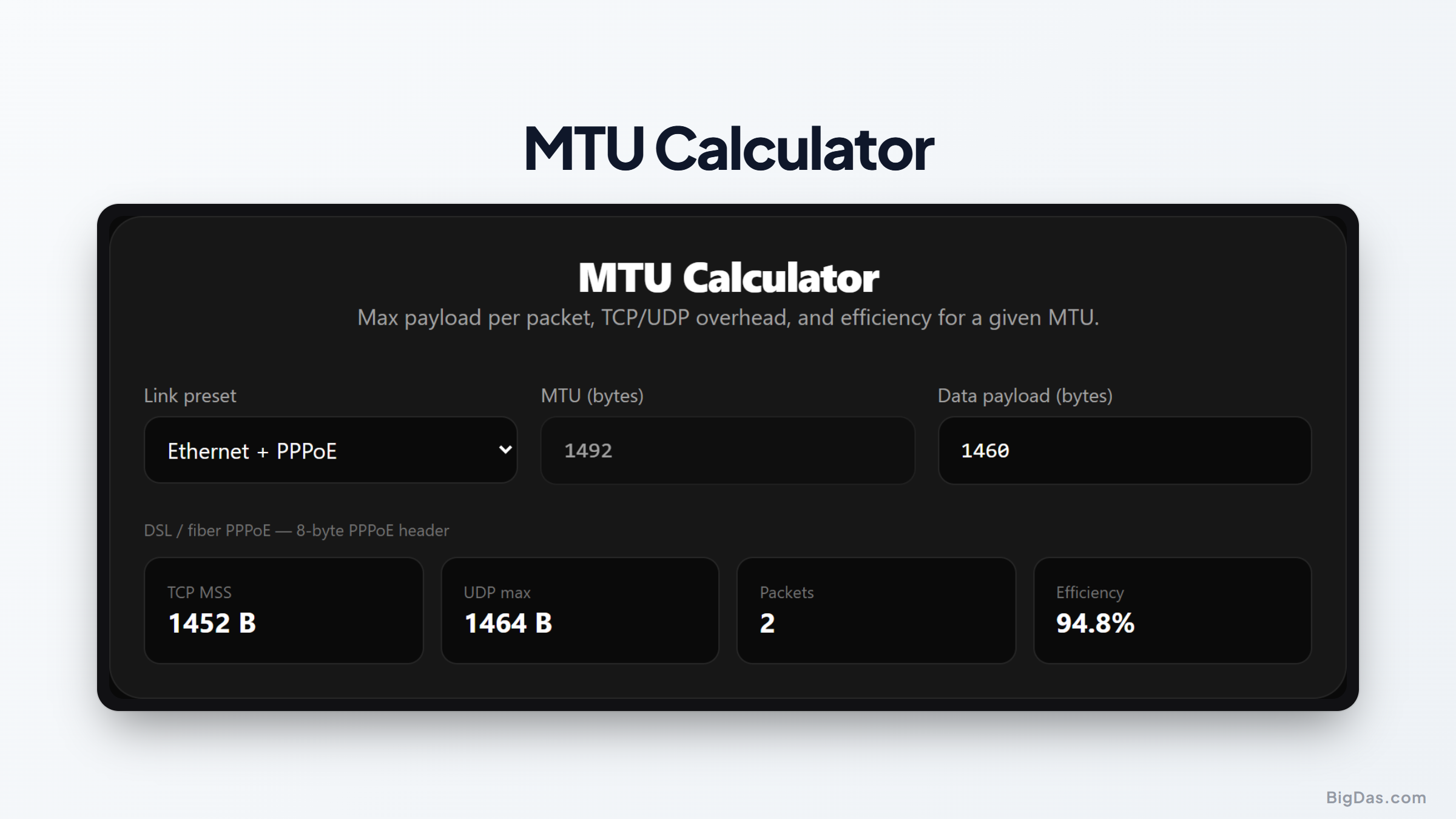
MTU Calculator
 Generated infographic and interface snapshot for MTU Calculator
MTU Calculator: Calculate Packet Sizes, Protocol Overhead, and Network Efficiency
Networks depend on hard size limits. When data moves across the internet, it splits into packets. If a packet exceeds the maximum size allowed by any interface along its path, the packet gets fragmented or dropped. Fragmented packets waste CPU cycles on routers, and dropped packets cause silent timeouts that are hard to diagnose. Knowing your Maximum Transmission Unit (MTU) and Maximum Segment Size (MSS) keeps links stable, whether you run WireGuard, troubleshoot a PPPoE DSL line, or deploy GRE and VXLAN overlays. An MTU calculator gives you the exact packet size and efficiency for any protocol stack.
What is an MTU Calculator?
An MTU calculator is a utility that determines the usable payload size for packets based on your network stack. The Maximum Transmission Unit is the largest frame a network interface can send without fragmentation. Each protocol adds its own header for routing, encryption, or framing. A standard Ethernet frame uses 14 bytes of framing, IPv4 uses 20 bytes, IPv6 uses 40 bytes, and TCP uses 20 bytes. Overlay layers like WireGuard, PPPoE, GRE, or VXLAN wrap the payload again and shrink the available data space. An MTU calculator sums the header overhead across every active layer, subtracts it from the base frame size, and returns the maximum payload along with the TCP MSS for that stack.
Key Features and Benefits
- Multiprotocol Encapsulation Support: Handles Ethernet, PPPoE, IPsec, GRE, VXLAN, and WireGuard in any combination.
- Instant MSS Calculation: Returns the TCP MSS value that prevents fragmentation and path MTU discovery problems.
- Header Overhead Breakdown: Shows exactly how many bytes each protocol layer consumes from the total frame.
- Transfer Efficiency Analysis: Calculates the payload-to-total-byte ratio so you can compare overhead between configurations.
- IPv4 and IPv6 Dual Stack: Switch between protocols to see how the 40-byte IPv6 header changes your payload versus the 20-byte IPv4 header.
Step by Step Guide on How to Use the MTU Calculator
Step 1: Select Your Base Interface MTU
Set the baseline MTU of your physical interface. Standard Ethernet uses 1500 bytes. Data center networks with jumbo frames use 9000 bytes.
Step 2: Choose Your Internet Protocol Version
Pick IPv4 or IPv6. IPv4 uses a 20-byte network header, IPv6 uses a 40-byte network header. The right selection keeps the network layer size accurate.
Step 3: Add Tunneling and Encapsulation Layers
Enable any overlay protocols on your link. PPPoE adds 8 bytes. WireGuard adds 60 bytes over IPv4 or 80 bytes over IPv6. GRE and VXLAN are common in cloud and virtualized networks.
Step 4: Review Payload and MSS Results
The tool shows the maximum payload per packet and the recommended TCP MSS. Apply that MSS value to your router or firewall to keep TCP handshakes clean.
Why You Need This Tool: Primary Use Cases
1. Setting Up WireGuard VPN Tunnels
WireGuard adds overhead from its UDP wrapping and security headers. A 1500-byte link running WireGuard over IPv4 works best with an inner MTU of 1420. Over IPv6, drop that to 1400. Wrong values cause UDP fragmentation or frozen TCP sessions. Calculate the right WireGuard MTU before you deploy.
2. Troubleshooting PPPoE Broadband Connections
ISPs using PPPoE add an 8-byte header inside the Ethernet frame, which drops the WAN interface MTU from 1500 to 1492. If you do not also set the TCP MSS to 1452 on the edge router, some sites and TLS handshakes hang or fail to load.
3. Configuring Cloud and Data Center Overlays
VXLAN and GRE carry virtualized traffic across physical hosts. VXLAN adds 50 bytes. Without jumbo frames or larger MTU on the underlay, VM traffic fragments and burns CPU on the host.
4. Preventing Path MTU Discovery Black Holes
Path MTU Discovery uses ICMP to find the smallest MTU on a path. Firewalls often drop ICMP, so clients never learn their packets are too large. Small packets flow, large transfers stall. Setting the calculated MSS on the gateway router avoids the problem.
Frequently Asked Questions
What is the difference between MTU and MSS?
MTU is the total packet size including all headers that an interface can send without fragmentation. MSS is strictly the TCP payload, excluding the IP header and the TCP header.
How does TCP overhead affect transfer efficiency?
Every packet carries protocol headers. A typical TCP packet over IPv4 uses 20 bytes for TCP and 20 bytes for IPv4. On small payloads, those headers take a large percentage of the total bytes and reduce transfer efficiency.
What is the standard PPPoE MTU size?
PPPoE links need an MTU of 1492. That is the 1500-byte Ethernet limit minus the 8-byte PPPoE header.
Why does WireGuard require a lower MTU setting?
WireGuard wraps packets in UDP and adds encryption and authentication tags. That adds 60 bytes over IPv4 and 80 bytes over IPv6. Subtracting this from the link MTU prevents fragmentation inside the tunnel.
What happens if my MTU is set too high?
A packet larger than any link along the path must be fragmented or dropped if the Don't Fragment flag is set. Fragmentation raises CPU usage on routers and increases retransmission rates on the sender.
Summary
Wrong packet limits break applications and waste bandwidth. Knowing how each protocol layer contributes to the total frame size lets you tune the network with confidence. An MTU calculator gives the payload limit and TCP MSS for Ethernet, PPPoE, GRE, VXLAN, and WireGuard. Match your router settings to the real protocol overhead and keep traffic moving.