AI Image to Text (OCR)
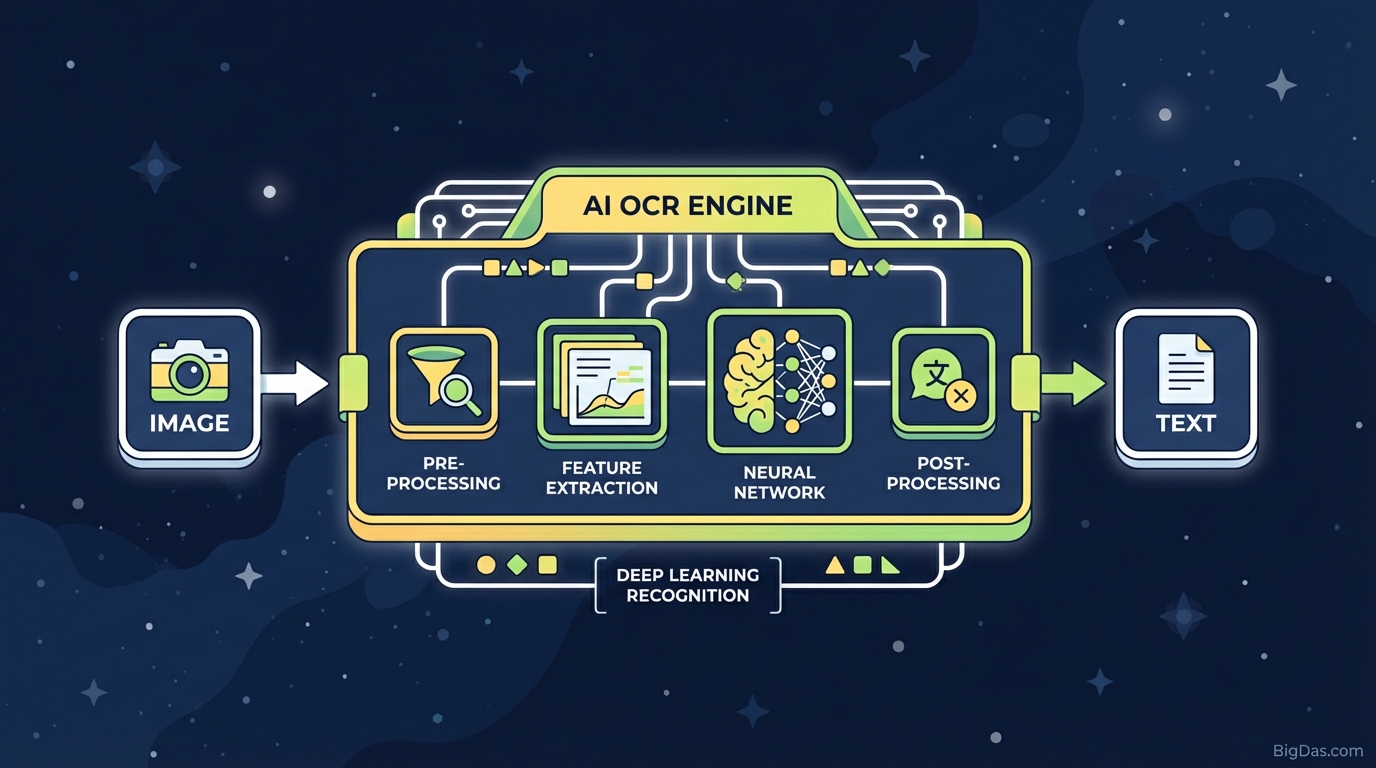
 Modern scientific illustration of AI Image to Text (OCR)
AI Image to Text: OCR Tool for Extracting Content from Images
A large share of useful information is still trapped in static images: screenshots, photos of whiteboards, scanned invoices. Copying that text by hand is slow and error-prone.
This guide covers AI Image to Text, an Optical Character Recognition (OCR) tool that combines AWS Textract with Mistral OCR engines to pull text out of images and preserve its structure.
The following sections explain how the two engines work together, what the tool does well, and how to use it.
What is AI Image to Text (OCR)?
Optical Character Recognition (OCR) converts scanned documents, PDF files, and digital photos into editable and searchable text.
Traditional OCR vs. AI-Based OCR
Traditional OCR engines (Tesseract is the usual example) match pixel shapes against known fonts. They work on clean, high-contrast scans and break down on:
- Handwriting.
- Low-resolution images.
- Tables, forms, and multi-column layouts.
- Shadows, glare, and background noise.
The Two-Engine Setup: AWS Textract + Mistral
The tool runs a hybrid pipeline:
AWS Textract AWS Textract uses machine learning to read documents and extract text, handwriting, tables, and form fields. It preserves the relationship between structured data points, so a column header like "Price" stays attached to the value "$50.00" below it.
Mistral OCR Engine Mistral adds a language-model layer on top of the raw OCR output. When an image is blurry and the OCR returns "H0me," Mistral uses surrounding context to correct it to "Home."
Together, the two engines handle noisy inputs and complex layouts that break single-engine OCR.
Key Features
1. Handwriting Recognition
Deep learning models read handwritten notes from whiteboards, prescriptions, and meeting minutes and convert them to digital text.
2. Layout Preservation
Columns, tables, and spatial relationships are kept intact. The output is structured text, not a flat blob.
3. Multi-Language Support
The engines cover English, Spanish, German, French, and other languages, with automatic language detection.
4. Fast Processing
Cloud GPUs process high-resolution images in milliseconds. Upload the file and get the text.
5. Pre-Processing and Noise Reduction
Before OCR runs, the image is desaturated, sharpened, and contrast-enhanced so the engine reads clean input.
How to Use the AI Image to Text Tool
Step 1: Upload Your Image
Drag and drop the file into the upload zone. Supported formats: JPG, PNG, JPEG, WEBP. Keep files under 10 MB for best speed, and make sure the text is visible.
Step 2: Select a Mode (Optional)
Choose between Standard Text (prose, articles) and Forms/Tables (invoices, spreadsheets). This tells AWS Textract which data structure to focus on.
Step 3: Click "Extract Text"
The image is sent to the processing server. The pipeline runs in this order:
- Preprocessing: desaturate and sharpen the image.
- Segmentation: separate text blocks from background.
- Extraction: AWS Textract and Mistral process segments in parallel.
- Reconstruction: reassemble the text in reading order.
Step 4: Copy or Download
The extracted text appears in the output box. From there:
- Copy to Clipboard for pasting into email or chat.
- Download as TXT or DOC for editing or archiving.
Tips for Better Results
- Lighting: Avoid flash on screens or glossy paper. Even, natural light works best.
- Resolution: 300 DPI is the target for scans. On a phone, tap to focus on the text before shooting.
- Orientation: Auto-rotation is on, but uploading right-side-up is faster and reduces layout errors.
- Contrast: High contrast (black text on white) reads best. Watch for underexposure on light text.
Common Use Cases
1. Developers and Data Scientists
Convert image-based data into JSON or CSV for training datasets or database population.
2. Students and Researchers
Snap library pages or lecture slides and turn them into searchable notes and citations.
3. Administrative Professionals
Digitize invoices, receipts, and contracts so the whole filing cabinet is searchable with Ctrl+F.
4. Content Creators
Pull quotes from social posts or text from infographics without retyping.
5. Legal and Medical Sectors
Convert case files and patient records to digital text for compliance and retrieval.
Frequently Asked Questions (FAQ)
1. Is my data secure when I upload an image?
Files are processed in an encrypted cloud environment and purged after extraction. Uploaded images are not used to train models.
2. Can this tool read handwriting?
Yes. AWS Textract handles handwritten text well, as long as the writing is legible. It reads margin notes, filled-in forms, and letters.
3. How does this compare to free mobile scanner apps?
Mobile apps typically run lightweight on-device OCR. This tool runs cloud-based models (Mistral and AWS), which give higher accuracy, better layout retention, and stronger handling of complex documents.
4. Can I extract text from a screenshot?
Yes. Screenshots are digital-native and usually the cleanest input, useful for grabbing code snippets or text from protected pages.
Summary
OCR built on computer vision and large language models replaces manual retyping of text from images.
The AI Image to Text tool combines AWS Textract and Mistral to extract text from scanned documents, photos, and screenshots while keeping structure intact. It works for enterprise data extraction and for everyday tasks like digitizing whiteboard notes.