Time Zone Meeting Finder
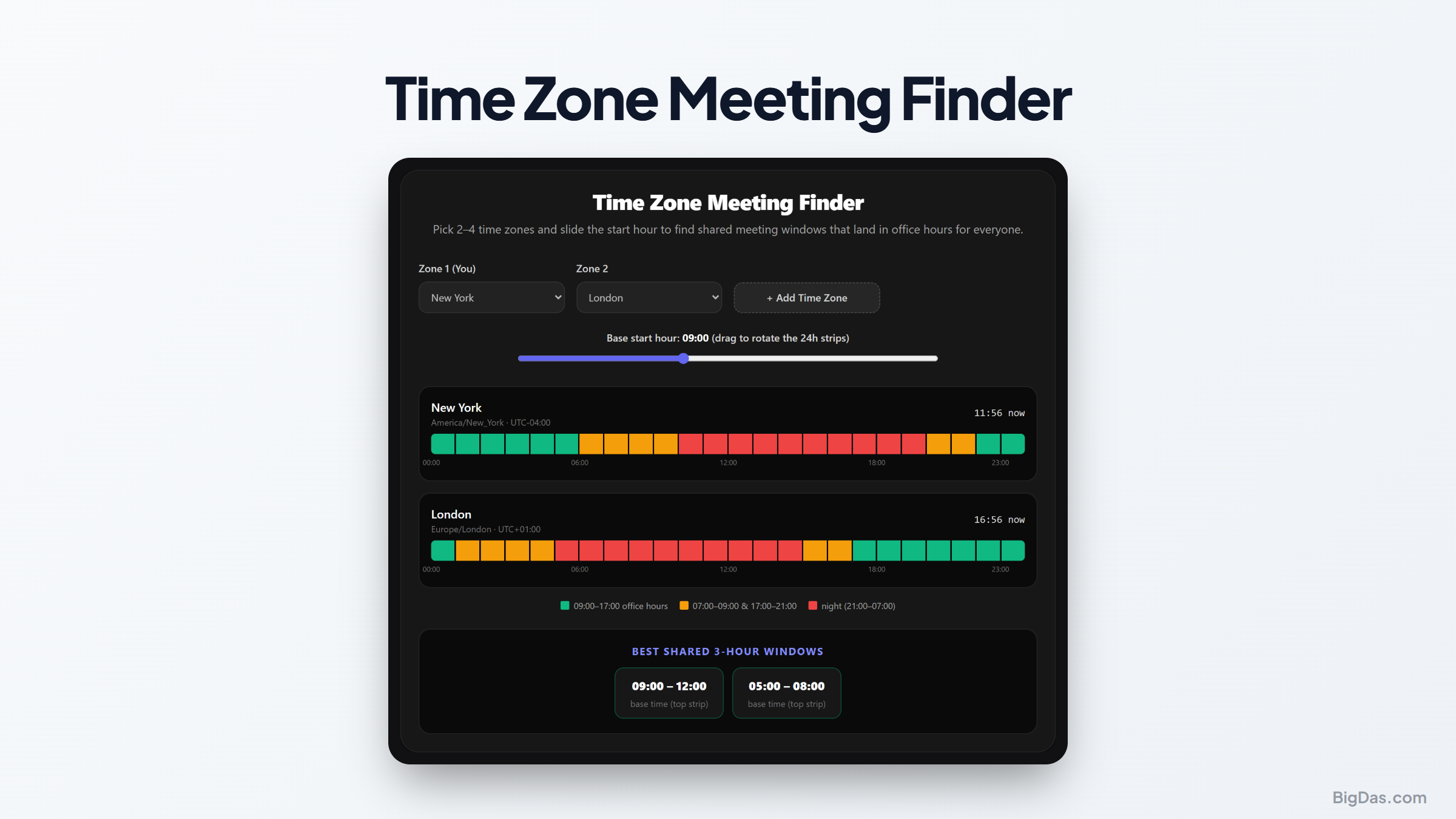
 Generated infographic and interface snapshot for Time Zone Meeting Finder
Mastering Global Collaboration: How to Use a Time Zone Meeting Finder
Coordinating a team spread across multiple continents often feels like solving a complex puzzle. You might have a colleague starting their day in London while your team member in Tokyo is finishing dinner, and your partner in New York is still asleep. Traditional calendars fall short because they prioritize local time, leaving the organizer to do the mental math. This manual calculation creates room for error, leading to missed calls or colleagues joining meetings at midnight.
A dedicated tool simplifies this process by automating the visualization of overlapping hours. By focusing on shared working windows, you remove the guesswork from global scheduling and ensure that everyone participates during their productive hours.
What is Time Zone Meeting Finder?
The Time Zone Meeting Finder is a digital utility designed to visualize multiple time zones on a single interactive interface. Unlike a static world clock, this tool lets you manipulate time to see how the day shifts across different regions. You select the locations of your team members, and the tool displays a synchronized view of their local hours.
The core functionality revolves around a sliding mechanism that moves through the twenty-four hour clock. As you slide the time forward or backward, the tool highlights which hours fall within standard business windows for every selected location. This visual representation allows you to spot the precise moment when your team members in California, Berlin, and Singapore are all active simultaneously.
Key Features and Benefits
The primary advantage of using a purpose-built tool for global scheduling is the elimination of cognitive fatigue. Manual offset calculations are prone to errors, especially when daylight saving time changes occur on different dates around the world.
Visual Overlap Detection
The interface provides a color-coded visual of working hours. You see blocks of time that represent the traditional nine-to-five schedule for each participant. When those blocks align, the tool indicates a clear window for your meeting.
Multi-Location Support
You are not limited to two locations. You can add three or four cities to the dashboard. This is essential for project managers overseeing distributed teams who need to find a common hour without asking every participant to check their own local time.
Flexibility and Precision
Because the tool uses a slider, you can test different parts of the day in seconds. If you cannot find a perfect overlap, you can quickly identify the least intrusive time for participants on the edges of the group. This helps in making fair decisions about who might need to start early or finish late.
Reduced Communication Overhead
Instead of sending emails asking "what time works for you," you can provide a link or a screenshot showing the available windows. This creates a data-driven approach to scheduling that respects the boundaries of your team members.
Step-by-Step Guide on How to Use It
Using the tool takes less than a minute. Follow these steps to find your next global meeting time.
- Select your locations. Type the city names or time zones of all meeting participants into the search fields. Most tools will automatically detect the current local time for each entry.
- Define working hours. If the tool allows, set the typical start and end times for your team. This calibrates the visual markers to reflect when people are actually in the office.
- Use the slider. Move the time slider across the timeline. Watch as the color indicators shift.
- Identify the window. Look for the period where all your selected locations show as active. This is your target meeting slot.
- Confirm and book. Once you identify the shared window, send a calendar invite with confidence, knowing the time is appropriate for everyone involved.
Why You Need This Tool
The shift toward remote and hybrid work environments has made global collaboration the default for many organizations. Whether you are a freelance consultant, a project manager, or part of an international engineering team, the scheduling challenges remain the same.
Professional Boundaries
Expecting team members to join meetings during their personal time leads to burnout. Using a scheduling tool demonstrates that you respect your colleagues and their local customs. It shows you have done the work to find a time that fits within their professional day.
Efficient Project Management
When you have a project with tight deadlines, every minute spent on administrative tasks like scheduling is a minute taken away from productive work. By finding meeting slots in seconds, you keep projects moving forward without delays caused by back-and-forth emails.
Cross-Functional Alignment
Large organizations often have departments in different countries that rarely interact. When a cross-functional meeting is required, the complexity increases. A tool that maps these time zones prevents the chaos of having twenty people try to coordinate schedules manually.
Frequently Asked Questions
Does the tool account for daylight saving time?
Yes, professional time zone tools pull data from global databases that track daylight saving shifts. You do not need to worry about manually adjusting for time changes, as the tool handles these shifts automatically throughout the year.
How many time zones can I compare at once?
Most tools are optimized to show between two and four time zones clearly on a single screen. Adding more than four can make the interface crowded and difficult to read. If you have a very large team, group them by region and find a time that works for the representatives of each region.
Can I save my favorite locations?
Many modern versions of this tool allow you to store your frequent locations. This creates a persistent dashboard that you can open and use instantly without needing to retype city names every time you have a new meeting request.
What if there is no overlapping time?
In some cases, such as a team split between the United States West Coast and East Asia, there is no shared standard working hour. In these instances, the tool remains useful by showing you which times are the least disruptive. You can then rotate the meeting time to ensure that the burden of working outside of standard hours is shared equally among team members over time.
Final Considerations
Global coordination is a necessary component of modern professional life. By removing the manual labor of calculating offsets and comparing calendars, you make the scheduling process more efficient and respectful. The Time Zone Meeting Finder acts as a neutral observer, ensuring that your meetings are set at times that facilitate participation without compromising the work-life balance of your colleagues.
Rather than relying on mental math or guesswork, a specialized tool provides a clear path to organizing international collaboration. It turns a potential source of friction into a routine administrative task. When you prioritize clarity and consideration in your scheduling, you create a more effective and sustainable environment for your global team.