Image Converter (WebP/HEIC)
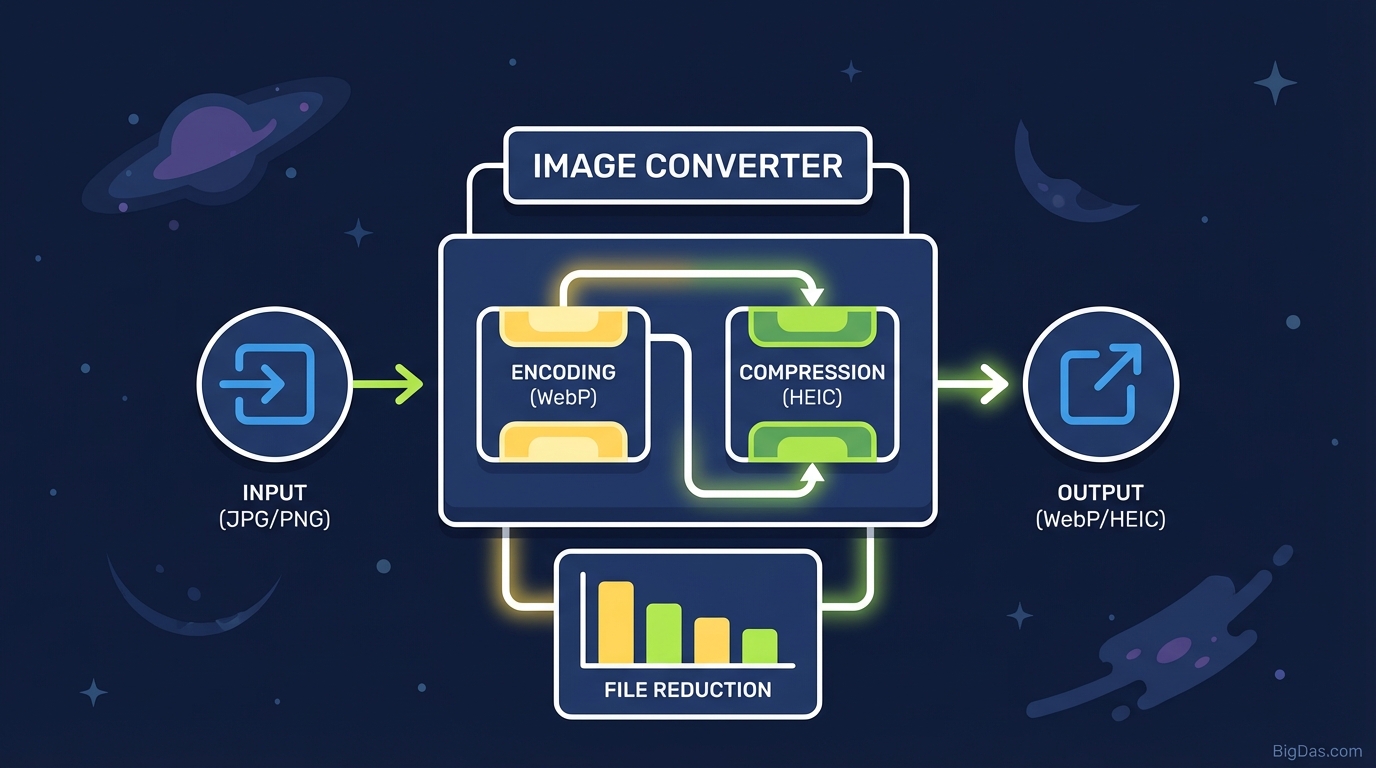
 Modern scientific illustration of Image Converter (WebP/HEIC)
Master Image Formats: A Practical Guide to Converting WebP & HEIC to JPG/PNG
You snap a photo on your iPhone and try to upload it to your company website or a forum. The upload fails with a "File format not supported" error. The photo is a HEIC file, and the destination expects JPG or PNG.
Or you are building a mood board and download a batch of images from the web, only to find they are in Google's WebP format, which your editing software will not open.
WebP and HEIC compress well, but they do not have the universal support of JPG and PNG. The Image Converter (WebP/HEIC) handles this gap. This guide covers why these formats exist, why they cause problems, and how to convert them.
What is the Image Converter (WebP/HEIC)?
The Image Converter (WebP/HEIC) is a browser-based tool that transcodes modern image formats into widely supported ones. It targets photographers, web developers, and content creators who need reliable format compatibility.
The HEIC Problem
HEIC (High Efficiency Image Container) is Apple's container for the HEIF standard, introduced in iOS 11. It stores high-resolution images at roughly half the file size of an equivalent JPG.
- Advantage: Saves significant storage on the device.
- Drawback: Windows PCs, Android devices, and most CMS platforms (including WordPress) do not display HEIC files natively.
The WebP Problem
WebP is Google's image format built for the web. It provides strong lossless and lossy compression.
- Advantage: Reduces page weight and improves load times.
- Drawback: Desktop publishing software, print shops, and older email clients often fail to render WebP files.
The Image Converter re-encodes HEIC and WebP into JPG (Joint Photographic Experts Group) or PNG (Portable Network Graphics), the two formats supported on virtually every device, browser, and software package.
Key Features
Most online converters either compress images heavily or upload them to a remote server. This tool is built around local processing, transparency handling, and batch operations.
1. Conversion Quality
The conversion engine prioritizes fidelity over file size reduction. Converting a vector graphic from WebP to PNG or a portrait from HEIC to JPG preserves the source color profile and resolution.
2. Client-Side Processing
The tool runs in the browser using WebAssembly. Conversion happens locally, so there is no upload queue or server processing time.
3. Local Processing and Privacy
Because files never leave the device:
- No uploads to a remote server.
- No copies stored after the tab closes.
- No risk of data leakage through a third-party service.
4. Batch Conversion
Drop a folder of 50 HEIC photos into the tool and convert them in a single pass instead of one at a time.
5. Transparency Preservation
When converting WebP files with transparent backgrounds, the tool detects the alpha channel and recommends PNG so the transparency survives the conversion.
How to Convert Images
The interface is straightforward. No setup is required.
Step 1: Upload Files
Open the tool and locate the drop area.
- Drag and drop WebP, HEIC, or HEIF files into the box.
- Or click "Select Files" to browse the filesystem.
- Multiple files can be selected at once.
Step 2: Choose the Output Format
Pick the target format based on the content:
- JPG for photographs and images where smaller file size matters (email, social media, photo galleries).
- PNG for graphics, screenshots, logos, or any image that needs sharp edges and transparency.
Step 3: Adjust Quality (Optional)
The quality slider controls the JPG compression level.
- 100%: Maximum quality, largest file.
- 80%: A common web setting that is visually indistinguishable from the source at a fraction of the size.
Step 4: Convert and Download
Click "Convert". When processing finishes, download files individually or as a single ZIP archive.
Technical Advice: Choosing the Right Output Format
The right output depends on what the image contains and where it will be used.
Scenario A: Real Estate Photography
Problem: Photos taken on an iPhone (HEIC) need to be uploaded to Zillow or the MLS, which reject HEIC uploads. Solution: Convert HEIC to JPG. Why: Real estate portals require standard formats. JPG handles the color gradients in interior and exterior photos at a reasonable file size.
Scenario B: Web Design Assets
Problem: An icon set is in WebP, but it needs to be edited in an older version of Photoshop or dropped into a PowerPoint deck. Solution: Convert WebP to PNG. Why: Icons have hard edges and flat color regions. JPG compression introduces visible artifacts along those edges. PNG is lossless, so the edges stay clean. If the icons have a transparent background, only PNG will preserve the alpha channel.
Common Use Cases
E-Commerce Managers Inventory systems used by suppliers and internal teams often reject HEIC uploads. Converting to JPG before submission avoids upload errors.
Graphic Designers Clients frequently send assets labeled as "photos from my phone" in HEIC format. Older versions of Adobe Illustrator and InDesign do not import HEIC. Converting to JPG or PNG before opening saves time.
Windows Users Windows 10 and 11 support HEIC, but usually require a paid extension from the Microsoft Store. A browser-based converter avoids the purchase.
Government and Corporate Forms Visa applications, insurance portals, and similar forms typically accept JPG or PDF only. HEIC uploads are rejected automatically.
Frequently Asked Questions (FAQ)
1. Is converting HEIC to JPG lossy?
JPG is a lossy format by design. The conversion engine re-encodes at high quality so the visual difference from the source is negligible. For bit-for-bit fidelity, convert HEIC to PNG, but expect a larger output file.
2. Can I just rename .heic to .jpg?
No. The file extension is only a label. Renaming does not re-enode the image data, so the file will appear corrupted. The conversion engine has to decode the HEIC and re-encode it as JPG.
3. Is there a file size limit?
Because processing happens in the browser, the limit is the available RAM on your device rather than a server-side cap. Very large files may slow the browser or fail if memory runs out.
4. Does the tool strip EXIF data?
By default, conversion often removes metadata such as GPS coordinates, camera model, and timestamps. This is useful for privacy when sharing photos online. If metadata needs to be preserved, check whether the tool exposes a setting for it.
5. Does it work on mobile?
Yes. The interface is responsive. Open the site on Android or iPhone, select photos from the gallery, convert, and save the output to the Files app.
Conclusion
Apple uses HEIC, Google uses WebP, and most software and platforms still expect JPG and PNG. The Image Converter (WebP/HEIC) handles the mismatch by re-encoding files locally in the browser, with support for batch jobs, transparency, and quality control. It covers the gap between what your device produces and what your software can open.