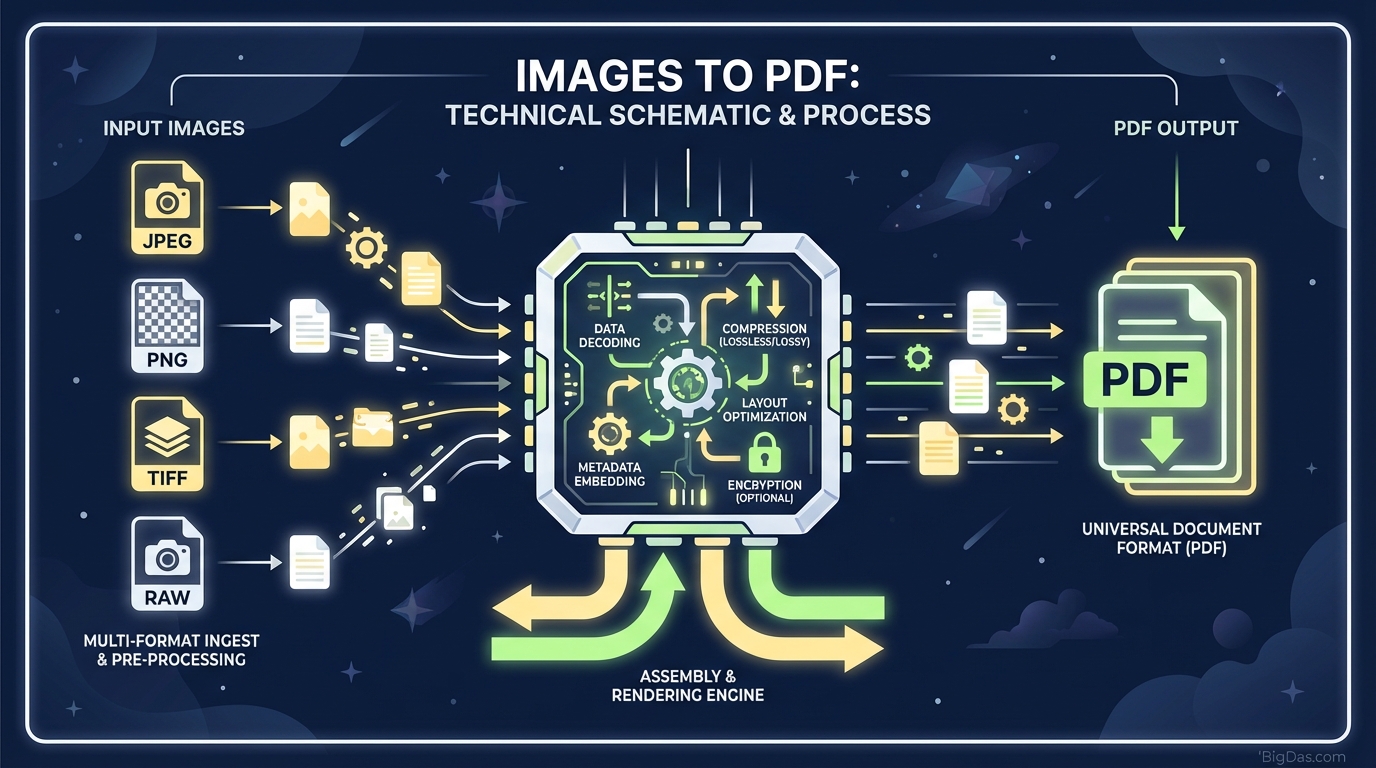
Images to PDF
 Images to PDF: modern scientific illustration
Images to PDF: How to Convert JPGs & PNGs into Professional Documents
Attaching ten separate JPG files to an email looks messy and is hard to download. A better approach is to bundle those images into a single Portable Document Format (PDF) file, which works on every device and keeps the layout intact.
This guide explains how an Images to PDF tool works, why converting your files is worth the effort, and how to get clean results.
What Is the "Images to PDF" Tool?
An Images to PDF converter takes raster graphics (JPG, PNG, BMP, TIFF) and places them into a multi-page PDF document. The pixel data stays the same; only the container changes.
The Technical Difference
- Raster Images (JPG/PNG): Designed for screen display. They show compression artifacts and can render differently across devices.
- PDF: A fixed-layout document format. It locks in fonts, spacing, and page structure, and supports metadata, passwords, and multiple pages in one file.
The Images to PDF tool maps each uploaded image to a PDF page, preserving resolution and aspect ratio.
Key Features & Benefits: Why Convert?
1. Universal Compatibility
PDFs open on iPhones, Android tablets, Windows PCs, and Linux servers without compatibility issues. Recipients do not need a specific image viewer.
2. Batch Merging
Upload 20 images and receive one scrollable document.
- Before: 15 separate email attachments.
- After: A single PDF file.
3. Lossless Quality Preservation
The tool respects the original DPI (Dots Per Inch). If the source image is sharp, the PDF page remains sharp when printed.
4. Reduced File Size
Combining images into a PDF often produces a smaller file than the originals zipped together, because PDF compression handles repeated visual data efficiently.
5. Encryption Support
PDF supports password protection and permission restrictions. Image formats do not. Converting sensitive scans (IDs, financial documents) to PDF allows you to add a password before sharing.
Step-by-Step Guide: How to Use Images to PDF
Step 1: Selection and Upload
Open the Images to PDF tool. Drag and drop files or pick them from your device.
- Supported Formats: JPG, JPEG, PNG, BMP, TIFF, GIF.
- Note: Multiple files can be uploaded at once.
Step 2: Arrangement and Ordering
Thumbnails appear after upload. Drag them into the order you want. The top-left thumbnail becomes page 1.
Step 3: Customization
Before converting, adjust the following settings:
- Orientation: Portrait or Landscape. Match the orientation of the majority of your images.
- Margin: A small white border mimics a printed page. "No Margin" fills the entire page with the image.
- Page Size: A4 or Letter by default. Change it if you need Legal, A3, or a custom size.
Step 4: Conversion
Click "Convert to PDF". The tool processes the images, merges them, and encodes the PDF. Conversion takes a few seconds for typical batches.
Step 5: Download
Click the "Download" button and save the file. The PDF is ready to send.
Expert Advice: Getting the Most Out of the Tool
1. Pre-Edit Your Images
Crop and rotate photos before uploading. The converter places each image as-is. Clean source material produces a clean document.
2. Match Aspect Ratios
Using images with similar proportions keeps page sizes consistent. Mixing a square icon with a panoramic photo creates uneven pages.
3. Rename the Output File
Replace download-2938.pdf with a descriptive name like Marketing_Portfolio_2023.pdf. Descriptive filenames are easier to search and look more professional when attached to emails.
Why You Need This Tool: Real-World Use Cases
Freelancers and Creatives
Designers and photographers send portfolios as PDFs so clients view the work in the intended order. A folder of loose JPEGs risks being opened out of sequence.
Students and Academics
Homework and lab notes are often photographed and submitted online. Grading platforms (Blackboard, Canvas) usually require a single PDF rather than multiple image files.
Business Professionals
- Expense Reports: Photograph 20 receipts, merge them, and send one PDF to accounting.
- Contracts: Scan pages, convert to PDF, and send for a digital signature.
Real Estate Agents
Property photos converted to a PDF brochure are easier to email than a set of high-resolution image files.
Frequently Asked Questions (FAQ)
Q1: Will converting my JPG to PDF reduce the image quality?
A: No. The tool uses lossless conversion, preserving the original resolution. A low-resolution source image will still appear low-resolution in the PDF.
Q2: Can I combine different file types, like PNG and JPG, into one PDF?
A: Yes. The tool accepts mixed formats. Uploading three JPGs, two PNGs, and one TIFF produces a single PDF with six pages.
Q3: Is it safe to upload private documents?
A: Files are processed automatically and deleted shortly after conversion. No one else can access them.
Q4: Does the tool work on mobile devices?
A: Yes. The tool runs in a browser, so it works on iOS and Android. You can photograph a document and convert it to PDF immediately.
Q5: How many images can I convert at once?
A: The tool handles batch uploads. Specific limits depend on the platform, but dozens of images per session are supported.
Conclusion
The Images to PDF tool consolidates scattered image files into a single document that opens correctly on any device. Students, freelancers, and business users all benefit from the cleaner output, smaller file size, and built-in encryption options.
Convert your images, rename the file, and send one attachment instead of ten.