Split PDF
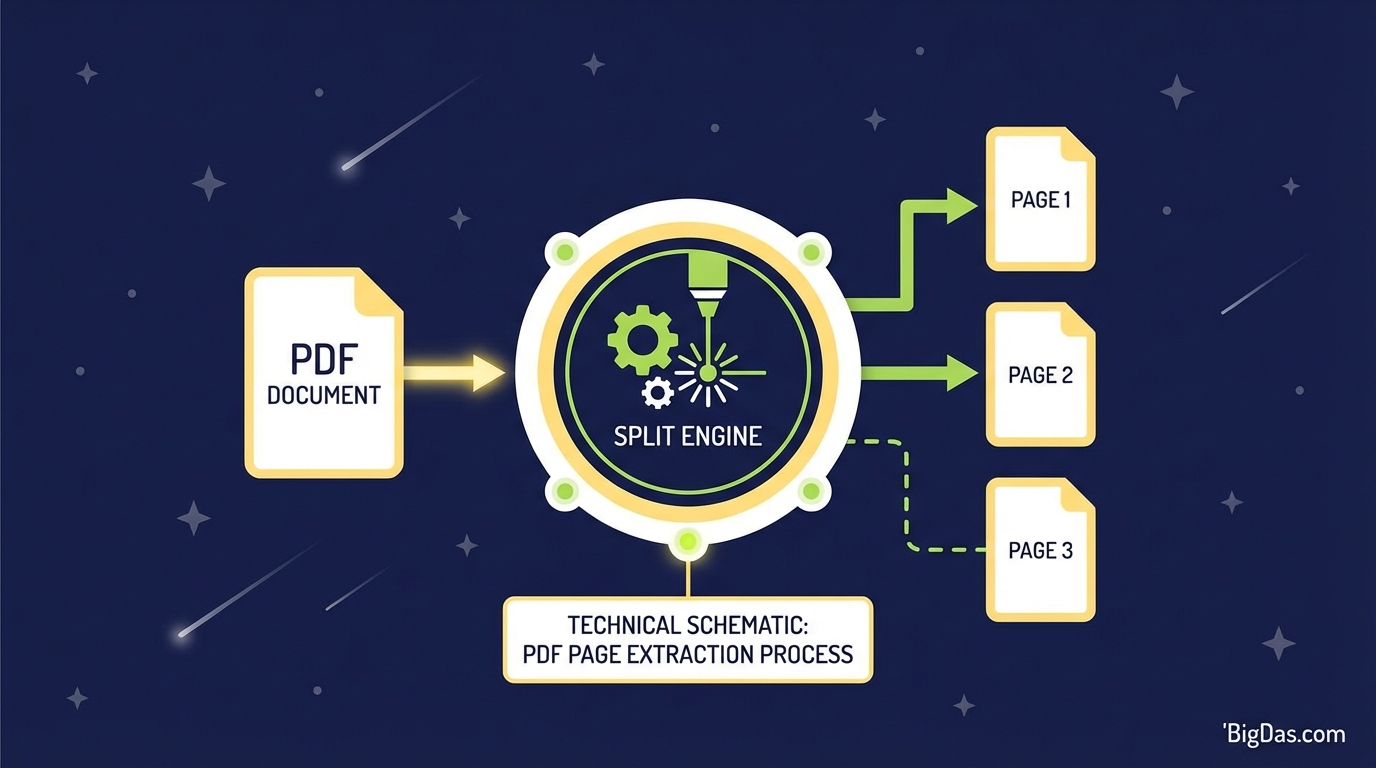
 Modern scientific illustration of Split PDF
Split PDF: Extract Pages and Manage Your Documents
A 200-page PDF arrives in your inbox. You only need three pages. Emailing the full file bounces back due to attachment limits. Screenshots look blurry and unprofessional.
PDFs are the standard format for sharing documents because they preserve layout across devices. That same feature, locking content in place, becomes a problem when you need to pull out specific information.
The Split PDF tool solves this. It lets you extract pages, ranges, or burst entire documents into individual files without installing software.
This guide explains how the tool works, why browser-based splitting is faster and safer than desktop software, and how to extract pages step by step.
What Is the Split PDF Tool?
Split PDF parses the internal structure of a PDF document (text objects, images, fonts, vector graphics) and lets you deconstruct it into smaller parts.
You can:
- Extract Specific Pages
- Pull page 10, 12, and 50 into a new document.
- Separate Ranges
- Isolate a chapter (e.g. pages 20 to 40).
- Burst a Document
- Convert a 10-page PDF into 10 separate one-page files.
The tool performs this extraction non-destructively. Your original file stays untouched. The new file contains a copy of the selected pages with formatting, resolution, and metadata preserved.
Key Features and Benefits
1. Lossless Extraction
Many free tools rasterize pages during the split process, converting text into an image. This breaks text selection and searchability (OCR), and the text looks pixelated.
This tool maintains vector quality. Text remains selectable. Images keep their original DPI.
2. Visual Page Selection
Instead of typing "1,4,9-12" into a command line, you see thumbnails of every page and click to select. You can verify your selection before processing.
3. Cloud-Based Processing
Splitting happens on the server, not your machine. A 500MB manual and a 2MB form take the same time to process. Your computer's RAM and CPU do not matter.
Works on low-spec laptops, tablets, and phones.
4. File Security
When files contain contracts, tax returns, or personal data, security matters.
- HTTPS encryption for all file transfers.
- Auto-deletion of uploaded files from servers within 1 to 2 hours of processing.
5. Cross-Platform Support
Browser-based. Works on Windows, Mac, Linux, Android, and iOS. No installation required.
Step-by-Step Guide: How to Separate PDF Pages
Step 1: Upload Your Document
Go to the Split PDF tool page. Drag and drop your file into the workspace, or click "Select File" to browse your device. You can also import from Google Drive or Dropbox.
Step 2: Choose Your Split Mode
Once the file loads, you see two main options:
- Extract Pages: Click individual page thumbnails to select them.
- Split by Range: Enter a range (e.g. 1-5, 10-15).
If you want every page as a separate file, look for a "Split All" or "Burst" option.
Step 3: Customize the Output
If you selected non-consecutive pages (e.g. page 2 and page 55) and want them in one new document, check "Merge extracted pages into one PDF." Otherwise, you download a ZIP file containing separate PDFs.
Step 4: Process and Download
Click "Split PDF". The server processes the file. When complete, click "Download" to save the result to your device or back to cloud storage.
Real-World Use Cases
Corporate: Invoicing and Reporting
Accounting often scans invoices in bulk, producing one PDF with 50 separate invoices. Split the file into 50 individual documents and email each to the correct client.
For a quarterly report, extract only the "Marketing" section (5 pages) to share with that team instead of the full 80-page document.
Legal: Redaction by Omission
Discovery documents can run thousands of pages. If a section contains privileged information, extract only the admissible pages into a new file. If the page isn't in the file, the data isn't recoverable.
Academic: Thesis and Research
Downloaded a 200MB textbook but only need one chapter? Extract that chapter (2MB) and delete the rest. Saves disk space and keeps your reference library organized.
Real Estate: Transaction Packets
A closing packet is 100+ pages. The bank only needs the "Signed Purchase Agreement" and "Proof of Funds." Split the digital file and send exactly those pages instead of printing and rescanning.
Best Practices
1. Rename Files Immediately
Don't save extracted files as "Split-1.pdf." Rename to something like "Q3-Report-Financials-Only.pdf" so you can find them later.
2. Watch for Broken Hyperlinks
Some PDFs contain internal links (e.g. a Table of Contents linking to page 50). If you extract pages 1 to 10, the links pointing to page 50 will no longer work. Check for this before sending documents to clients.
3. Combine with Other Tools
Splitting is often step one.
- Split + Merge: Extract pages from three different reports, then use a Merge PDF tool to combine them into a single summary.
- Split + Compress: If the extracted range is still too large due to high-resolution images, run it through a Compress PDF tool to reduce the file size for email.
Frequently Asked Questions (FAQ)
1. Is it free to split PDF files online?
Yes. The basic Split PDF tool is free and requires no credit card.
2. Will the quality of my PDF decrease after splitting?
No. Pages are extracted exactly as they exist. Text sharpness, image resolution, and formatting match the source file.
3. Can I split a password-protected PDF?
Yes, but you need the password. Enter it when uploading to unlock the file. The resulting split files are usually unencrypted unless you add a password afterward.
4. Is my data safe?
Files transfer over HTTPS and are deleted from servers shortly after processing. Documents are not read, stored long-term, or shared.
5. Can I split a PDF on my phone?
Yes. The interface is responsive and works in any mobile browser (Chrome, Safari, etc.) on iPhone or Android.
Conclusion
PDFs lock content in place for a reason: consistency. That same property makes them awkward when you only need a portion of the file.
The Split PDF tool extracts pages without quality loss, processes files in the cloud, and works on any device. Whether you need one page or a full burst of a 500-page document, the steps are the same: upload, select, download.