PDF to JPG Converter
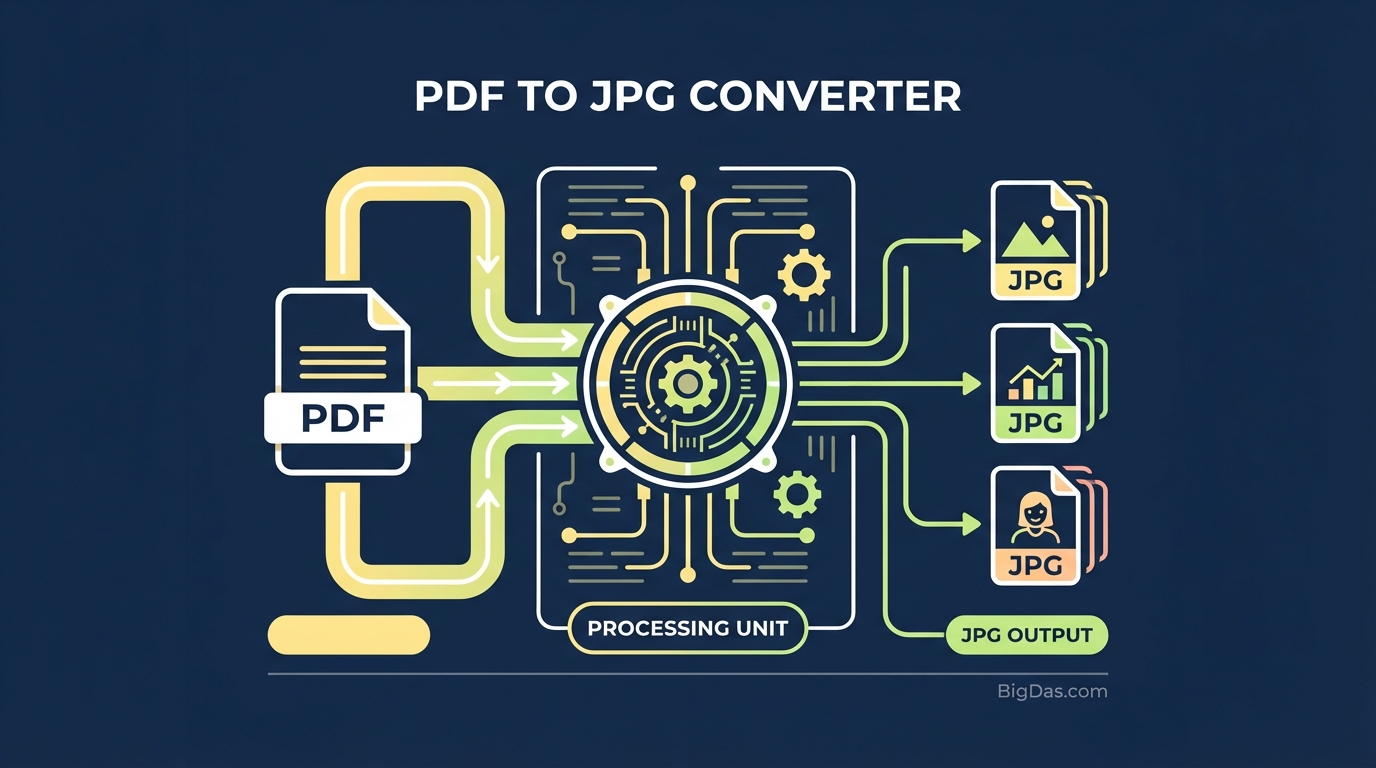
 Modern scientific illustration of PDF to JPG Converter
PDF to JPG Converter: Turn Documents into High-Resolution Images
The Portable Document Format (PDF) is the standard for sharing documents. It preserves formatting, fonts, and layout across devices. However, PDFs have one major limitation: they do not work well with visual platforms.
Have you tried uploading a PDF to Instagram? Embedding a PDF page into an email body, only to see it as a clunky attachment icon? Or inserting a PDF chart into PowerPoint, only to have the software distort the image?
The fix is format conversion. Specifically, a PDF to JPG Converter.
This guide covers how our PDF to JPG tool works, why high-resolution rasterization matters, and how to convert documents into shareable images in seconds.
What is a PDF to JPG Converter?
A PDF to JPG Converter is a rendering tool that converts vector data and embedded elements inside a PDF into a raster image (JPG).
Vector vs. Raster
To understand the value of this tool, you need to know the difference between the two file types:
- PDF (Vector & Container): PDFs often contain text and graphics defined by mathematical formulas (vectors). You can zoom in infinitely without pixelation.
- JPG (Raster): JPGs are grids of colored pixels. They are the standard for digital photography and web images because they compress well while maintaining visual quality.
When you use our tool to convert PDF to JPG, the engine takes a snapshot of your document at a specific resolution (DPI - Dots Per Inch). It flattens the layers of text, images, and vectors into a single image file.
This process changes a document meant for reading and printing into an asset meant for viewing, sharing, and embedding.
Key Features & Benefits
Not all converters are the same. Many online tools use outdated rendering engines that produce blurry text, jagged edges, or compression artifacts (visible noise) in the final image.
Our PDF to JPG Converter is built for users who need accurate, clean output.
1. High-Resolution Output (300 DPI+)
Standard web converters often default to 72 DPI (screen resolution), which looks fine on a phone but blurry on a desktop or in print. Our tool renders pages at high resolutions suitable for presentations and print media.
2. Page Separation
If you upload a 50-page PDF contract, you do not want a single image that is 50,000 pixels tall. Our tool converts each page into a separate JPG file. You can download them individually or as a ZIP archive.
3. Compression
JPG is a lossy format, meaning it removes some data to save space. Our tool uses compression that reduces file size while keeping the image clear. You get a lightweight file that loads quickly on websites without looking grainy.
4. No Software Installation
This runs in the cloud. Whether you are on Windows, macOS, Linux, Android, or iOS, the conversion happens in your browser. There is no software to install and no load on your device's processor.
5. Security
PDFs often contain sensitive data: financial reports, legal contracts, or personal IDs. Our pipeline uses SSL (Secure Sockets Layer) encryption. All files are deleted from our servers shortly after conversion. Your privacy is protected.
How to Convert PDF to JPG: Step-by-Step
Step 1: Prepare Your Document
Make sure your PDF is not password-protected (or have the password ready to unlock it before conversion).
Step 2: Upload the File
Drag and drop your PDF into the upload box, or click "Select File" to browse your device. Our tool supports batch processing, so you can upload multiple files at once.
Step 3: Choose Your Settings (Optional)
Depending on the version, you may see options for "Normal" quality (smaller file size, good for web) or "High" quality (larger file size, better for print or slides).
Step 4: Convert and Process
Click the "Convert to JPG" button. The engine renders the pages. For an average document, this takes less than 5 seconds.
Step 5: Download Your Images
- Single Page PDF: Click "Download JPG."
- Multi-Page PDF: Download a ZIP file containing all pages as numbered images (e.g.,
doc-page-1.jpg,doc-page-2.jpg).
Top Use Cases
1. Social Media Marketing
Instagram, Pinterest, Facebook, and Twitter do not support PDF uploads for posts.
- The Fix: Convert your PDF flyer, event poster, or infographic into a high-res JPG and post it directly to your feed or story.
- Tip: Convert a multi-page PDF guide into a sequence of JPGs to create a carousel post on LinkedIn or Instagram.
2. Presentation Decks (PowerPoint & Keynote)
Embedding a PDF object into a slide deck is risky. It often launches an external PDF reader, breaking your flow.
- The Fix: Convert PDF graphs and data sheets into JPGs. Drag and drop them onto your slides like any other photo. They load instantly and never break during a presentation.
3. Website & Blog Optimization
Browsers can display PDFs, but they load inside a viewer frame that adds friction.
- The Fix: Use a converted JPG for document previews. It loads faster, adapts to mobile screens, and improves your PageSpeed metrics.
4. Creative Design & Mood Boards
Designers often receive assets in PDF format.
- The Fix: Converting to JPG lets you import pages into Photoshop, Canva, or Figma to crop, edit, or add them to mood boards.
5. Universal Compatibility
Not every mobile device has a reliable PDF reader, but every device can open a JPG. Sending a JPG ensures the recipient sees exactly what you see, without font errors or missing plugin warnings.
Tips for Better Conversions
Watch the Aspect Ratio
PDFs are usually A4 or Letter size (8.5x11). Instagram stories use a 9:16 ratio, while posts use 1:1 or 4:5. You may need to crop your converted JPG to fit the platform.
Text Readability
JPG is a raster format. If you convert a text-heavy PDF at low quality, the text may become fuzzy. Select "High Quality" or "HD" if the document contains small fonts (10pt or smaller).
CMYK vs. RGB
Most print-ready PDFs use the CMYK color space. Most screens display in RGB. Our tool handles this conversion automatically, but be aware that neon colors may shift slightly when going from print-ready PDF to web-ready JPG.
Frequently Asked Questions (FAQ)
1. Will image quality decrease during conversion?
Not with a high-quality converter. We use high DPI rendering. JPG is compressed, so there is a small data loss, but it is rarely visible unless you zoom in significantly.
2. Can I convert a PDF back to a JPG later?
Yes, but the process is different. You would use a "JPG to PDF" tool. Note that the text in the new PDF will be an image of text, not selectable or searchable text, unless you use OCR.
3. Is there a file size limit for uploads?
To keep processing fast for all users, there is a generous limit (e.g., 50MB per task). This covers most documents, including heavy graphical reports.
4. Does this tool work on mobile phones?
Yes. The interface is responsive. You can convert files from your iPhone or Android browser and save the images to your camera roll or Files app.
5. Is it free to use?
Yes, the core features of our PDF to JPG Converter are free. We provide accessible tools for document management.
Conclusion
Sticking rigidly to the PDF format can slow you down. Whether you are a social media manager sharing content, a student submitting slides, or a professional trying to make a document universally accessible, converting to images is often the better move.
Our PDF to JPG Converter combines speed, security, and high-fidelity rendering to produce clean images every time.