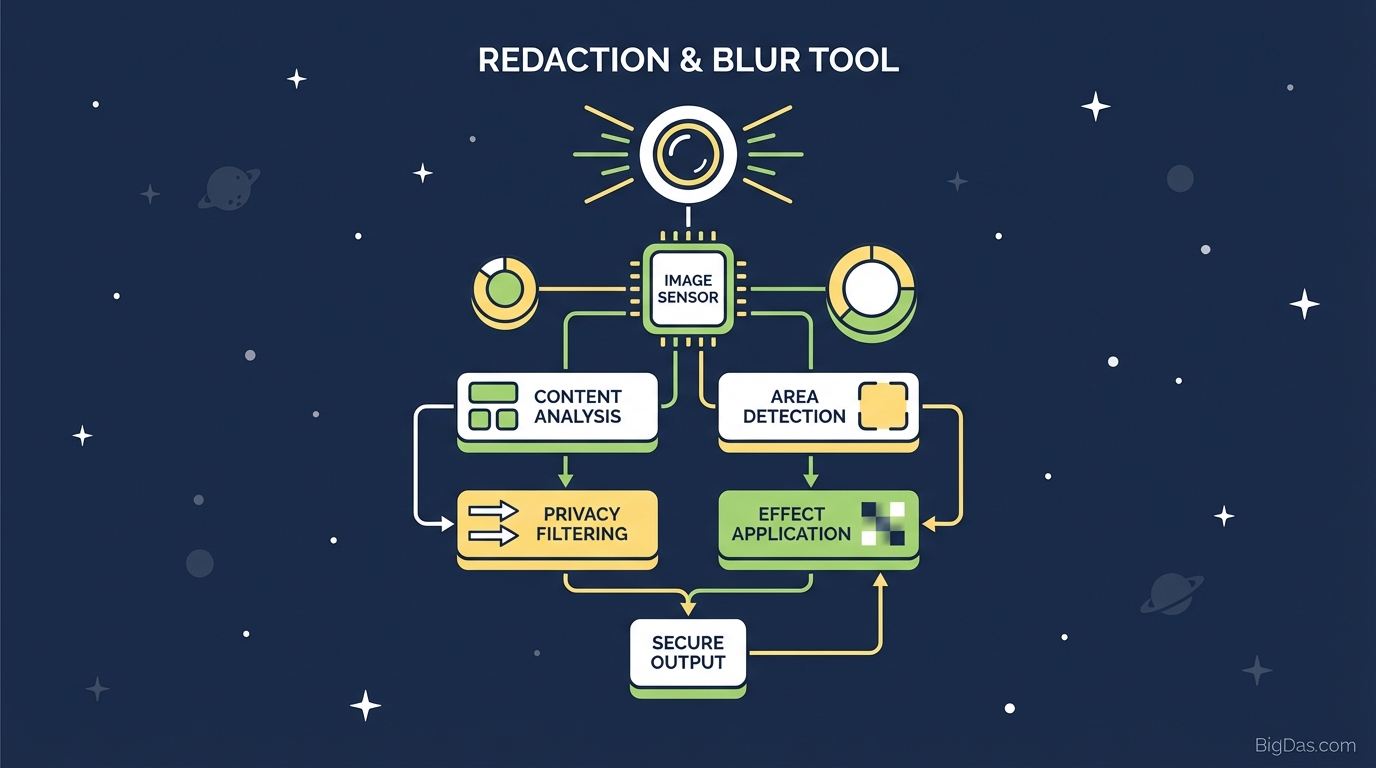
Redaction & Blur Tool
 Redaction & Blur Tool
Secure Your Screenshots With a Redaction & Blur Tool
Screenshots are everywhere: bug reports, chat logs, invoices, payment proofs. They also leak. A visible password, phone number, or credit card digit can lead to identity theft, security incidents, or violations of GDPR and HIPAA.
A standard paint "scribble" does not fix this. Scribbles are often semi-transparent and recoverable with simple contrast adjustments.
The Redaction & Blur Tool processes images locally in your browser and overwrites sensitive pixels with either a heavy Gaussian blur or a solid black bar.
What Is the Redaction & Blur Tool?
The Redaction & Blur Tool is a browser-based image processor for privacy. It replaces sensitive regions in an image with professional-grade obfuscation.
Why "Scribbling" Fails
Built-in markup tools (iOS Markup, Windows Snip & Sketch, etc.) use semi-transparent layers. A 2020 report from security firm Fraunhofer FKIE showed that marker-style redactions in common PDF and image editors can be removed with basic filters. The tool here avoids this by writing new pixel data directly into the selected region.
Key Features
1. Client-Side Processing
All edits happen in your browser using the Canvas API. No upload step, no server, no telemetry. The image file never leaves your device.
2. Dual Obfuscation Modes
- Blur: Gaussian blur. Useful for faces, background detail, or thumbnails where shape should remain visible.
- Redact (Blackout): Solid 100% opaque black rectangle. This is the correct choice for text: passwords, API keys, addresses, account numbers.
3. Pixel-Perfect Selection
Drag handles let you box out a single word, a single line, or a UI element. You can place multiple boxes on one image.
4. Metadata Stripping
The tool removes EXIF data on export. GPS coordinates, device model, and timestamps are stripped from the output file.
5. No Installation
No account, no watermark, no executable to install. Open the page and use it.
How to Use the Tool
Step 1: Upload
Drag and drop a PNG, JPG, JPEG, or WebP file into the drop zone. The file is read into browser memory; it is not uploaded.
Step 2: Choose a Mode
- Use Redact for any text where the value matters: credentials, tokens, account numbers, email addresses.
- Use Blur for faces or background elements where context is fine but detail is not.
Step 3: Select Areas
Click and drag to draw a box. The effect renders in real time. Create as many boxes as needed. Small, targeted boxes keep the rest of the screenshot readable.
Step 4: Export
Review the image for missed fields (sidebar emails, URL bars, notification text). Click "Download Redacted Image." The output is flattened: the black bars and blur are baked into the pixel data and cannot be undone.
Common Use Cases
Developers and QA
Bug reports to GitHub, Jira, or Linear frequently contain leaked secrets. API keys, database URIs, and customer emails end up in screenshots because the developer did not notice them. Run every screenshot through the tool before submission.
HR and Finance
Payroll screenshots, candidate resumes, and payment confirmations contain SSNs, salaries, and bank details. Redact before sharing internally or with vendors.
Customer Support
Users often send screenshots that include their own passwords or card numbers. Support agents must sanitize these before forwarding to engineering or product teams.
Personal Sharing
Before posting a text exchange or a game screenshot on social media, blur profile pictures, real names, and any location cues.
Tips for Effective Redaction
Redact Context Too
Black bars over a field labeled "State" still leak data if a ZIP code "90210" is visible below it. Redact the label as well when the surrounding text narrows down the hidden value.
Avoid Swirl and Pixelation
Light pixelation and swirl effects have been reversed by AI-based depixelation tools. A 2023 paper by TU Darmstadt demonstrated successful reconstruction of pixelated faces. Stick to heavy Gaussian blur or, preferably, solid redaction. Solid colors are mathematically a single value per channel, so there is no underlying data to recover.
Delete the Original
The original screenshot still exists in your Downloads folder or clipboard after export. Delete it once the redacted copy is verified.
Frequently Asked Questions (FAQ)
1. Is the redaction permanent?
Yes. On export, the image is flattened. The sensitive pixels are overwritten with the blur or blackout value. There is no "undo" layer in the output file.
2. Does it work on mobile?
Yes. The tool is responsive and works in modern iOS and Android browsers.
3. Does the tool store my images?
No. Processing is client-side only. The image is not transmitted to any server.
4. Will blurring reduce overall image quality?
No. Only the pixels inside your selected boxes are modified. The rest of the image is unchanged.
5. Is this GDPR/HIPAA compliant?
The tool supports GDPR and HIPAA compliance by enabling data minimization, but compliance also depends on your broader handling of the file (storage, transmission, retention).
Summary
A single exposed credential or address is enough to cause damage. The Redaction & Blur Tool runs locally, strips metadata, and flattens edits into the image so the redaction cannot be reversed. Use it before any screenshot leaves your device.