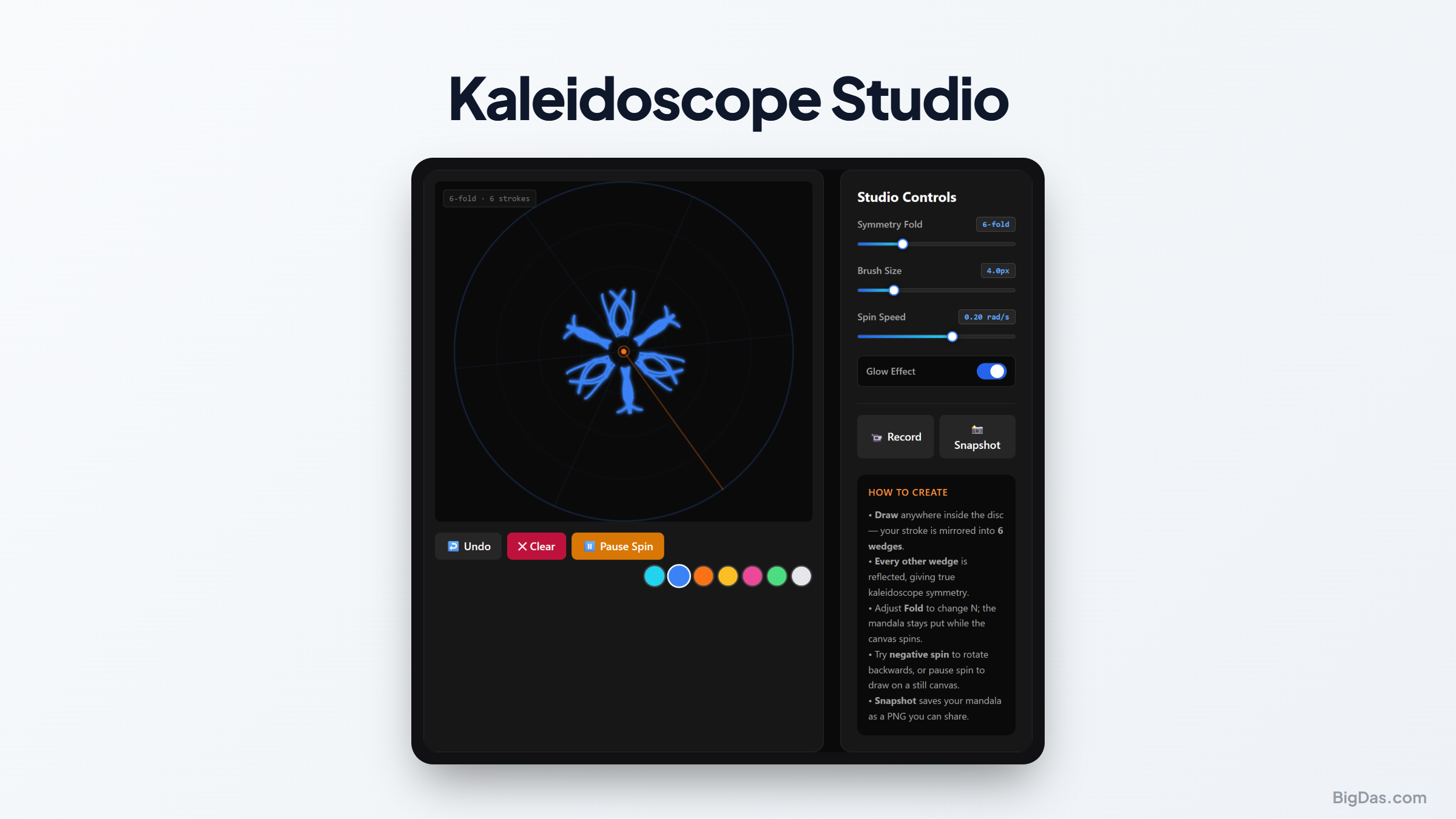
Kaleidoscope Studio
 Generated infographic and interface snapshot for Kaleidoscope Studio
Kaleidoscope Studio: Create Symmetric Mandala Art in Real Time
Symmetry draws attention. Snowflakes, cathedral windows, and flower petals share balanced structures that the eye recognizes as orderly. Producing these patterns by hand takes steady tools and patience.
Kaleidoscope Studio replaces that labor with a digital sandbox. You draw one line, and the software mirrors it across multiple axes at once, producing a mandala instantly. A rotation engine then spins the canvas, turning a static sketch into a moving composition.
Below is a breakdown of how the tool works, its main features, and a walkthrough for building your first design.
What is Kaleidoscope Studio?
Kaleidoscope Studio is a drawing canvas built around radial symmetry. In a standard paint program, a stroke stays where you place it. Here, each stroke is duplicated and reflected across a set of invisible pie-shaped segments that meet at a central point. A single mark becomes a full mandala.
Physical kaleidoscopes use mirrors and loose colored fragments to generate this effect. This studio applies the same principle to a brush input, then layers motion on top so the design rotates and shifts as you work.
Key Features
Dynamic Radial Mirroring
The mirroring engine supports a configurable segment count. Four segments produce a simple tile. Twelve segments create a denser star pattern. Twenty-four or more build intricate circular mandalas. The reflection updates in real time, so the image responds to every cursor movement.
Rotation and Movement
A built-in rotation engine spins the canvas or individual paths at a set speed. Drawing while the canvas rotates produces spiral effects that are difficult to achieve by hand. You can also disable rotation and work on a static frame.
Brush and Color Controls
Brush size, opacity, and smoothing are adjustable. The color palette supports gradients, and a color cycle option shifts the stroke color continuously as you draw. Smoothing reduces jitter from shaky hand movements, which is useful on touchscreens.
Particle and Physics Modes
The tool includes a particle mode. Released particles bounce off the mirror boundaries or follow a gravity vector, so the artwork can generate itself based on simple physics rules.
Step by Step Guide
Step 1: Set Up the Canvas
Open the application. The canvas shows thin guide lines marking the edges of each mirror segment. Pick a background color before drawing. A dark background increases contrast for bright strokes; a light background suits ink-style line work.
Step 2: Configure the Segments
The symmetry slider sets the number of mirror segments. A setting of 8 or 12 works well for first attempts: detailed enough to look complex, but not so dense that the canvas fills immediately. Higher counts create more intricate patterns.
Step 3: Configure the Brush
Pick a brush style. Start with a solid line to learn how the mirrors behave, then adjust the size to match the scale of your design. Turn on color cycling to produce rainbow strokes automatically.
Step 4: Draw a Stroke
Place the cursor near the center and drag outward. The studio mirrors the stroke across every active segment at once. Try loops, arcs, and dots. Simple input produces balanced output because of the radial layout.
Step 5: Add Rotation
Enable rotation. The canvas begins to spin around the center. Drawing on a rotating canvas produces spiral patterns. Adjust the rotation speed to find a rhythm that fits your drawing pace.
Step 6: Export the Result
Use the export menu to save a static PNG or an animated GIF or MP4. PNG files are suitable for print. Video exports preserve the rotation and motion.
Common Use Cases
Stress Relief and Mindfulness
Mandala drawing is a recognized relaxation activity. The tool lowers the skill floor: the mirroring does the balancing, so the user focuses on motion and color rather than accuracy. The combination of symmetry and slow rotation makes it a useful break or art-therapy aid.
Digital Asset Creation
Graphic designers can use the studio to generate circular backgrounds, frame borders, and central icons. The exported PNGs drop directly into Illustrator, Figma, or Photoshop.
Teaching Geometry
The tool works as a visual aid for rotational symmetry, reflection, and angle measurement. Changing the segment count and observing the resulting pattern makes abstract geometry concrete. Students can compare segment counts to central angles directly: 12 segments means 30° between reflections, 24 segments means 15°, and so on.
Textile and Pattern Prototyping
Fashion and surface-pattern designers can prototype circular prints, rug motifs, and embroidery layouts quickly. The radial layout matches the structure of many repeating textile patterns, so what works on screen is often ready for production.
Frequently Asked Questions
What is the difference between bilateral and radial symmetry?
Bilateral symmetry reflects an image across one axis, producing matching left and right sides. Radial symmetry reflects shapes around a central point across multiple axes, like spokes on a wheel. Kaleidoscope Studio uses radial symmetry.
Can I use a stylus?
Yes. The canvas accepts mouse, touch, and stylus input. Pressure-sensitive styluses can map pressure to brush size or opacity if the device supports it.
How do I clear the canvas?
The main toolbar has a clear button that wipes the canvas instantly. The undo function removes only the most recent strokes.
What export formats are supported?
Static designs export as PNG. Designs with rotation or motion can also export as GIF or MP4.
Do I need drawing experience?
No. Radial symmetry handles the balancing. Dots, lines, and arcs are enough to produce detailed patterns.
Final Thoughts
Kaleidoscope Studio combines a mirror system, a rotation engine, and a brush canvas into a single tool. It is useful for designers prototyping patterns, educators demonstrating symmetry, and anyone looking for a low-effort creative outlet. One brush stroke is enough to start.